


Question Display Logic
Question Display Logic is a type of skip logic that hides a certain question on a page unless the participant responds in a particular way to an earlier question. This feature allows you to ask questions to only those participants for whom the questions would be relevant.
The initial question is referred to as the ‘Decision’ question, and a question that depends on it is the ‘Show-Hide’ question. Show-Hide questions must be positioned later in the survey than the Decision question they follow, but they may be on the same page or separate pages.
Follow these steps to set up QDL:
- Create a new project or select a project to edit.
- Add all the questions in your survey, including both the qualifying ‘Decision’ question and the follow-up ‘Show-Hide’ question.
- Select Question Display Logic by clicking on Logic in the Design menu bar or by hovering over your Show-Hide question and clicking on Logic.

- A modal will appear to apply the QDL rule.
- Select the Show-Hide question from the Show drop-down. This is the question (or sub-question) that will be hidden from participants based upon the conditions applied.
- Next, select either of the following decision conditions based on which you want your Show-Hide question to be shown.
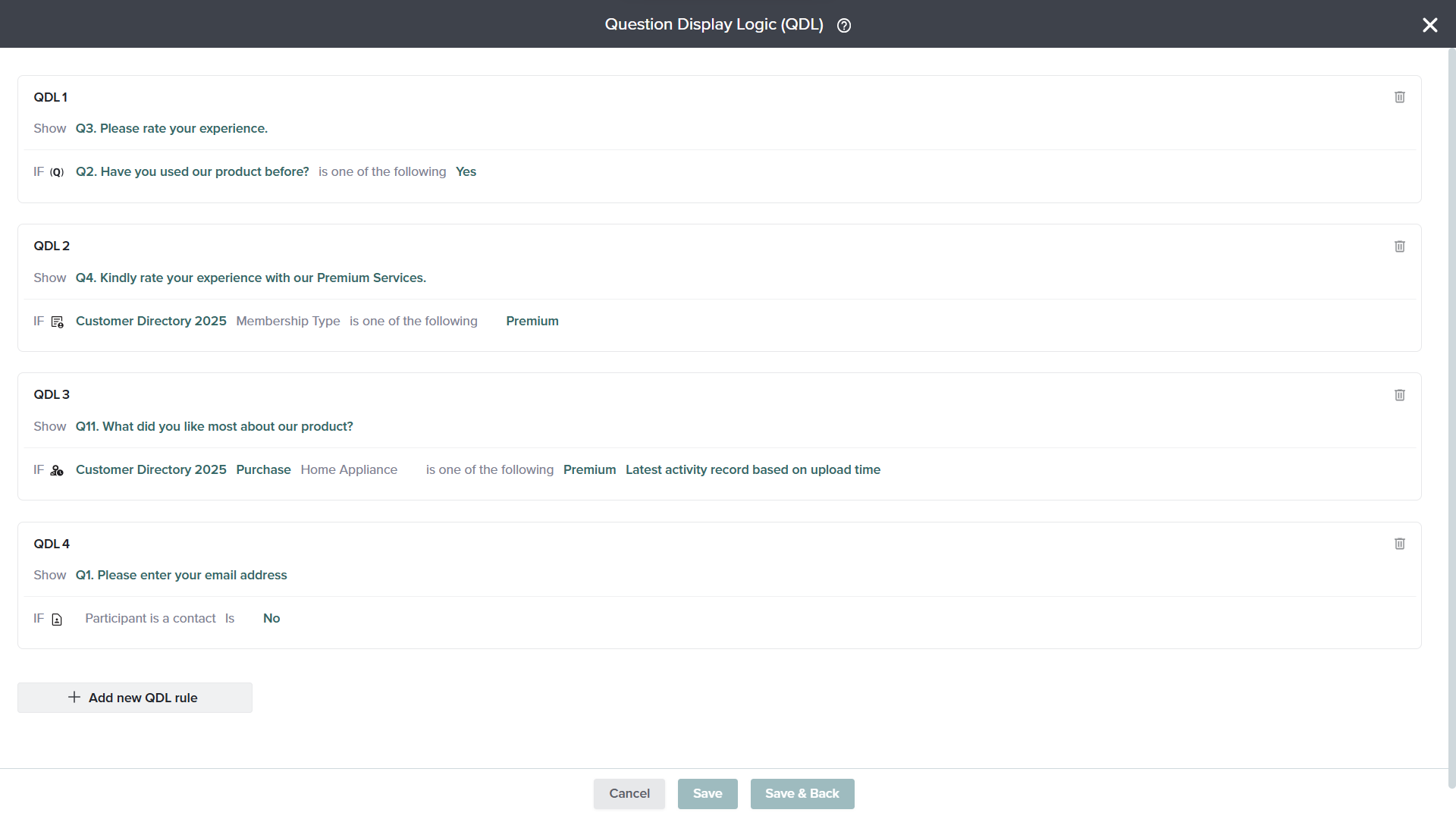
- Answer To Question:This condition allows you to show or hide a question based on a respondent’s answer to a previous question within the same survey. Only questions that appear before the Show-Hide question will be available here. Please note that Descriptive Text question cannot be set as a decision question.
- Contact Fields: This condition allows you to show or hide a question based on values stored in a Contact’s profile within a directory. This logic works only if the participant is associated with a contact record before reaching the page where the show/hide condition is applied.
- Activity Fields: This condition allows you to show or hide a question based on Activity Fields within a directory. Activity Fields typically represent transactional or event-based data associated with a contact, such as purchases, registrations, appointments, or service interactions. When Activity Field–based logic is applied, the platform evaluates the relevant activity record linked to the contact and determines whether a question should be displayed.
This logic works only if the Contact–Participant association has been established before the page where the show/hide question appears.
Activity-based Question Display Logic can be applied using two different criteria:
- Latest activity record based on upload time: This option evaluates the most recently uploaded activity record for a contact and applies logic based on that record.
- Activity record connected to the feedback:When publishing a project via Email or SMS, you have the option to link the invitation to a specific activity record. This allows you to collect feedback for a particular transaction or event.
When this option is selected, the Question Display Logic is evaluated based on the specific activity record linked to that invitation — not necessarily the latest one.
For example: Suppose you have a customer directory that includes an activity called Purchase. A client named Grace has two purchase activity records: in January, she purchased a mobile phone, and in February, she purchased a washing machine. If you configure Question Display Logic based on the latest activity record and then publish the project using the Purchase activity, the system will evaluate Grace’s most recently uploaded purchase, which is the washing machine from February. As a result, any QDL conditions applied to the Purchase activity will be evaluated using the washing machine record, ensuring that the survey displays questions relevant to her most recent purchase.
For example: Suppose your customer directory includes an activity called Purchase, and you configure Question Display Logic to show a question only when the Product Category = Electronics. When you publish the survey and link it to specific Purchase activity records (Activity Record Connected to the Feedback), the system evaluates each linked activity individually. As a result, the question will be displayed for all instances where the linked purchase satisfies the condition. For example, customers whose linked activity record is for a mobile phone or laptop (Electronics) will see the question, while those linked to a washing machine (Home Appliances) will not.
- Participant is a Contact: This condition allows you to show or hide a question when the survey participant is directly linked to an existing contact record in the Directory. If the participant is not a contact within the directory, the particular show hide question will not be displayed.
For example: If the respondent selects “Yes” to the question “Have you used our product before?”, the follow-up question “Please rate your experience.” will be displayed. However, if the respondent selects “No”, the experience-related questions will remain hidden, ensuring that only relevant questions are shown.
For example: Consider a directory named ABC_Customers that contains stored contact records for all registered users. One of the contacts in this directory, Grace Martin, has a field called Customer Type set to Premium. If a survey is sent to contacts from this directory and Question Display Logic is configured to show a specific question only when Customer Type = Premium, then Grace will see the premium-related question when she takes the survey. However, another contact in the same directory whose Customer Type is set to Standard will not see that question.
You cannot set a question as Show-Hide more than once, though a question can be set as a Decision question multiple times. A Decision question can have multiple Show-Hide questions.
- Choose conditions such as ‘is one of the following’ or ‘is not one of the following’. As needed, add multiple decision questions/conditions to a Show-Hide question.
- Save your settings.
- To set more QDL rules, click on the Add new QDL rule button and follow the same steps.
You can add up to 10 conditions within a single QDL rule. You can set up to 20 QDL rules on a page and up to 200 in a survey. Please note that limits vary by account type. Click here to learn more.
- To delete or edit a QDL rule, hover over that rule and select the appropriate option.
- To add, edit, or delete a condition within a QDL rule, edit the QDL rule and select the appropriate option.
- Preview your survey to ensure your Question Display Logic is functioning as intended.
- Question numbers will not be displayed on surveys in which QDL has been applied.
- If any question within a Matrix Grid is identified as a Show-Hide question, the entire Matrix Grid will be shown or hidden based on the display of that question.
- A Text Box set as a Show-Hide question can be displayed inside an immediately preceding Radio Button or Check Box question.
- A Text Box displayed inside a Radio Button or Check Box question will display based on the space available, not the width or height originally set.
- If an embedded Text Box question includes a linked video or image, the media will not be displayed.
The first question of your survey cannot be set as Show-Hide.
A Show-Hide question can be the Decision question for another Show-Hide question. This is known as nesting of Question Display Logic.
Good to Know:
Subscribe for tips and insights to drive better decisions!