Customize Your Notifications
Notifications give you the updates you want — when you want them and how you want them. Set your preferences and never miss a beat!
Note: Notifications are user-specific. Each User can set preferences to receive notifications via email, or in the Notifications section of the SogoConnect account. System Administrators cannot update notifications for other Users.
Customize Notifications
- To access Notifications Settings, click on your name at the top right-hand corner > Settings
- Under Your Settings, on the left-hand side of your screen, click on Notifications.
- By default, you’ll see your Notifications Stream. Learn more about this area below.
- Each item listed along the left is a triggering event, with each of the icons to its immediate right representing a mode of notification.
- Ticket’s Owner or Team Member: Email, or Web.
- To remove an event completely, deselect the checkmark to its left.
- To turn a specific alert on or off, simply click on the relevant icon. Green means active and gray means inactive.
- Click the Save button in the top right-hand corner to confirm any updates.
What Activity is Tracked?
The Notifications section captures the following activity and changes to Tickets:
- New Ticket received
- Ticket assigned to User
- User added to Ticket team
- Ticket closed
- Interest Area updated
- Response received from Customer
- Internal comment added to Ticket
- Ticket priority updated
- Feedback score received from Customer
- Ticket is Past Due
Notification Stream
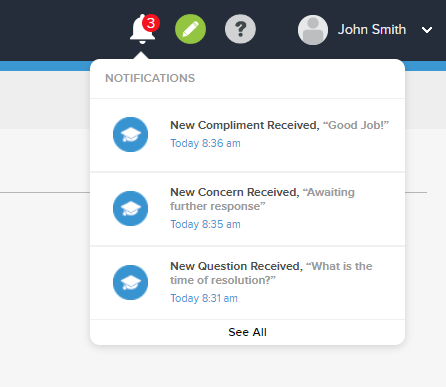
- Both web and mobile versions of SogoConnect include a notifications section.
- On the web, your notifications will appear in the bell icon found at the top right-hand corner.
- The number next to the bell icon indicates the number of new notifications you currently have.
- Click on the bell icon to reveal a quick view of the current notifications.
- Click on any notification to take you to the respective Ticket.
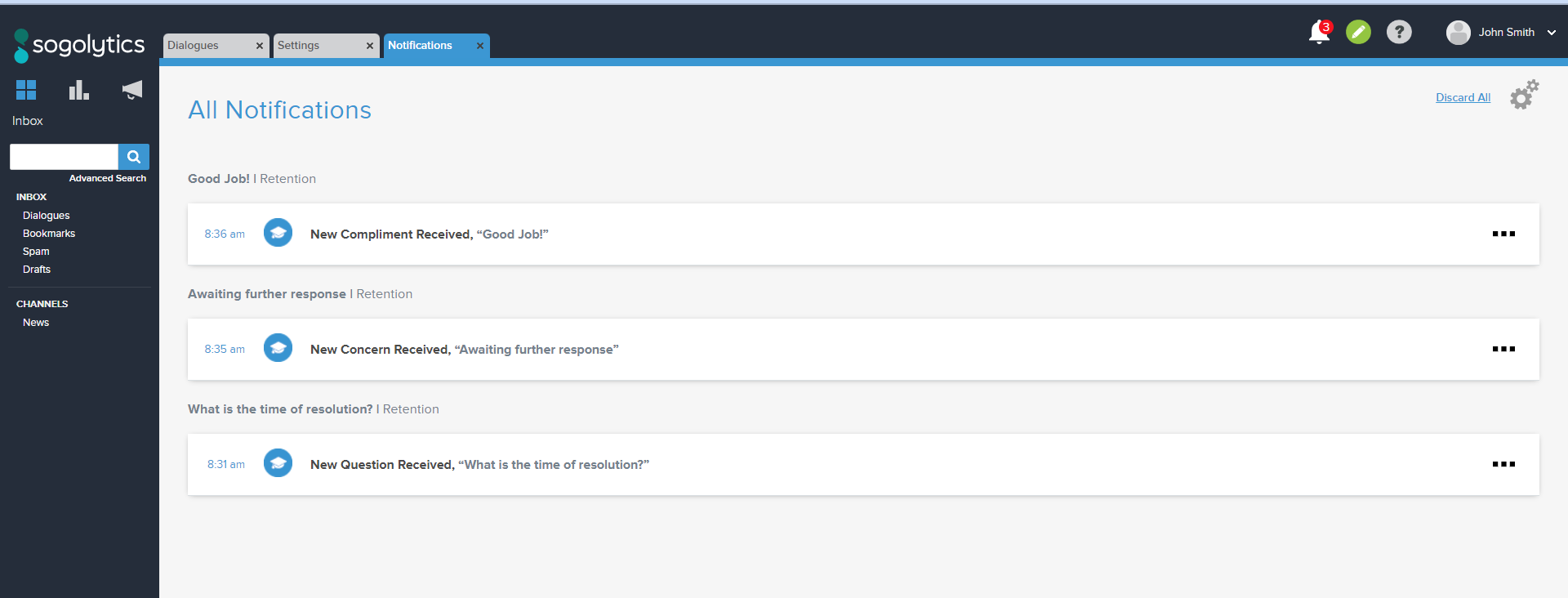
- Click See All to go to a full-screen notification page to review all notifications in detail, mute certain Tickets or delete the notifications.
- On the top right-hand corner of the full-screen page, click on the cogwheel icon to customize notification preferences.
Love it when you
know more?
Subscribe for tips and insights to drive better decisions!
Thank you!