- Getting Started!
- Building EX Surveys
- EX Metrics
- EX Dashboard
- EX Dashboard Settings
- Analyze EX Drivers
- Good to Know: EX
- Getting Started!
- Why Sogolytics
- Getting Started with Sogolytics
- Tour
- Home
- Verify My Account
- Account Creation
- Introduction to Packages
- Mobile App
- Design
- Introduction to Project Design
- Project Types
- Create a Project
- Question Types
- Question Types
- How to add a Survey Question
- Mobile Friendly Questions
- Edit a Question
- Introduction to Simple Question Types
- Introduction to Grid Questions
- Horizontal Radio Button
- Descriptive Text
- Text Box
- Radio Button (Single-Select)
- Drop Down
- Check Box (Multi-Select)
- Demographic
- Rating Scale
- Symbol Rating Scale
- Like/Dislike
- Ranking
- Date
- Image Choice
- Net Promoter Score (NPS)
- Multiple Text Box
- Multiple Drop Down
- Radio Grid
- Check Box Grid
- Rating Radio Grid
- Rating Drop Down Grid
- Rating Scale Grid
- Matrix Grid
- Advanced Questions and Elements
- Page Break
- Captcha
- List Box
- Rating Drop Down
- Rating Radio Button
- Attachment
- Numeric Allocation
- Drill-Down
- Signature
- Re-use Questions and Answers
- Advanced Design Options
- Project Logic
- Page Action
- Project Tools
- Project Options
- Introduction to Project Options
- Conditional Auto Save
- Project Details
- Add Languages
- Question Sequence
- Anonymous Project
- Display Options
- Event Messages
- Save Survey Edit Later Option
- Save Responses Continuously
- Thank You Message
- Reopen Submitted Responses
- Use Chain Invitations to Share Surveys
- URL Redirect: Static and Dynamic
- Print Options
- Expiry Rules
- Switch Project Type
- Enhanced Participation
- Automatic Email Alerts
- Question Features
- Project Branding and URL Customization
- Project Customization
- Good to Know
- Distribute
- Introduction
- Publish Project
- Other Publishing Options
- Automated Distribution
- Invitation Templates
- Contact Lists
- Reminders
- Customizing Participation
- Good to Know
- Directory
- Introduction to Directories
- Build Your Directory
- Build Your Activity
- Derived Fields
- Participation
- Track
- Report
- Introduction to Reports
- Run a Report
- Omni All in One Report
- Text Analysis
- Frequency Reports
- Individual Responses
- Raw Data
- Special Reports
- Legacy Reports
- Charts and Graphs
- Save, Export, Share Reports
- Filter Manager
- Good to Know
- Custom Dashboard
- Introduction to Custom Dashboard
- Build Your Custom Dashboard
- Widgets
- Filter
- Segmentation
- Data Management
- Import Options
- Export Data
- Privacy And Compliance
- Integrations and API
- Account Administration
- Account Settings
- Account Settings
- Update Personal Information
- Update Company Information
- Account Notifications
- Review Account Usage
- Customize Survey Labels
- Project Allocation
- Linked Account
- View Product Details
- Referral Program
- Payment History
- Billing Information
- Two-Step Authentication
- Account Security
- Recent Account Activity
- Single Sign-On (SSO)
- Outbound Email Settings
- Compliance
- Email Settings
- Project Branding
- Manage Sub-Users
- Good to Know
- Billing
- Introduction
- Sign Up and Upgrade
- Acceptable Payment Methods
- Upgrade a Paid Account
- Payment Receipts
- Change Billing Information
- Upgrade Using Purchase Order
- Referral Benefits Program
- Sogolytics Plans
- Payment Methods Available
- Failed Payment
- Switch to Annual Billing
- Upgrade a Free Pro or Trial Account
- Sign Up for a Paid Account
- Sogolytics Standard Support
- Downgrade or Cancel Account
- Poll Project
- Good to Know
- FAQs
- Getting Started!
- Building CX Surveys
- CX Metrics
- CX Dashboard
- CX Dashboard Text Analysis
- CX Dashboard Settings
- Analyze your drivers
- Good to know
- Getting Started
- Account Set-up
- Account Administration
- Introduction to Account Administration
- Managing Users
- User Groups
- Landing Pages
- Tab Editor
- Critical Alerts
- Enable Browser Based Notifications
- Customer Feedback Preferences
- Turn Emails into Tickets
- Account Activity Log
- Define Ticket Aging
- Create Tags
- Comparison Overview
- Raise a Ticket with Sogolytics
- Safelisting
- Inbox
- Tickets
- News
- SogoConnect Dashboard
- Campaigns
- Help
- Getting Started!
- Assessment Question types
- Score and more
- Quiz participation
- Get Results
If you’re looking to keep records of your Tickets separately, you can just download them directly from SoGoConnect. We have two options for downloading Tickets: Single Ticket Download and Mass Ticket Download. On this page, you’ll learn how to download through each option.
Single Ticket Download
To download one single Ticket, select the Ticket to open its tab. Once you’ve opened your Ticket tab, you’ll see three dots below the Ticket Number on the top right corner of the page. Click on the three dots.
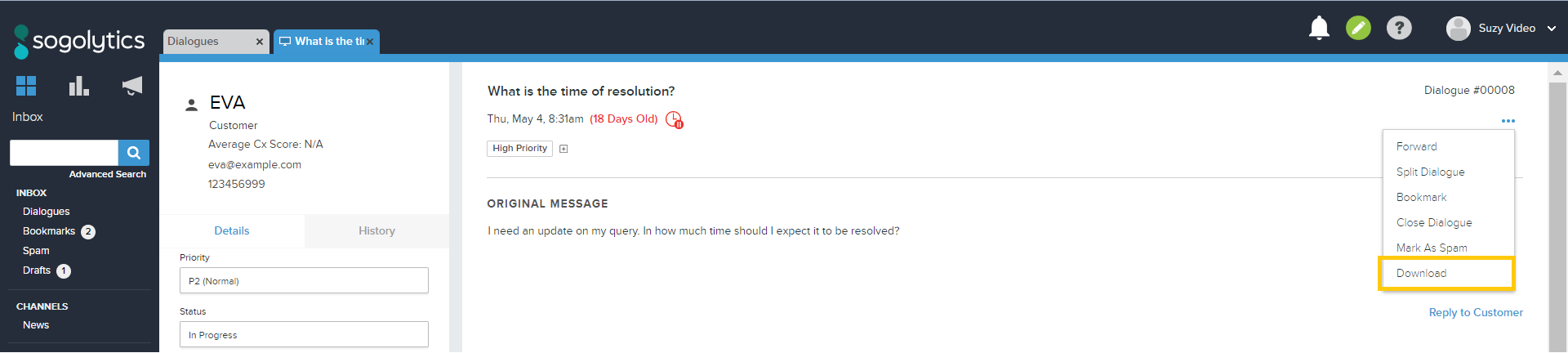
Once you see this dropdown, select Download. A pop-up window will appear where you can select the information that you wish to be downloaded with your Ticket:
- Customer Information
- Log
- Internal Comments
- Customer Communications
- Feedback Score
Once you have selected what information you want to be downloaded, click Download on the bottom right corner of the pop-up window.
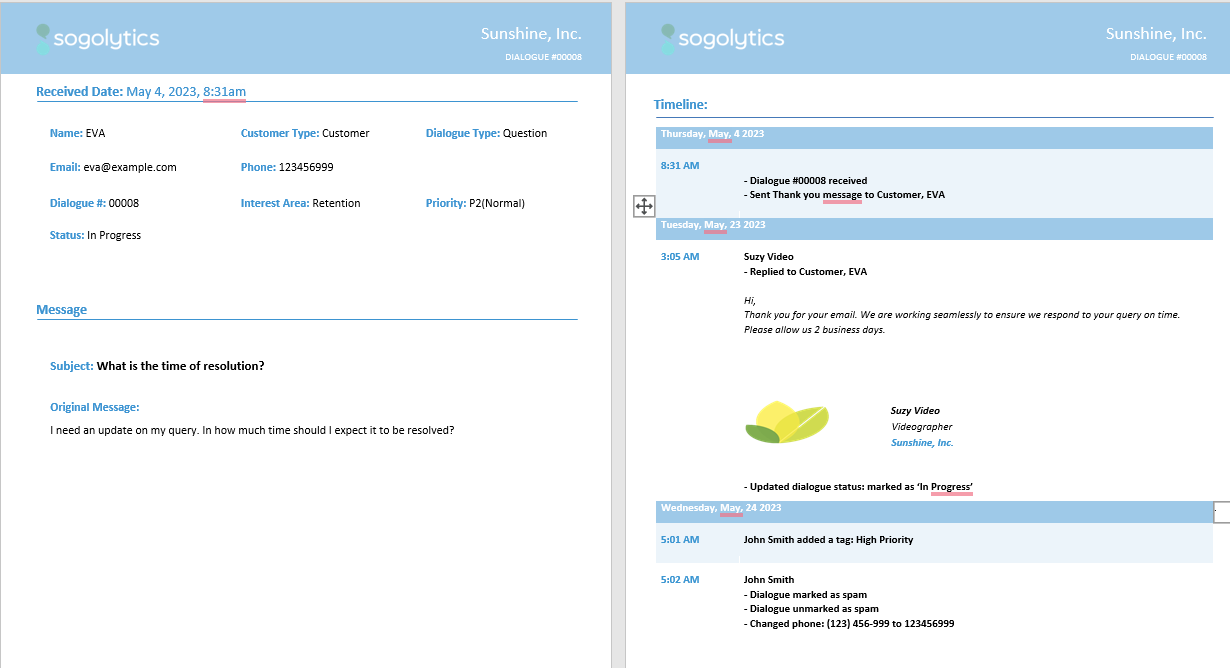
Your browser will then download a formatted Word document of the Ticket and all of the relevant information.
Mass Ticket Download
This is useful when you want to download many Tickets at once instead of downloading each Ticket one at a time.
To perform a Mass Ticket download, first enter look for your desired Tickets by using the Advanced Search feature. After you’ve entered your condition for your Advanced Search and hit enter, at the bottom of the page for your Advanced Search you’ll see a button that says “Download Tickets.”
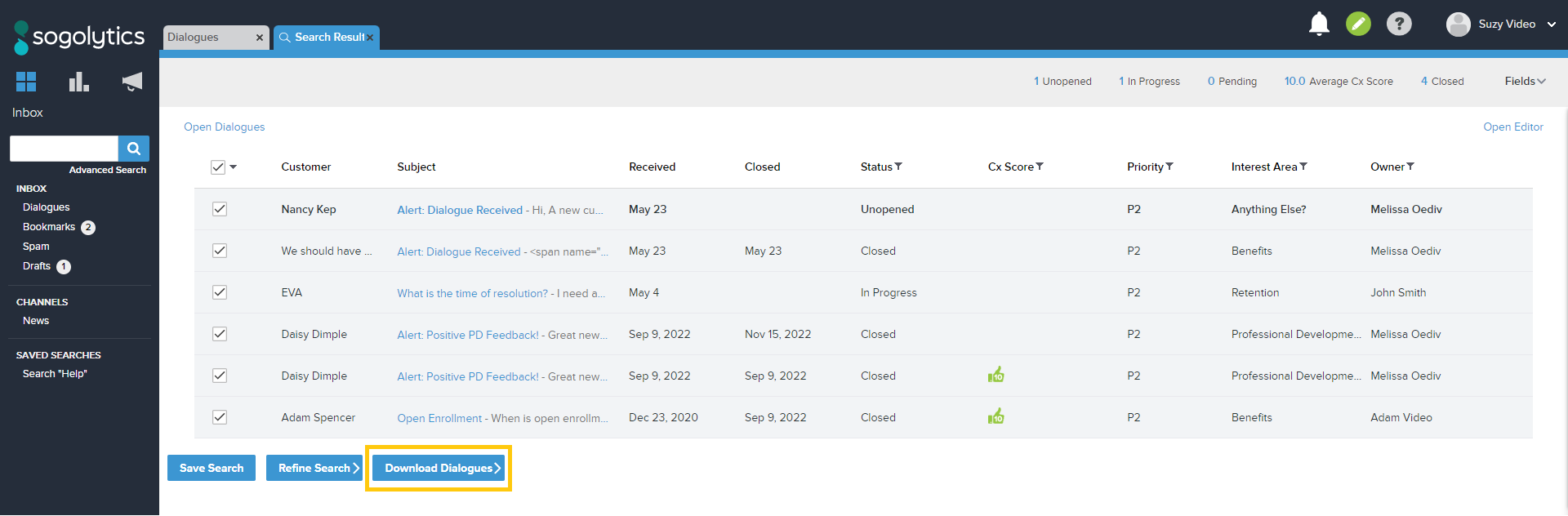
Click on that button and a drop-down will appear asking you if you want it to be downloaded in Word or Excel format. Once you select that option, a pop-up will appear asking you which of the following information you’d like to be included in the download, such as:
- Customer Information
- Log
- Internal Comments
- Customer Communications
- CX Score
Once you have selected which information you’d like to be downloaded, your browser will download the information you selected in your desired format.
Subscribe for tips and insights to drive better decisions!