
Critical Alerts: Set up Teams and Keywords
Within SogoConnect, Critical Alerts can be set both automatically and manually. When a Ticket is marked as Critical, a designated team is automatically notified by email and added to the Ticket as Team Members.
When automatic Critical Alerts are enabled, SogoConnect will scan existing and incoming Tickets for trigger words and phrases, based on a combination of system and user-defined keywords. Tickets matching these Critical Alert keywords and phrases will be marked as Critical. The customizable list of keywords allows you to pinpoint hot topics in your organization, bringing Tickets about hot-button topics to your attention instantly.
Any user can also manually mark any Ticket in SogoConnect as Critical. If the System Administrator has not yet identified the Critical Alert Team, the Ticket will simply be displayed as red and no additional users will be automatically alerted.
Critical Tickets appear in red in all inbox views. Any Ticket marked as Critical can be switched back to a lower status at any time.
To enable Critical Alerts:
Within Settings, navigate to Critical Alerts, under Communication.
- Switch Alert Categories on and click into the category to begin customizing your options, or add a new category.
- Add team members to different categories. When a Ticket contains a critical keyword, the team you selected is automatically added to the Ticket and notified by email.
- Add triggering keywords to the category so the system can notify the right team when a Ticket contains any of the keywords.

- Delete a trigger word by clicking the “x” within its box.
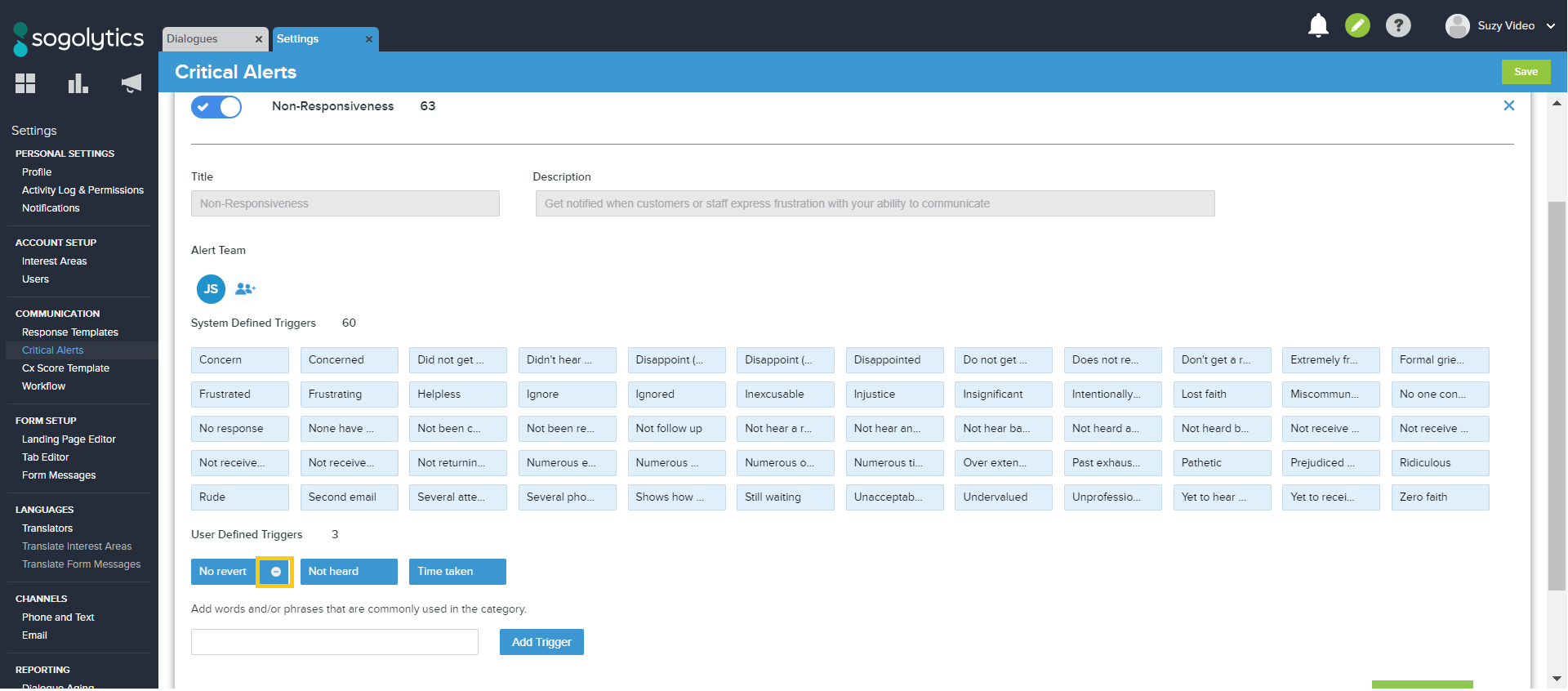
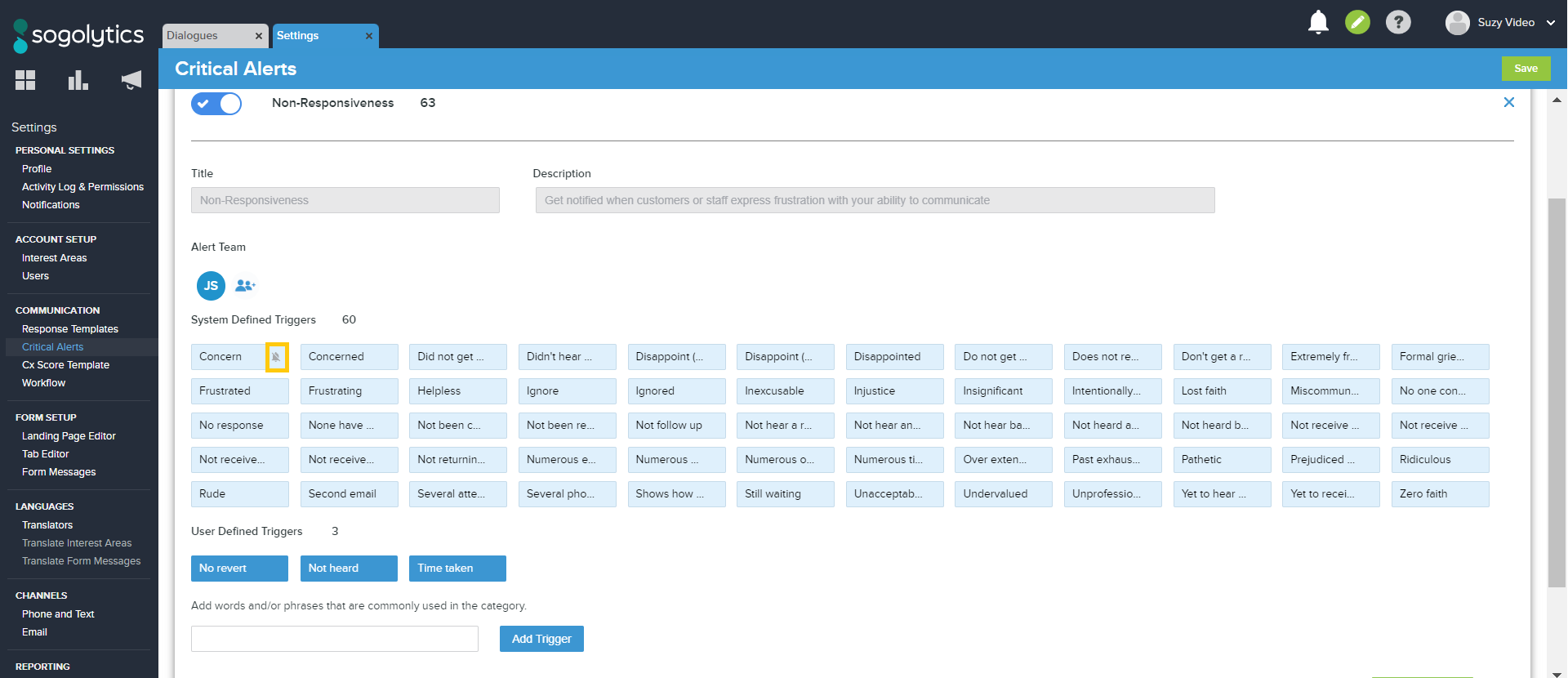
- As needed, choose to Mute trigger words in system-defined categories.
- Remember to click “Apply Changes” to save customizations for that category.
- Finally, click the green Save button at the top right-hand corner to save all changes to Critical Alerts.
System default categories and additional layers of review
While you can create your own Critical Alert Category, the system has 3 pre-defined categories for which the Title and Description cannot be edited:
- Safety And Well Being
- Company Choice
- Non-Responsiveness
Subscribe for tips and insights to drive better decisions!