



Please enter at least three characters for your search.
Open Menu
Project Basics
- Getting Started!
- Building EX Surveys
- EX Metrics
- EX Dashboard
- EX Dashboard Settings
- Analyze your drivers
- Good to know
- Getting Started!
- Why Sogolytics
- Getting Started with Sogolytics
- Tour
- Home
- Verify My Account
- Account Creation
- Introduction to Packages
- Mobile App
- Design
- Introduction to Project Design
- Project Types
- Create a Project
- Question Types
- Question Types
- How to add a Survey Question
- Mobile Friendly Questions
- Edit a Question
- Introduction to Simple Question Types
- Introduction to Grid Questions
- Horizontal Radio Button
- Descriptive Text
- Text Box
- Radio Button (Single-Select)
- Drop Down
- Check Box (Multi-Select)
- Demographic
- Rating Scale
- Symbol Rating Scale
- Like/Dislike
- Ranking
- Date
- Image Choice
- Net Promoter Score (NPS)
- Multiple Text Box
- Multiple Drop Down
- Radio Grid
- Check Box Grid
- Rating Radio Grid
- Rating Drop Down Grid
- Rating Scale Grid
- Matrix Grid
- Advanced Questions and Elements
- Page Break
- Captcha
- List Box
- Rating Drop Down
- Rating Radio Button
- Attachment
- Numeric Allocation
- Drill-Down
- Signature
- Re-use Questions and Answers
- Advanced Design Options
- Project Logic
- Page Action
- Project Tools
- Project Options
- Introduction to Project Options
- Conditional Auto Save
- Project Details
- Add Languages
- Question Sequence
- Anonymous Project
- Display Options
- Event Messages
- Save Survey Edit Later Option
- Save Responses Continuously
- Thank You Message
- Reopen Submitted Responses
- Use Chain Invitations to Share Surveys
- URL Redirect: Static and Dynamic
- Print Options
- Expiry Rules
- Switch Project Type
- Enhanced Participation
- Automatic Email Alerts
- Question Features
- Project Branding and URL Customization
- Project Customization
- Good to Know
- Distribute
- Introduction
- Publish Project
- Other Publishing Options
- Automated Distribution
- Invitation Templates
- Contact Lists
- Reminders
- Customizing Participation
- Good to Know
- Directory
- Introduction to Directories
- Build Your Directory
- Build Your Activity
- Derived Fields
- Participation
- Track
- Report
- Introduction to Reports
- Run a Report
- Omni All in One Report
- Text Analysis
- Frequency Reports
- Individual Responses
- Raw Data
- Special Reports
- Legacy Reports
- Charts and Graphs
- Save, Export, Share Reports
- Filter Manager
- Good to Know
- Custom Dashboard
- Introduction to Custom Dashboard
- Build Your Custom Dashboard
- Widgets
- Filter
- Segmentation
- Data Management
- Privacy And Compliance
- Integrations and API
- Account Administration
- Account Settings
- Account Settings
- Update Personal Information
- Update Company Information
- Account Notifications
- Review Account Usage
- Customize Survey Labels
- Project Allocation
- Linked Account
- View Product Details
- Referral Program
- Payment History
- Billing Information
- Two-Step Authentication
- Account Security
- Recent Account Activity
- Single Sign-On (SSO)
- Outbound Email Settings
- Compliance
- Email Settings
- Project Branding
- Manage Sub-Users
- Good to Know
- Billing
- Introduction
- Sign Up and Upgrade
- Acceptable Payment Methods
- Upgrade a Paid Account
- Payment Receipts
- Change Billing Information
- Upgrade Using Purchase Order
- Referral Benefits Program
- Sogolytics Plans
- Payment Methods Available
- Failed Payment
- Switch to Annual Billing
- Upgrade a Free Pro or Tral Account
- Sign Up for a Paid Account
- Sogolytics Standard Support
- Downgrade or Cancel Account
- Poll Project
- Good to Know
- FAQs
- Getting Started!
- Building CX Surveys
- CX Metrics
- CX Dashboard
- CX Dashboard Text Analysis
- CX Dashboard Settings
- Analyze your drivers
- Good to know
- Getting Started
- Account Set-up
- Account Administration
- Introduction to Account Administration
- Managing Users
- User Groups
- Landing Pages
- Tab Editor
- Critical Alerts
- Enable Browser Based Notifications
- Customer Feedback Preferences
- Turn Emails into Dialogues
- Account Activity Log
- Define Dialogue Aging
- Create Tags
- Comparison Overview
- Raise a Dialogue with Sogolytics
- Safelisting
- Inbox
- Dialogues
- News
- SogoConnect Dashboard
- Campaigns
- Help
- Getting Started!
- Assessment Question types
- Score and more
- Quiz participation
- Get Results
Haven’t created a Dashboard yet? Start here! When you’re ready to add widgets, follow the steps below.:
- From the menu on the left, select the widget of your choice and drag it onto the canvas on the right.
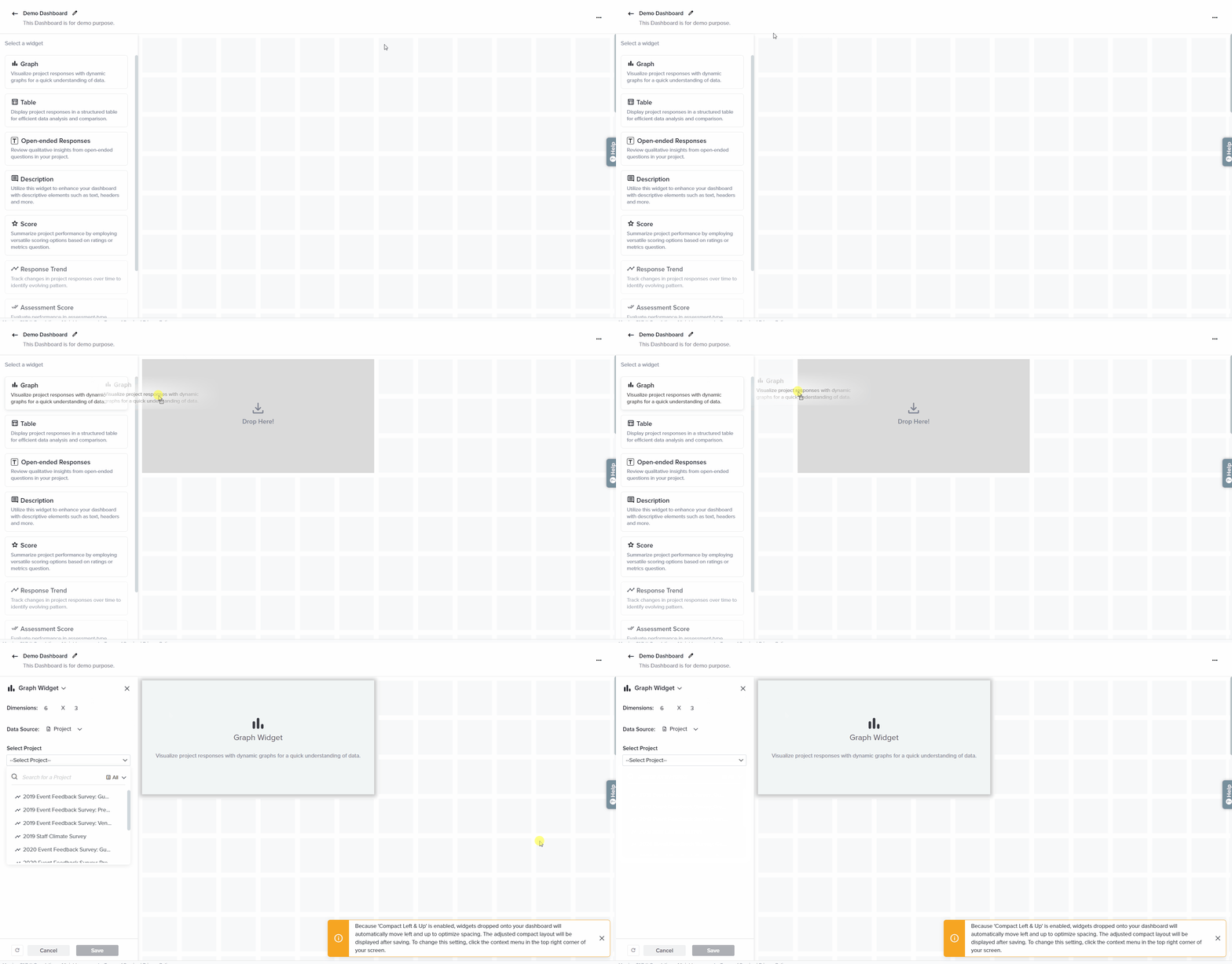
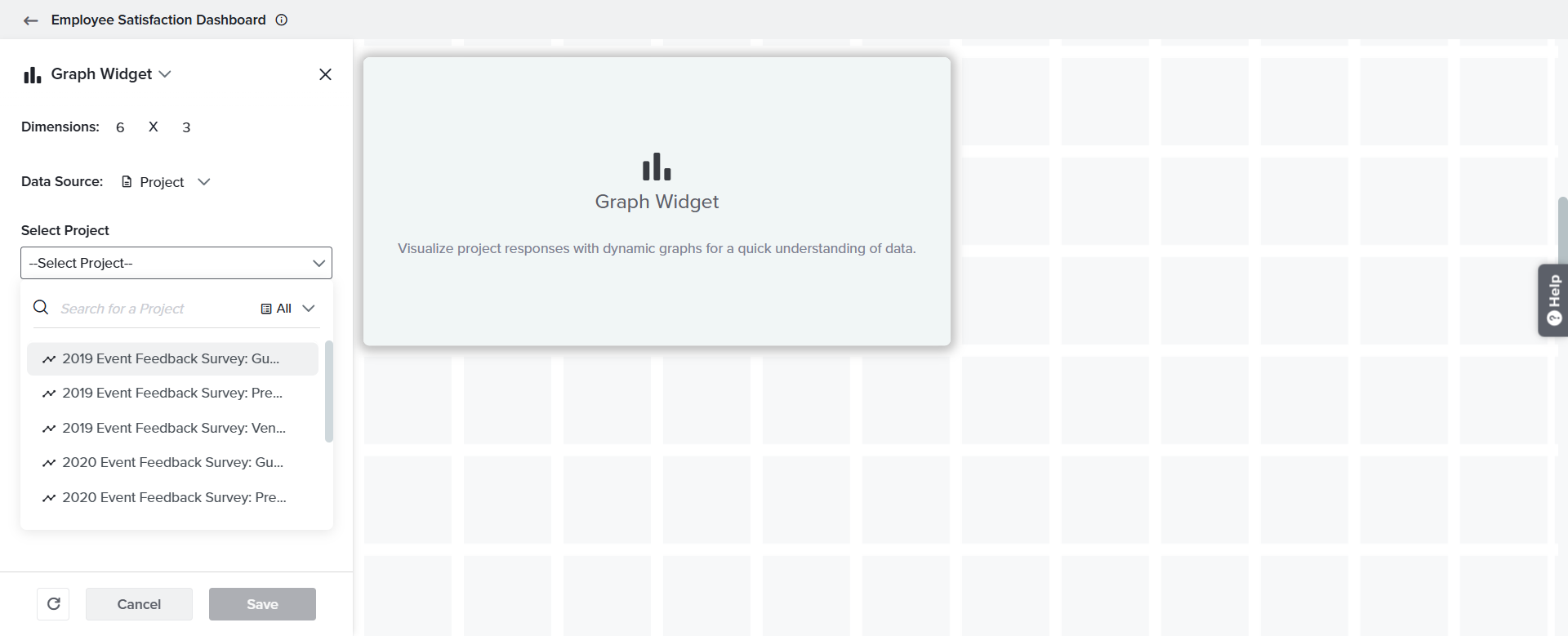
- After dropping the widget onto the canvas, choose the desired project from the ‘Select Project’ dropdown.
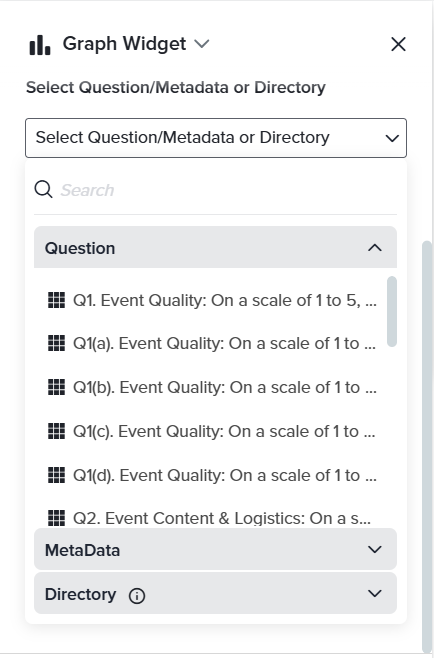
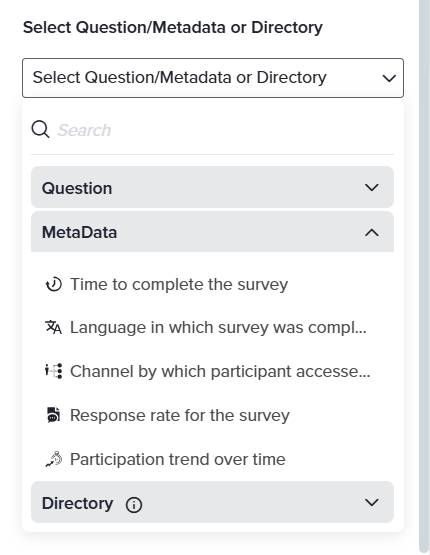
- Next, select the data you’d like to display in this widget, choosing from Question, Metadata or Directory:
- Question: This option will display response to a specific question in your project.
- Metadata: This option will display project metadata, such as completion time, language or channel of participation, or response rate or trend.
- Directory: This option will display response distribution for contact or activity fields based on responses collected from a Custom Directory.
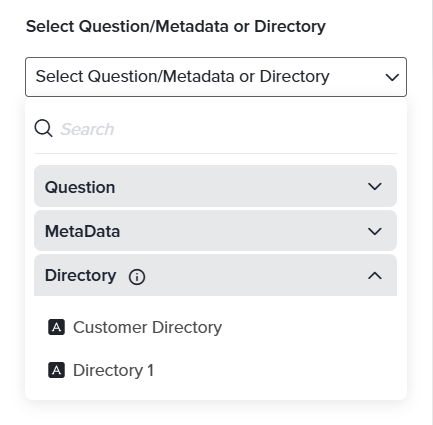
- Question: This option will display response to a specific question in your project.
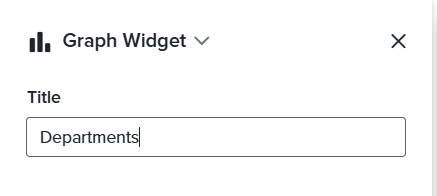
- Title: It’s a good idea to change the widget title to make it easier to read at a glance. By default, the title will be the same as the selected question/data.
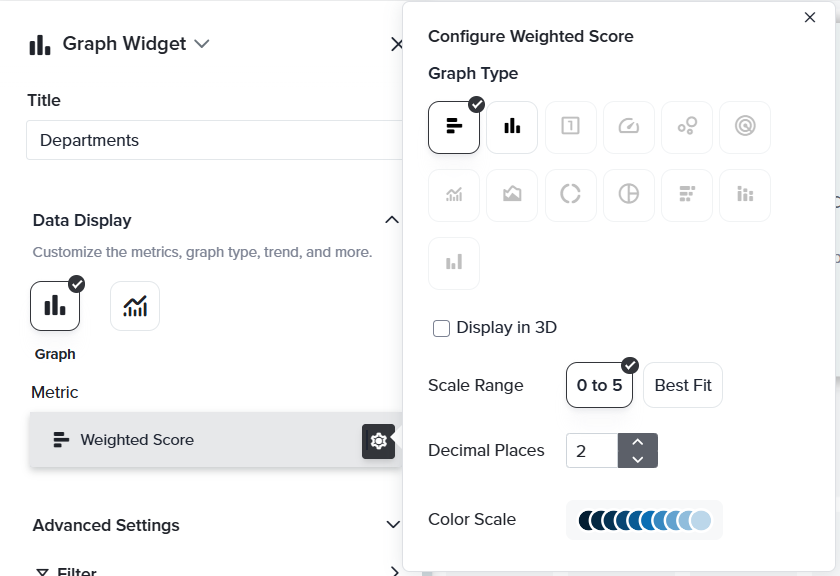
- Data Display: Customize the visualization with Graph or Trend options here.
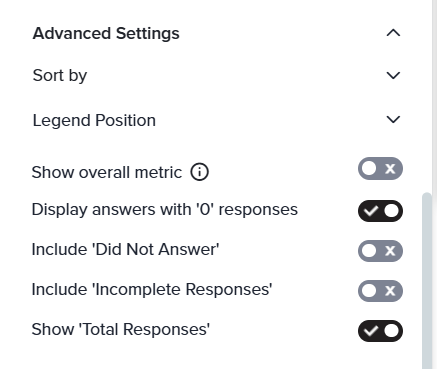
- Advanced Settings: Customize how your widget will be displayed with advanced options like sorting, adjusting the legend position, showing an overall metric to compare to other segments, and displaying (or not!) answers with no responses, ‘Did Not Answer’, Incomplete, or Total Responses.
- Apply Filters or Segmentation to your widget as needed. (If you’d like to apply filters or segmentation to your entire Dashboard, use the icons up in the top right of the Dashboard to make changes to all widgets at once.)
- After customizing the widget to meet your needs, click ‘Save,’ and the widget will be displayed on the Dashboard.
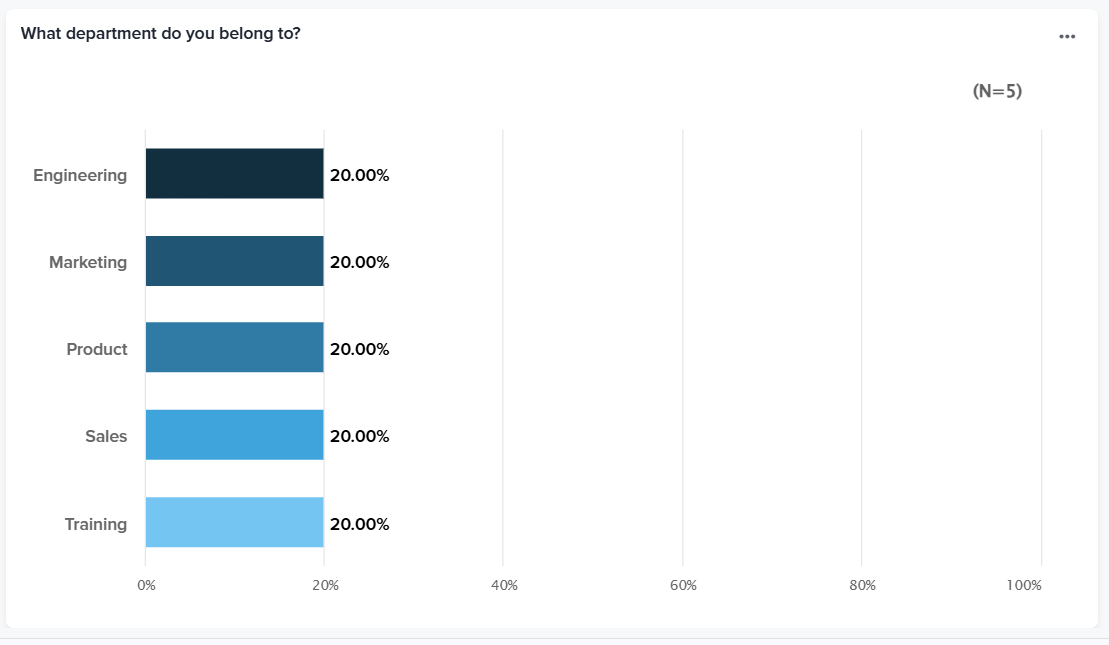
Widget sizes range from a minimum of 2×3 to a maximum of 12×12, with the default widget size being 6×3. Resize widgets by clicking and dragging the lower-right corner to adjust.
Love it when you
know more?
Subscribe for tips and insights to drive better decisions!

Thank you!
Your request has been successfully submitted.