
Project Basics
  • Getting Started!
    • Building EX Surveys
      • EX Metrics
        • EX Dashboard
          • EX Dashboard Settings
            • Analyze your drivers
              • Good to know
                • Getting Started!
                  • Building CX Surveys
                  • CX Metrics
                    • CX Dashboard
                      • CX Dashboard Settings
                        • Analyze your drivers
                          • Good to know
                            • Getting Started!
                              • Assessment Question types
                                • Score and more
                                  • Quiz participation
                                    • Get Results
                                    Home Directory Build Your Activity

                                    Build Activity Using A File

                                    Want to track important interactions related to your contacts? Activities allow you to store and manage transactional or event-based records associated with contacts in a Directory. With Activities, you can keep track of information such as purchases, service visits, support cases, or any other events connected to your contacts.

                                    For example: A retail company maintains a Customer Directory containing customer contact details such as Name, Email Address, and Phone Number. The company wants to track customer purchases so they can later collect feedback about recent purchases. To do this, they create an Activity called Purchase History and import purchase records from an Excel file. Each record contains information such as Customer Email, Product Purchased, Purchase Date, Store Location, and Amount.

                                    To build an Activity using a File as the source, follow the steps below:

                                    1. Open the Directory where you want to create the Activity.
                                    2. Click the Activities tab next to the All Contacts tab.
                                    3. Click + Add Activities.
                                    4. In the dialog box that appears, enter a name for the Activity you want to associate with the selected Directory.
                                    5. To create additional activities, click + Add Activity.
                                    6. A maximum of 50 activities can be added per directory.

                                    7. Once you have added the Activity name(s), click Save. The newly created Activities will appear under the Activities tab.
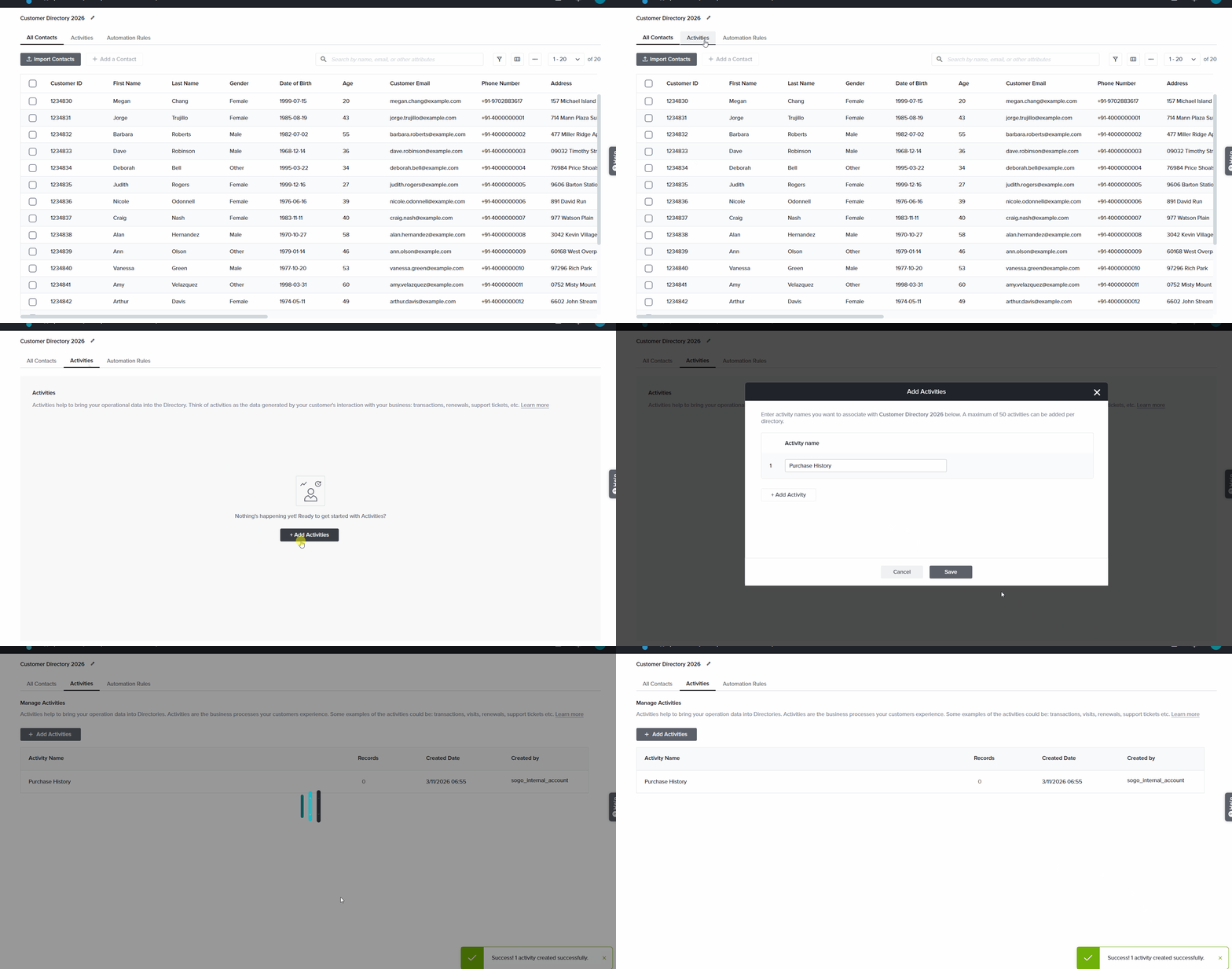
                                    8. For example: Based on the example above, you may name the Activity Purchase History.
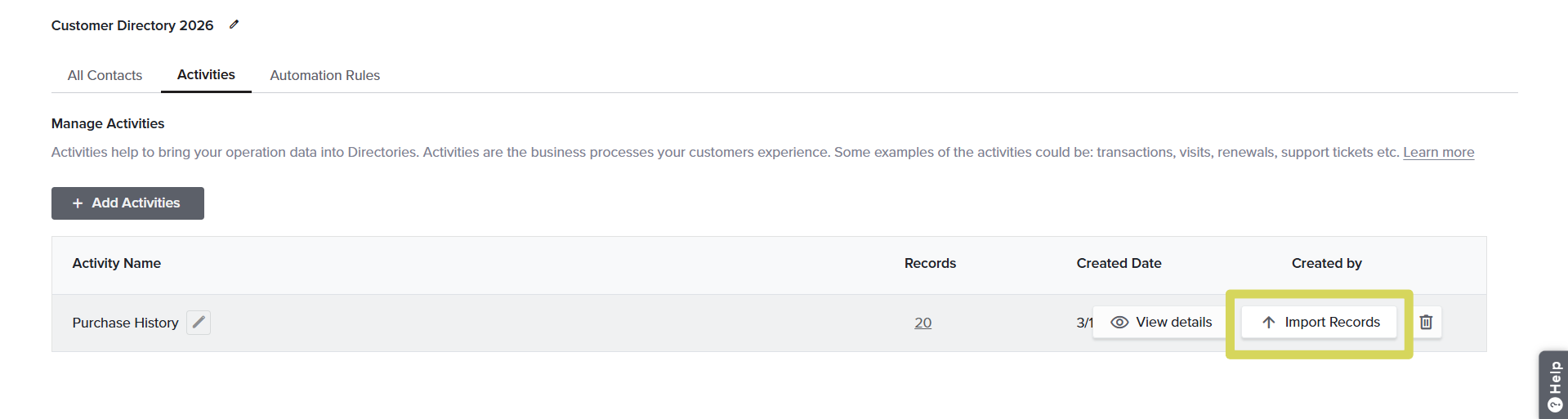
                                    9. Hover over the Activity into which you want to import records and select Import Records.
                                    10. Select From a file as the source for importing records. This option allows you to upload records using an Excel or CSV file. You can preview the uploaded file by clicking the eye icon next to the file, or delete it and upload a new one by clicking the delete icon.
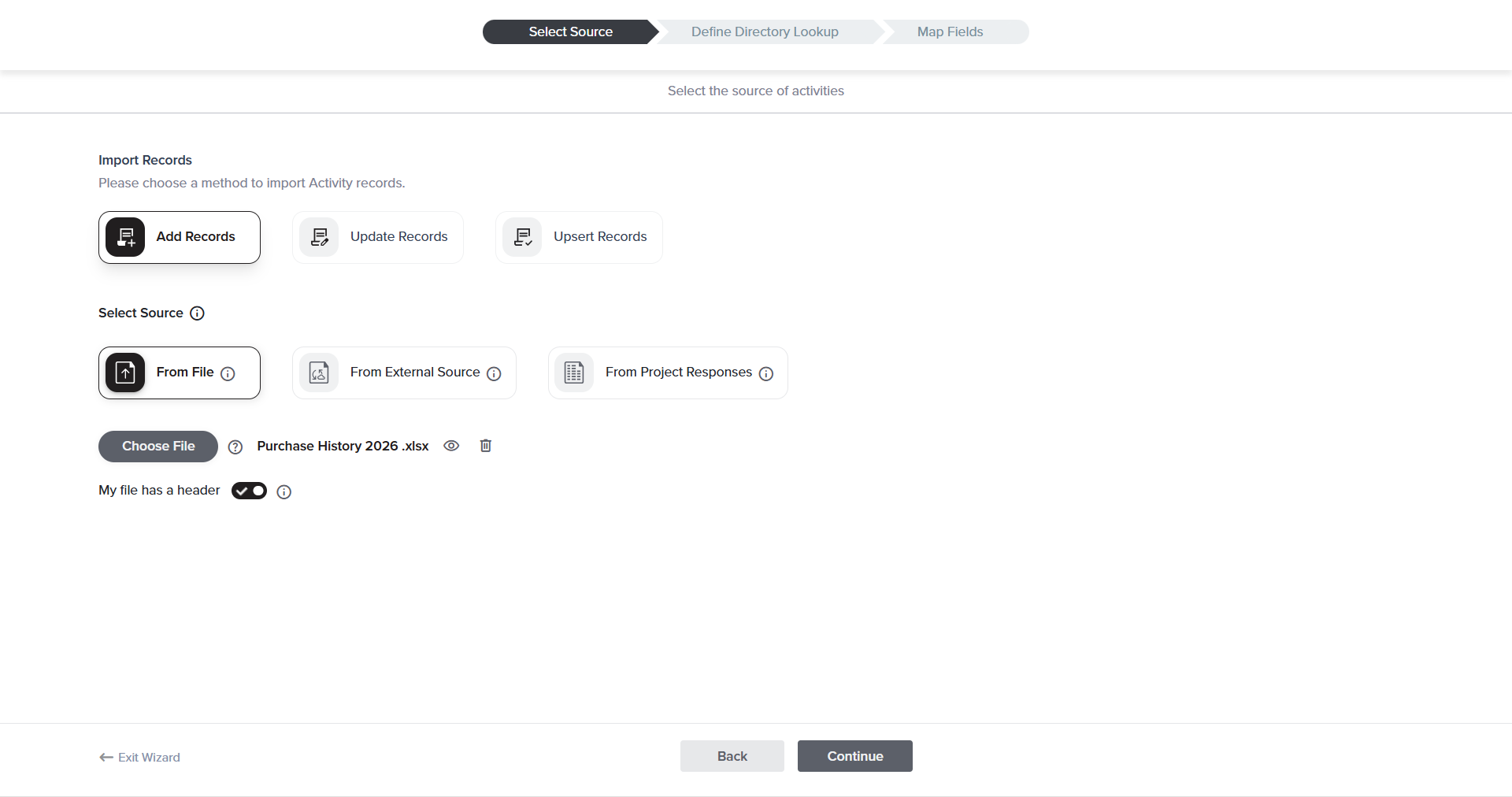
                                      • The maximum file size allowed for upload is 25 MB
                                      • Enable My file has a header if the first row of your file contains headers or labels for each column. When this option is enabled, the first row will be excluded from being imported as a record.
                                    11. Click Continue.
                                    12. Define Directory Lookup: In this step define a mapping rule that connects the Activity records with contacts in the parent Directory.
                                    13. For example: In the Purchase History example, the Email Address from the Customer Directory can be mapped to the Customer Email field in the Activity to link each purchase record to the correct customer.

                                      There are two types of Activity mapping:

                                      • Respondent Mapping: This is used when the survey respondents are contacts in the same Directory where the Activity exists. To configure Respondent Mapping, follow the steps below:
                                        1. Select the Directory Field you want to use for the lookup.
                                        2. Map it to the corresponding Activity Field.
                                      • Feedback Recipient Mapping: This is used when the feedback recipient belongs to a different Directory, such as employees, vendors, or service providers. To configure Feedback Recipient Mapping, follow the steps below:
                                        1. Toggle Create Feedback Recipient Mapping.
                                        2. Select the Directory from which the feedback recipients will be pulled.
                                        3. Choose the appropriate Directory Field.
                                        4. Ensure it matches the corresponding Activity Field.
                                        For example: Continuing with the retail company example, the company may also want to collect feedback about the salesperson who assisted the customer during the purchase. In this case, the customer remains the respondent from the Customer Directory, while the salesperson belongs to a separate Salesperson Directory– the Feedback Recipient Directory.

                                        When importing the Purchase History activity file, the record may include a field such as Salesperson Email or Salesperson ID. This field can be mapped to the corresponding field in the Salesperson Directory to identify the salesperson associated with that purchase. This allows feedback to be directed to the correct salesperson based on the activity record.
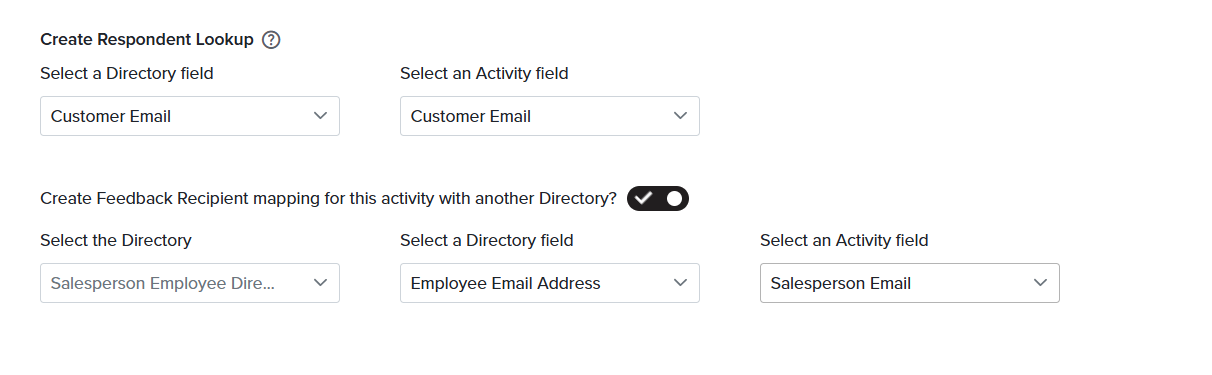
                                        • While creating the Respondent Lookup, the parent Directory field selected for respondent mapping must exactly match one of the fields in the Activity.
                                        • The Feedback Recipient directory must be different from the Respondent Directory.
                                        • Once the mapping is created, it cannot be edited later. If changes are required, you must delete the Activity and create a new one.
                                      • >Click Continue.
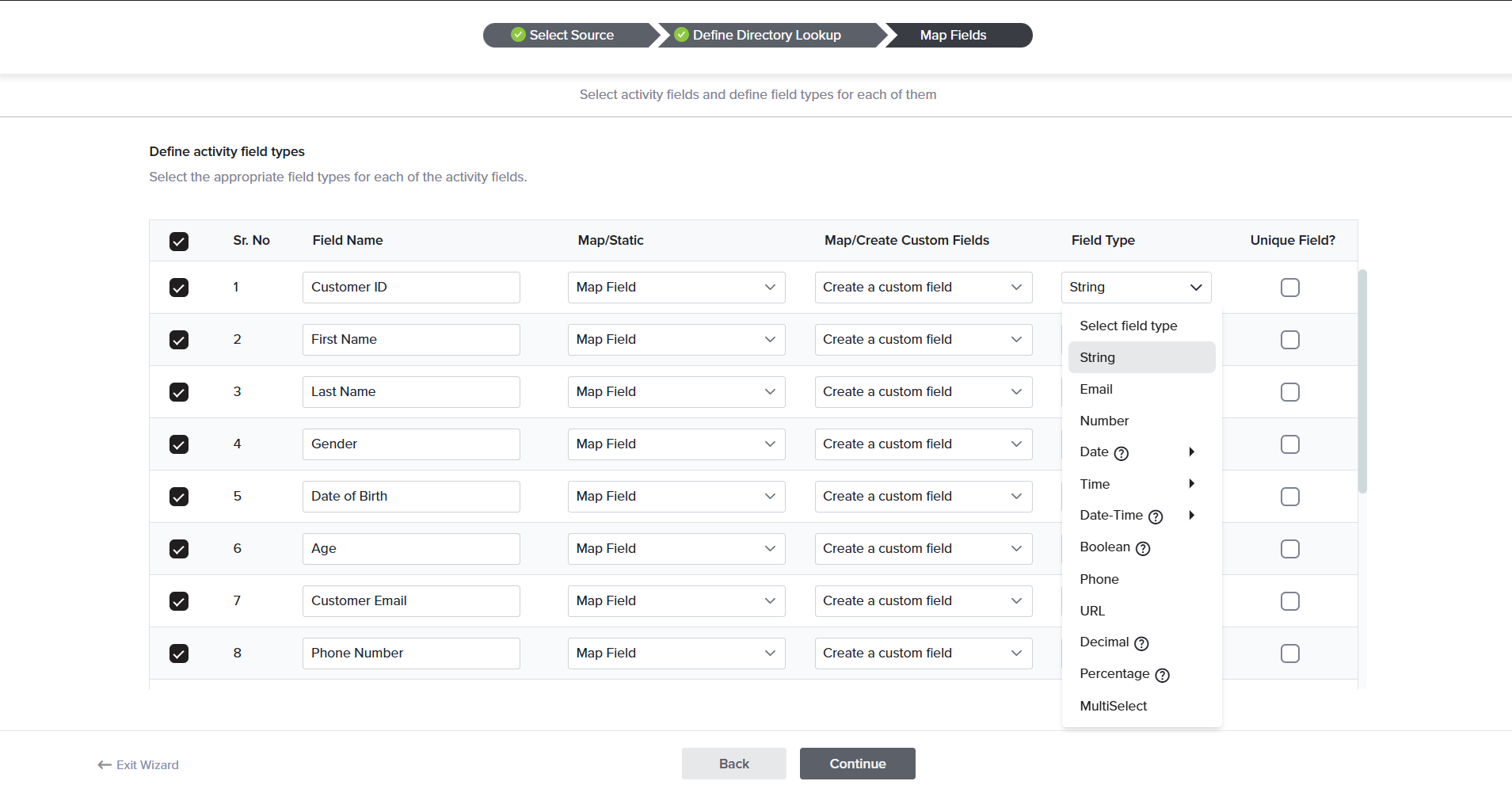
                                      • Map Fields: In this step, define the field type for each imported field.
                                      • For example: In the Purchase History scenario, the imported file may contain fields such as:

                                        • Customer Email (Email)
                                        • Product Purchased (String)
                                        • Purchase Date (Date)
                                        • Store Location (String)
                                        • Amount (Number)

                                        Available field types include:

                                        • String – Used for text-based information.
                                        • Email – Used for storing email addresses.
                                        • Number – Used for storing integer values.
                                        • Date – Used for saving dates in the following formats: MM/DD/YYYY, DD/MM/YYYY, YYYY-MM-DD.
                                        • Time – Used for saving time as hh:mm or hh:mm:ss.
                                        • Date-Time – Used for saving date and time in the following formats:
                                          • MM/DD/YYYY hh:mm
                                          • DD/MM/YYYY hh:mm
                                          • YYYY/MM/DD hh:mm
                                          • MM/DD/YYYY hh:mm:ss
                                          • DD/MM/YYYY hh:mm:ss
                                          • YYYY/MM/DD hh:mm:ss
                                        • Boolean – Used for saving Boolean values such as 1|0, Yes|No, Y|N, True|False. These values are normalized to True and False after importing.
                                        • Phone – Used for saving phone numbers. You can specify the country code by clicking the gear icon next to the Field Type column.
                                        • URL – Used for saving URLs.

                                        The system may automatically detect some field types. For fields that are not recognized automatically, you can import them as Custom Fields and assign the appropriate field type.
                                      • Click Continue. The mapped fields will be evaluated based on their defined field types, and valid records will be imported into the Activity.
                                    Love it when you
                                    know more?

                                    Subscribe for tips and insights to drive better decisions!

                                    completed tick icon
                                    Thank you!
                                    Your request has been successfully submitted.
                                    ×