



Setting Permissions for CX & EX Dashboard
Dashboard Permissions control a sub-user’s ability to create, view, and edit Customer Experience (CX) and Employee Experience (EX) dashboard content. These permissions determine which dashboard components a user can access and whether they can make changes to existing journeys, comparisons, and dashboard tabs.
The CX Dashboard and EX Dashboard permission pages function in the same way. The only difference is the type of dashboard being managed:
- CX Dashboard Permissions apply to Customer Experience dashboards.
- EX Dashboard Permissions apply to Employee Experience dashboards.
By default, users have full access to journeys and custom comparisons they create themselves. The permissions on this page control access to future assets created by other users and to existing dashboard tabs.
How to Access Dashboard Permissions
- Go to Account Settings.
- Open the profile of the sub-user whose permissions you want to manage.
- Click the Permissions tab.
- Select either CX Dashboard or EX Dashboard tab, depending on the dashboard type you want to configure.
- Configure the required permissions and click Save or Save & Go Back.
Understanding Dashboard Permissions
Dashboard permissions are divided into two sections:
- Permissions for Future Journeys and Comparisons: This section controls whether a user can create new dashboard assets and what level of access they receive to future journeys and comparisons created by other users.
- Permissions for Existing Tabs: This section controls access to dashboard tabs that already exist.
Permissions for Future Journeys and Comparisons
This section consists of the following options:
- Create: Determines whether the user can create their own journeys or comparisons. Users with this permission can create and manage new journeys/comparisons and automatically receive full access to those journeys/comparisons. If this permission is disabled, the user cannot create journeys/comparisons.
- View: Determines whether the user can view future journeys/comparisons created by other users. Users with this permission can access and review newly created journeys/comparisons that are shared with them. If this permission is disabled, those journeys/comparisons will not be visible to the user.
- Edit: Determines whether the user can make changes to future journeys/comparisons created by other users. When granted, the user can modify journey/comparisons configurations, filters, widgets, and settings. Without this permission, the user cannot make changes and can only access the journeys in a view-only capacity if the View permission has been granted.
Permissions for Existing Tabs
Each row in this table represents the following existing dashboard tabs along with its child components.
- Overview
- Customer Journey / Employee Journey
- Comparison
- Text Analysis
- Prediction
- Maps
- Settings
For all the above mentioned areas you will be able to configure two permissions:
- Permission to Use:
Determines whether the user can access a dashboard tab. Users with this permission can view and interact with the tab and its contents. If this permission is disabled, the tab is hidden and cannot be accessed by the user.
- Permission to Edit: Determines whether the user can modify a dashboard tab and its contents. Users with this permission can make changes to the tab configuration, settings, and other editable elements. If this permission is disabled, the user cannot make any changes.
- View Customer Journeys.
- Review comparison results.
- Access permitted dashboard tabs.
- Create or edit dashboard configurations.
- Modify journeys or comparisons.
- Access the Settings tab.
- Create Employee Journeys.
- Create and manage comparisons.
- Edit dashboard content and configurations.
- Access all assigned dashboard tabs.
- Access tabs for which Permission to Use has not been granted.
- A sub-user can share a CX/EX dashboard, but only within the limits of their own permissions — they can never expose more than they are allowed to see themselves.
- CX and EX Dashboards are allowed to be shared. If you revoke access to a tab that a user already shared, the tab is not removed from the shared dashboard, but data access within it is blocked. The recipient still sees the tab frame, but the restricted data no longer loads.
Customer Experience (EX) Example
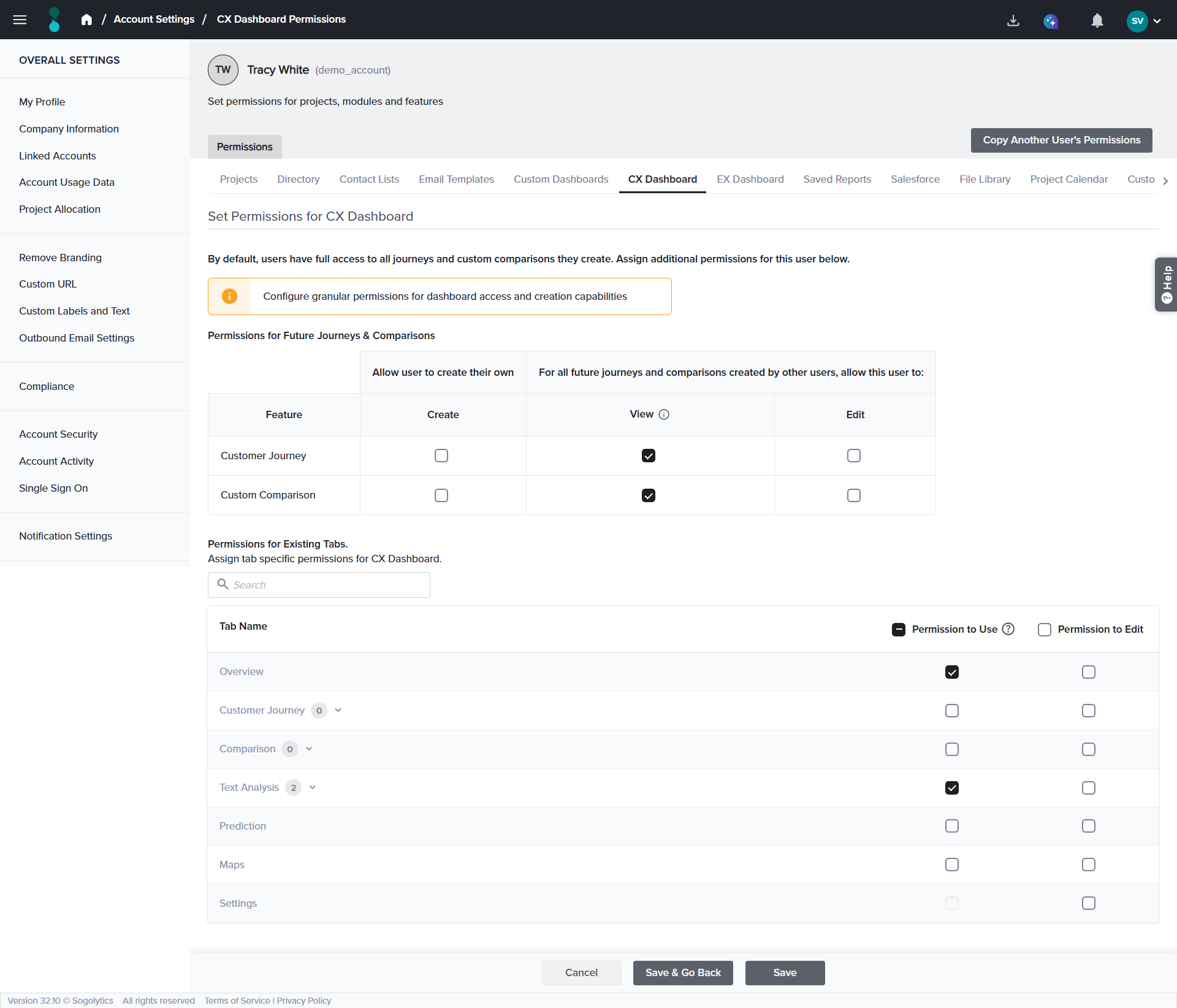
A Customer Experience Analyst is responsible for reviewing customer satisfaction data but should not modify dashboard structures.
Permissions Assigned to this sub-user:
• Customer Journey → View enabled, Edit disabled
• Custom Comparison → View enabled, Edit disabled
• Overview tab → Permission to Use enabled
• Text Analysis tab → Permission to Use enabled
• Settings tab → Permission to Edit disabled
As a result according to the permissions defined above, the analyst can:
The analyst cannot:
Employee Experience (EX) Example
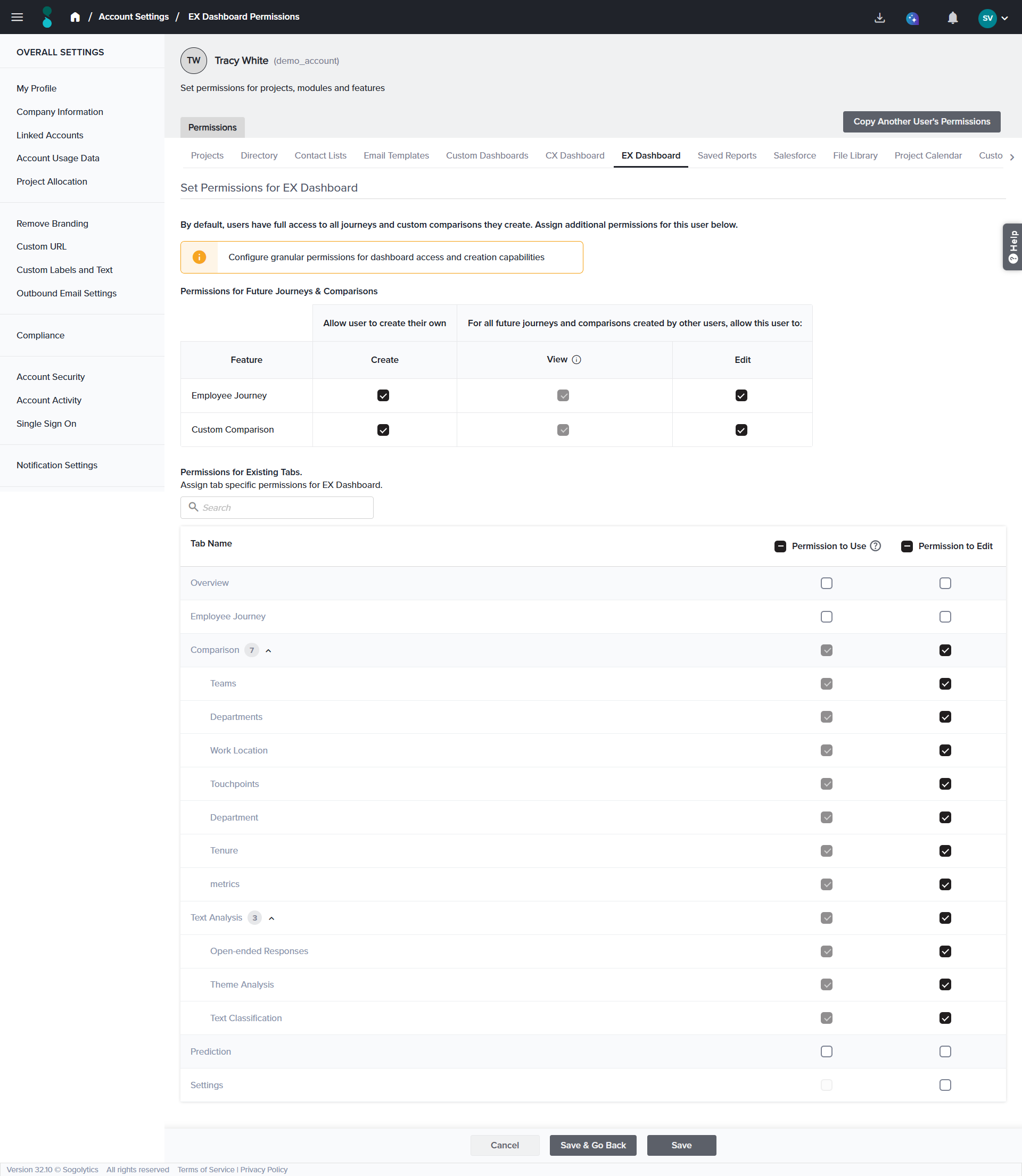
An HR Director manages employee experience reporting across the organization.
Permissions Assigned to this sub-user
• Employee Journey → Create, View, and Edit enabled
• Custom Comparison → Create, View, and Edit enabled
• Comparison tab → Permission to Use and Edit enabled
• Text Analysis tab → Permission to Use and Edit enabled
Result
The HR Director can:
The HR Director cannot:
Good To Know
Subscribe for tips and insights to drive better decisions!