


NLP Settings in CX
Sogolytics uses Natural Language Processing (NLP) to read open-text responses and automatically identify the words, emotions, and themes contained within them. NLP Settings give you control over that analysis, allowing you to refine how individual words are interpreted so that your Text Analysis results stay accurate, relevant, and aligned with the language of your audience.
Refining your analysis in this way produces a cleaner, more focused view of what your participants are actually telling you. Instead of seeing fragmented or distracting data, you see results that reflect the categories and priorities that matter to your organization.
The Combine Similar Words and Exclude Words settings are managed at the account level. Any change you make applies everywhere NLP is used across your account — including all projects, the CX Dashboard, the EX Dashboard, and every Text-Analysis report. A change made from the CX side is reflected on the EX side, and vice versa.
Navigate to
Accessing NLP Settings
Follow these steps to access NLP Settings:
- Open your CX Dashboard or EX Dashboard.
- Click the three-dot menu in the top-right corner of the dashboard.
- Select Settings.
- Choose NLP Settings.
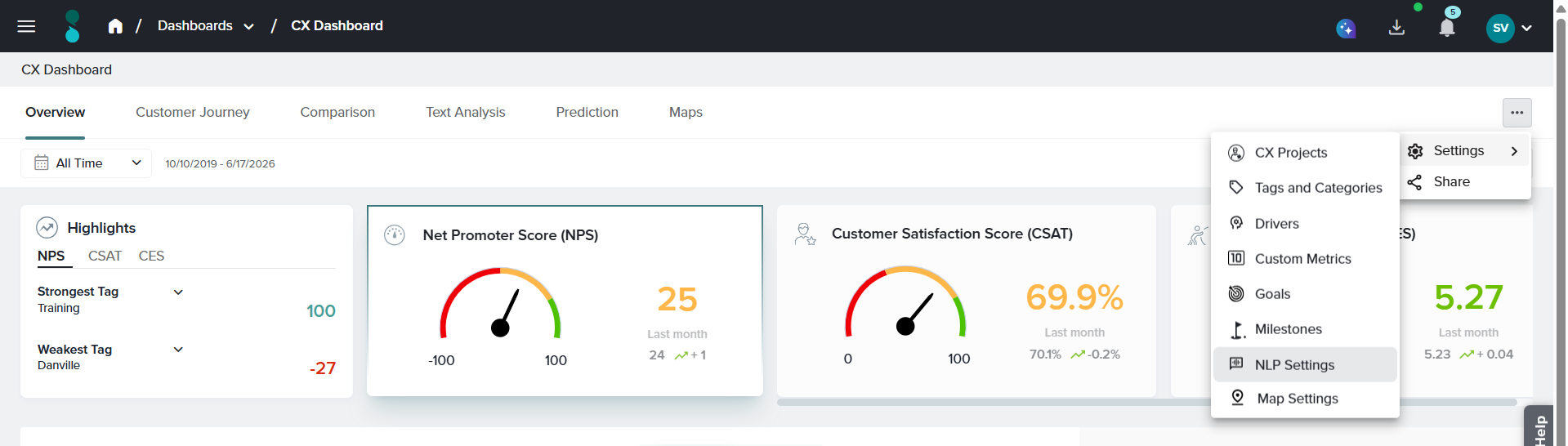
Or
- Navigate to the Reports tab within your project.
- Open the Text Analysis Report.
- Click the three-dot menu in the top-left corner of the report.
- Select Settings from the menu to open the NLP Settings page.
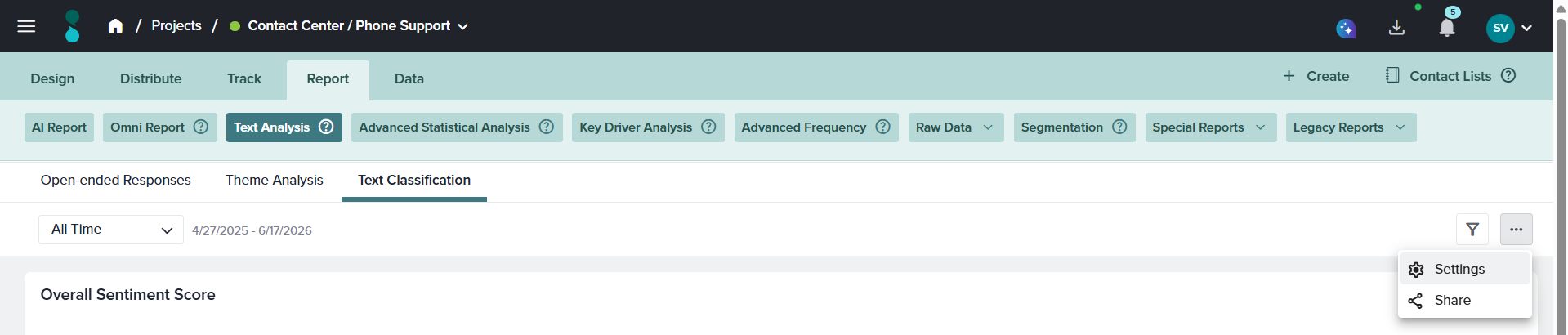
Understanding the Words List
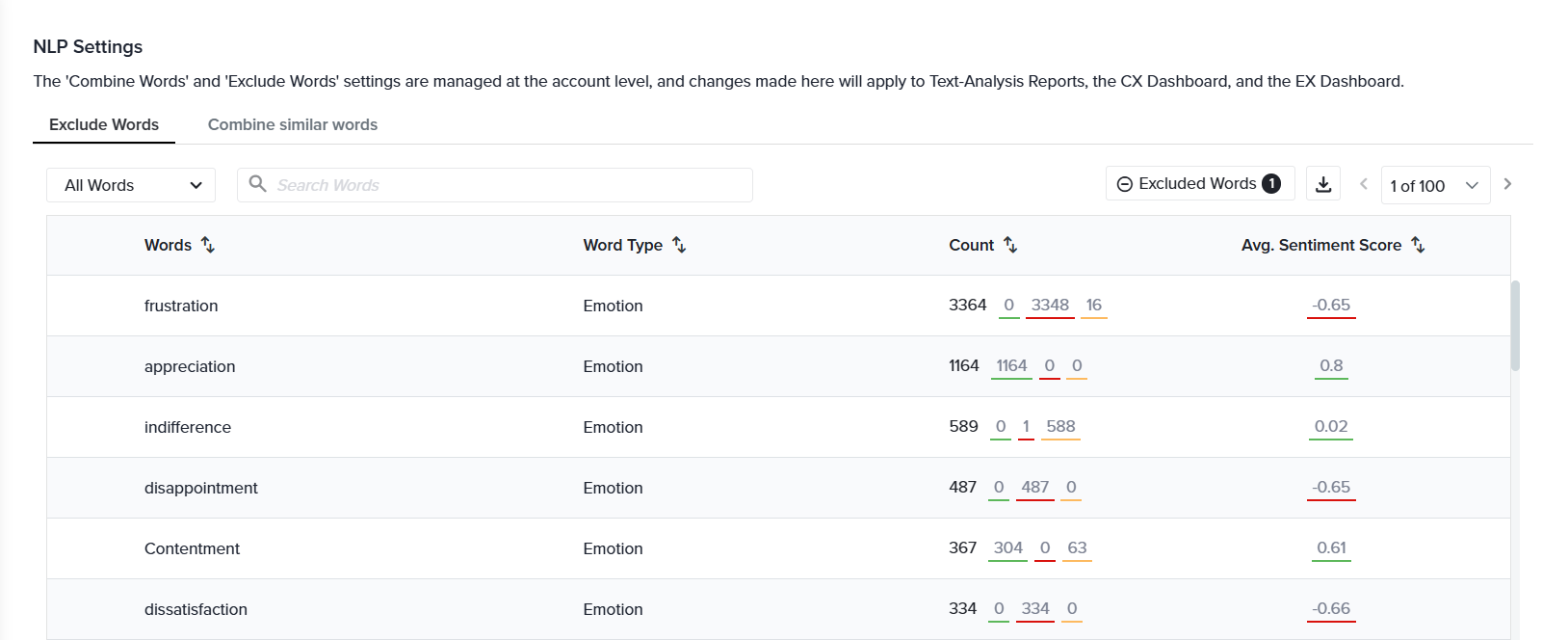
The NLP Settings page lists every item identified in your text analysis. A drop-down at the top of the page lets you switch the view between:
- All Words – Displays individual words identified in responses.
- Emotions – Displays emotions detected by the AI.
- Themes – Displays broader themes detected by the AI.
For each item, the table displays:
- The identified word, emotion, or theme.
- The count — how many times it appeared in the analyzed responses.
- The sentiment breakdown — how often the item was recorded as positive, negative, or neutral.
- The average sentiment score — the average of all sentiment values recorded for that item, giving you a quick read on how positively or negatively it is perceived overall.
The NLP Settings pages consists of two tabs:
- Exclude Words
- Combine Similar Words
Both the Excluded Words and the Combine Similar Words tabs can be exported. Click Download to save the full list of items and their details for offline reference or sharing.
Exclude Words
What it does.
Exclude Words removes specific words from your text analysis so they no longer appear in or influence your results. An excluded word is removed entirely from the Text Analysis report, along with its counts and sentiment contribution.
When to use it
Use Exclude Words when a word adds no analytical value or distorts your results — for example, brand names, survey-specific terms, or any word that appears frequently but does not help you understand participant sentiment.
A retail company runs a post-purchase customer experience survey that asks, “How was your recent shopping experience?” The open-text responses are detailed, but the Text Analysis report is more cluttered because every response is about a recent purchase, the word order appears in nearly every comment and tops the report — yet it says nothing about what customers actually want improved. Having said that the team excludes the word order from the NLP. With that high-frequency, low-value term removed, the drivers that matter — packaging, pricing, and returns — rise to the top, giving a clearer view of the customer experience.
How to use it
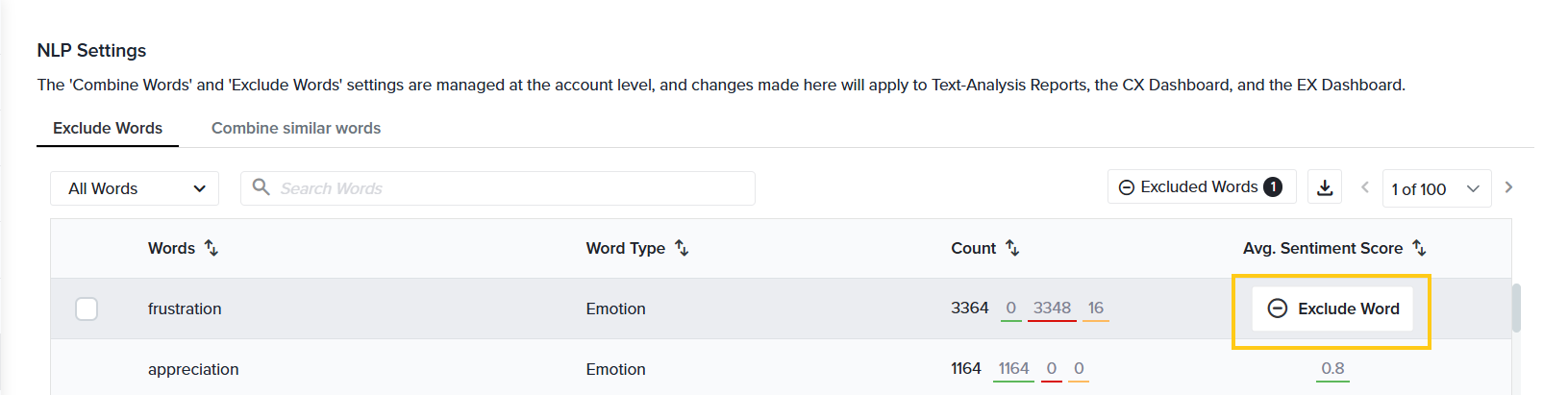
- In the words list, hover over the word you want to remove.
- Click Exclude word.
Or
- Select all the words you want to exclude.
- Once selected, click on the Exclude Words option in the top left.
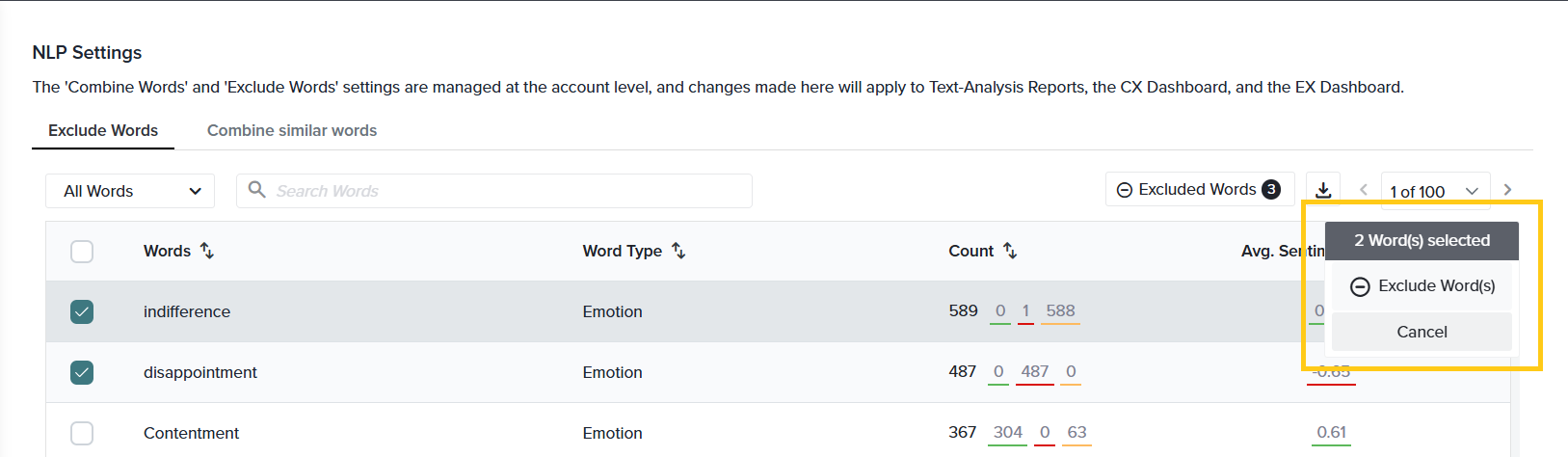
The word, and everything associated with it, is immediately removed from the Text Analysis report.
Reviewing and restoring excluded words:
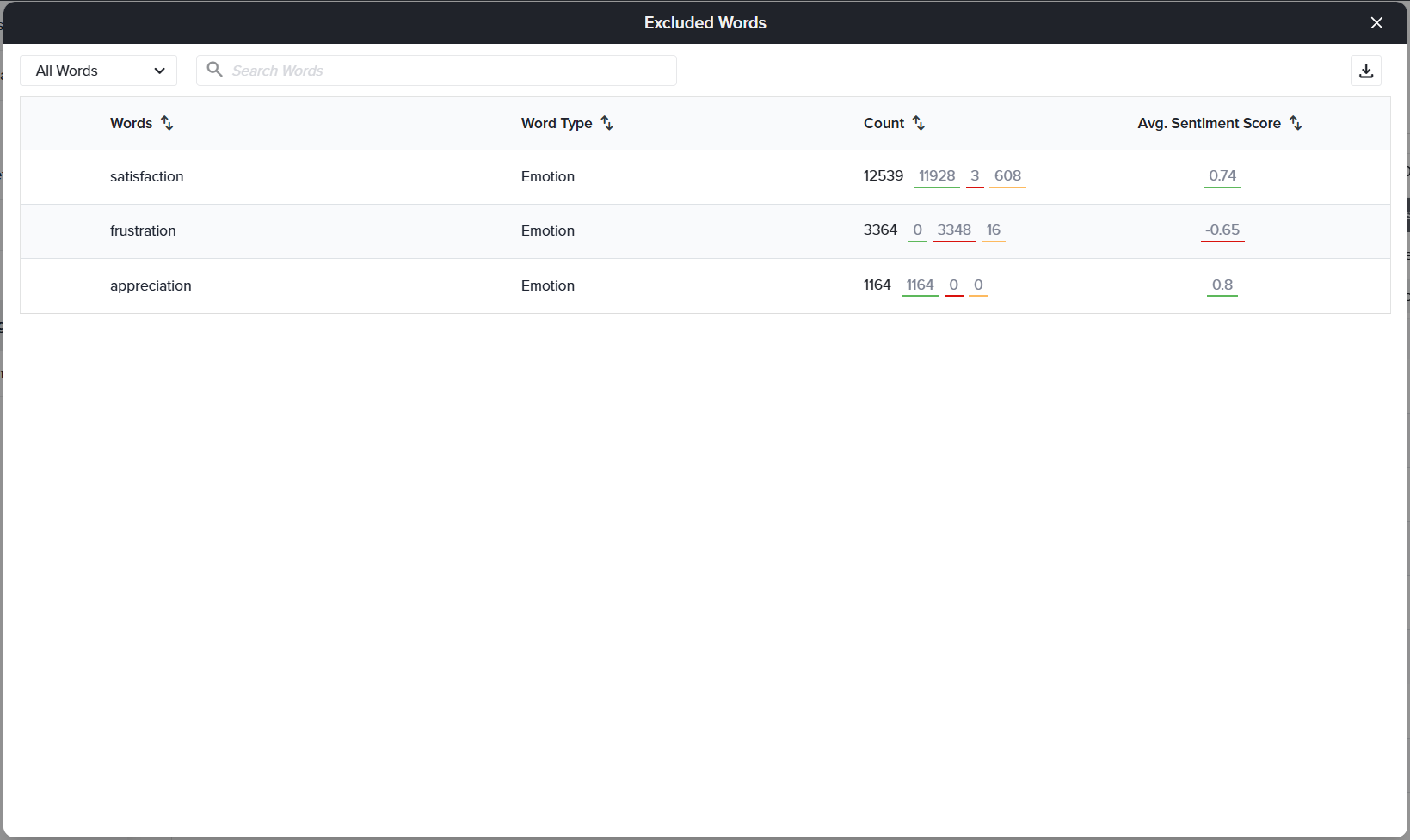
- Open the Excluded Words tab to see every word you have excluded.
- Use the filter to view excluded items by Words, Emotions, or Themes.
- To bring a word back, hover over it and click Restore word. The word returns to your Text Analysis report and is included in analysis again.
Combine Similar Words
What it does.
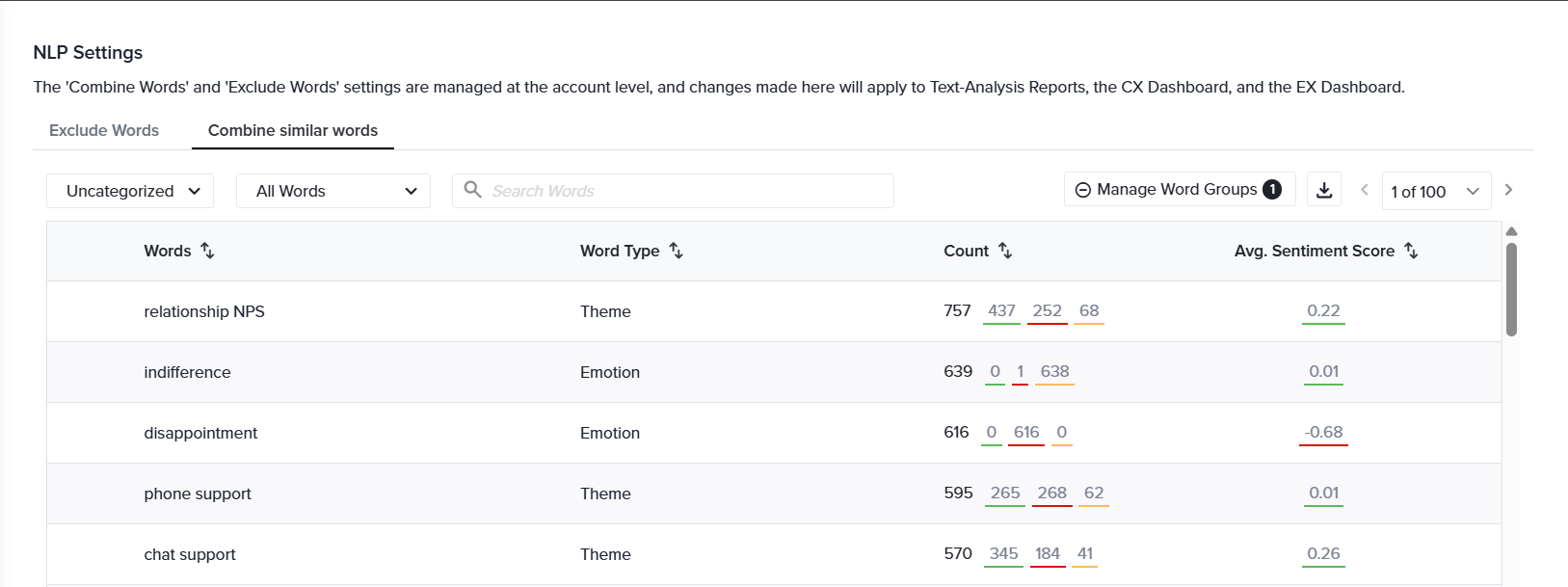
Combine Similar Words lets you group related words or phrases so they are analyzed together as a single term. Rather than seeing several similar words spread across your results, you see one consolidated entry that represents them all.
When to use it
Use Combine Similar Words when multiple words describe the same idea, product, emotion, or theme, and you want them reported as one. This is especially useful when participants use different vocabulary for the same concept, or when you want to roll several related terms up into a category that is meaningful to your organization.
A retail company runs a post-purchase customer experience survey that asks, “How was your recent shopping experience?” The open-text responses have various feedback related to the delivery experience. The customers have described the fulfillment experience using different words — delivery, shipping, and courier — so feedback about the same topic is split across three separate terms. The team selects those words, creates a Word Group named Delivery, and saves it. Now all fulfillment-related feedback rolls up under a single category, making it easy to see how customers feel about delivery overall rather than reading three fragmented entries.
How to use it
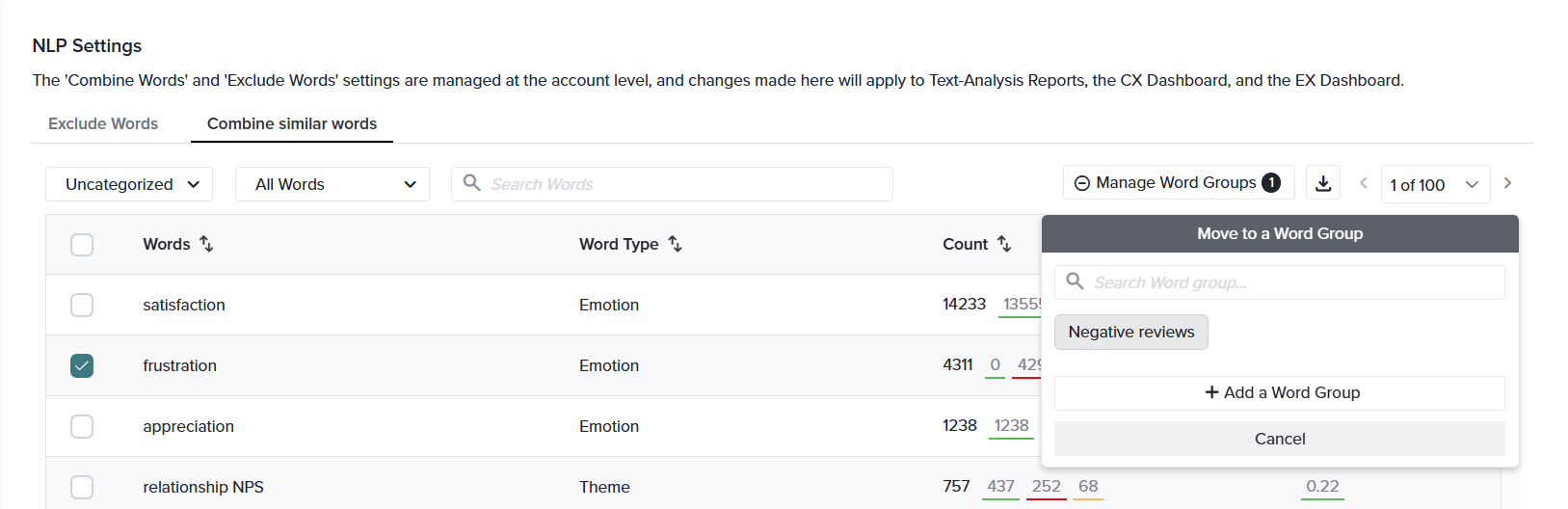
- From the words list, select the words you want to group together.
- As soon as you select a word, a small dialog box opens on the right for creating a combined word.
- Enter a name for the Word Group (for example, Negative Emotions).
- Click Save.
Once the Word Group has been saved, select the newly created group within the dialog box. All selected words from the NLP Settings page are then assigned to that Word Group.
The Combine Similar Words tab includes a drop-down menu that allows you to switch between Categorized and Uncategorized views:
- Uncategorized displays all identified words that have not yet been assigned to a Word Group.
- Categorized displays all identified words that have been assigned to a Word Group.
In the Categorized view, the table provides the following information:
- Words: Displays the identified words that have been assigned to a group.
- Word Type: Indicates whether the identified word is classified as a Theme or an Emotion.
- Bucket Name: Displays the name of the Word Group to which the word has been assigned.
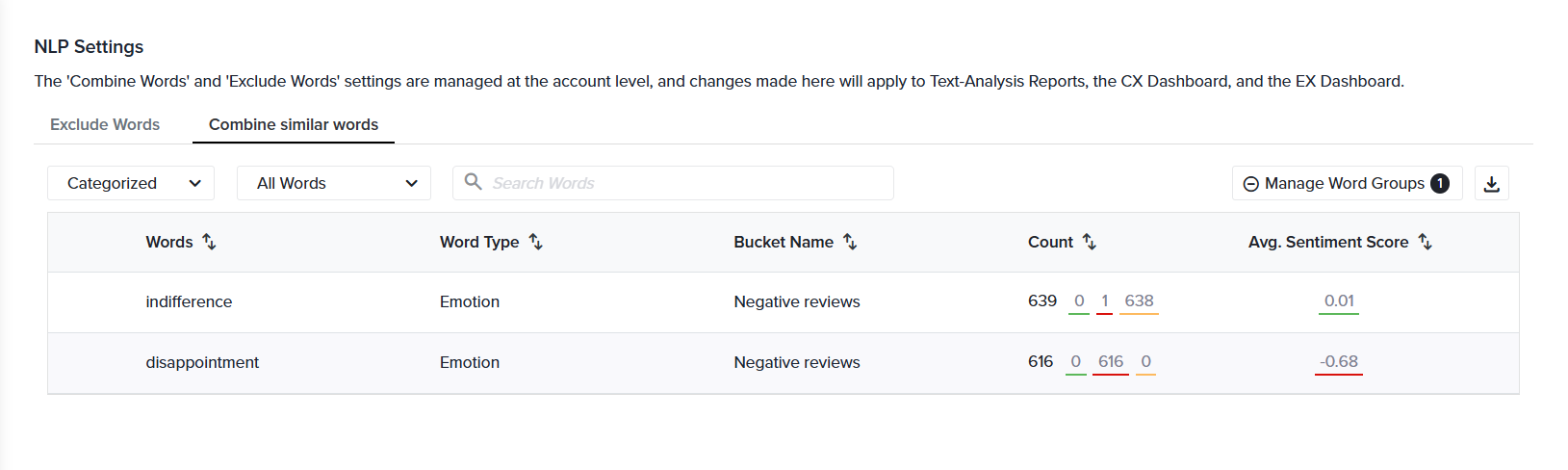
Managing Word Groups: Select Manage Word Groups on the left side of this tab to review and adjust your groups. From here you can:
- Edit a Word Group’s name.
- Create additional Word Groups.
- Delete a Word Group.
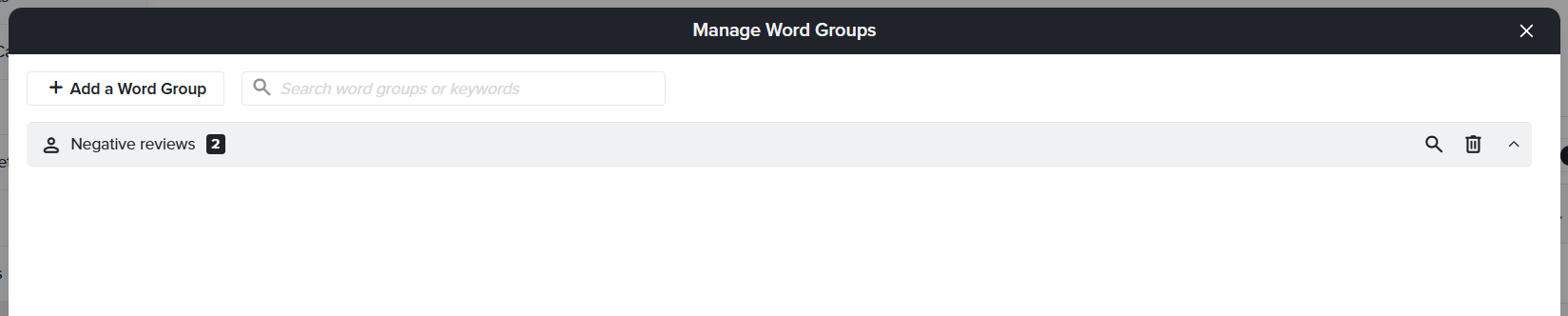
When a group is deleted, all words within the group are returned to the Uncategorized list and analyzed individually.
Good to Know
- Changes are account-wide. NLP Settings are not specific to a single project or dashboard. Any word you combine or exclude affects every analysis that uses NLP across your account — all projects, the CX Dashboard, the EX Dashboard, and all Text-Analysis reports. Review changes with this scope in mind before saving.
- CX and EX stay in sync. Because the settings are shared at the account level, changes made from the CX side are reflected on the EX side, and vice versa. You only need to configure them once.
- Excluding removes data from the report. An excluded word, together with its counts and sentiment, is taken out of the Text Analysis report entirely. Excluding is fully reversible — restore the word at any time from the Excluded Words tab.
- Deleting a Word Group is reversible too. Removing a combined group does not delete the underlying words; they simply return to the Uncategorized list and are analyzed individually again.
- AI identifies the items; you refine them. AI detects the words, emotions, and themes automatically. NLP Settings give you the final say in how that output is organized and what it includes.
Subscribe for tips and insights to drive better decisions!