
Project Basics
  • Getting Started!
    • Building EX Surveys
      • EX Metrics
        • EX Dashboard
          • EX Dashboard Settings
            • Analyze your drivers
              • Good to know
                • Getting Started!
                  • Building CX Surveys
                  • CX Metrics
                    • CX Dashboard
                      • CX Dashboard Settings
                        • Analyze your drivers
                          • Good to know
                            • Getting Started!
                              • Assessment Question types
                                • Score and more
                                  • Quiz participation
                                    • Get Results
                                    Home Directory Derived Fields Managing and Using Derived Fields

                                    Managing and Using Derived Fields

                                    Learn how to identify, edit, refresh, and delete Derived Fields, and how to use them in filters, dashboards, reports, exports, surveys, and distribution.

                                    This article is part of the Derived Fields guide. To create a field first, see Create and Configure Derived Fields.

                                    Navigate to:

                                    View, edit, refresh, and delete a Derived Field

                                    • Click the fx badge in the column heading. A detail panel opens on the right.
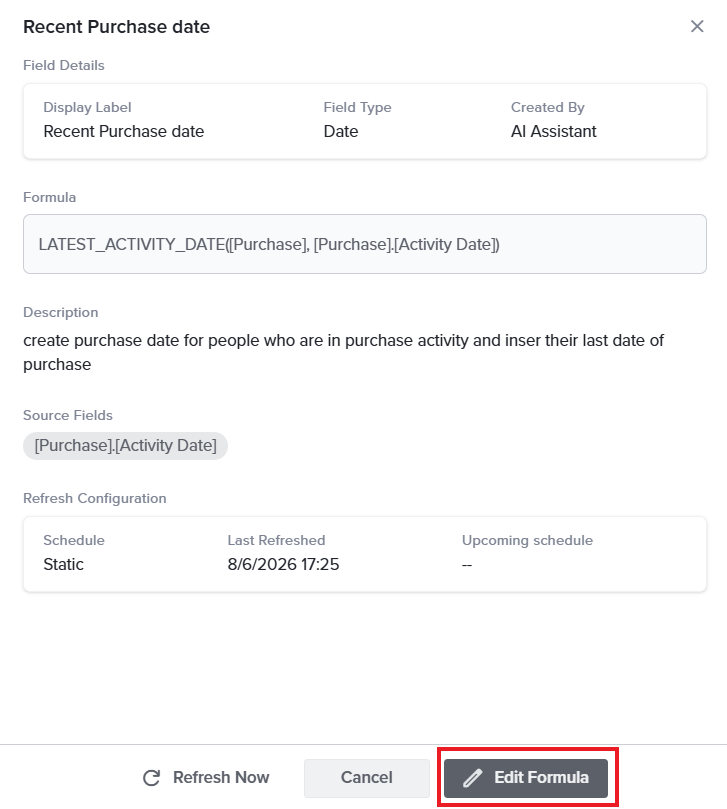
                                    • Review the details: Display Label, Field Type, Created By, the Formula, a short Description, and the Source Fields it reads.
                                    • Review Refresh Configuration for the Schedule and when the field was Last Refreshed. For an On Demand field, click Refresh Now to update the values immediately.
                                    • Click Edit Formula to reopen the field as you configured it to amend the formula. You can change the label, type, strategy, or formula.
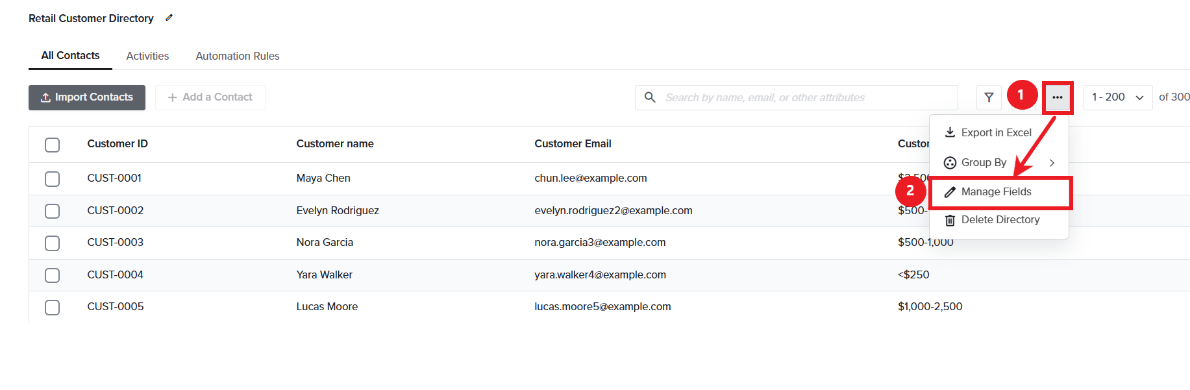
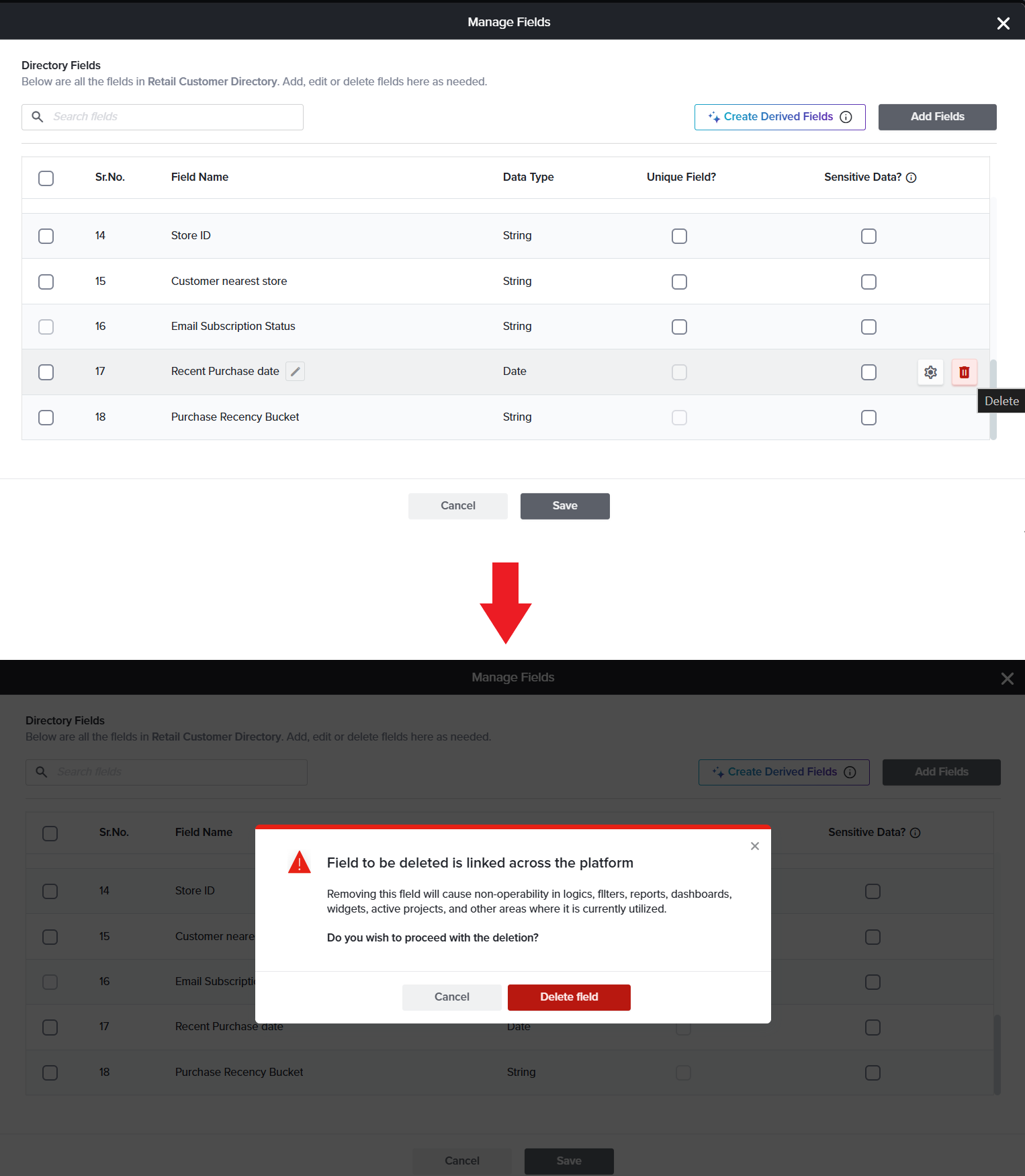
                                    • In order to Delete the field, click the three-dot menu and select Manage Fields. The modal lists every field in the Directory.
                                    • Hover on the field and click on the Trash icon to remove the field. You are asked to confirm before it is removed.
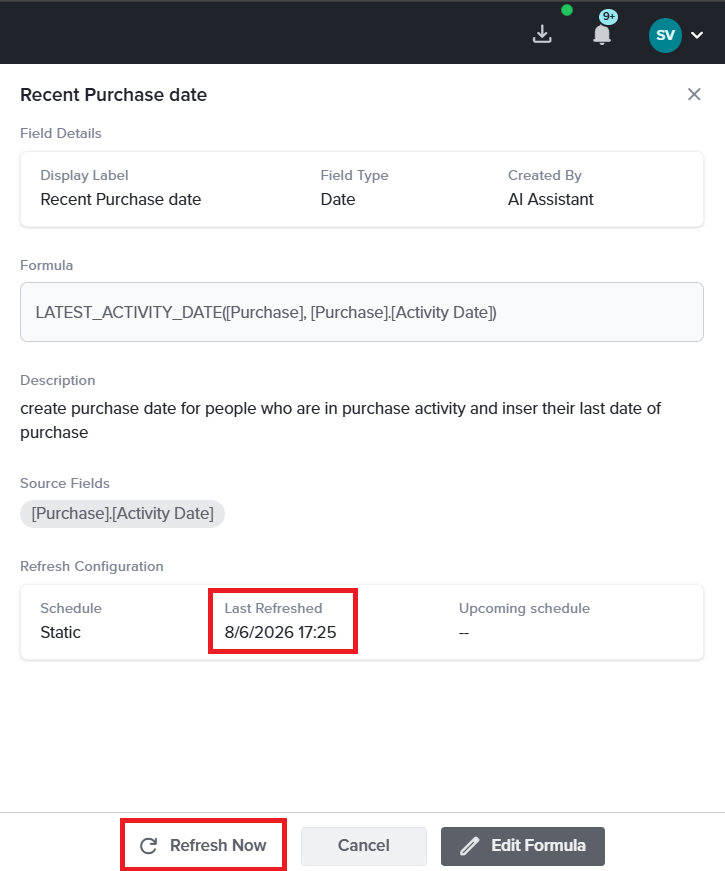
                                    For example:Opening the detail panel for Recent Purchase date displays the Latest Activity formula, Purchase Date listed as its source field, and the date the field was last calculated.

                                    The field detail panel — formula, type, source fields, refresh configuration, and the Edit Formula action.


                                    Import records when Derived Fields exist

                                    Because derived values are calculated for you, there is nothing to import. Derived Fields are not listed in the field-mapping step when you import contacts or activity records.

                                    • When you import new records, the Derived Fields that use them are updated automatically.
                                    • The usual import progress is shown while the import runs.
                                    • If the import finishes while the calculations are still running, the derived columns remain in a loading state until every value is ready.
                                    For example:When a new file of purchases is imported into Purchase History, Days Since Last Purchase and Purchase Recency Bucket are updated automatically. A customer who has just bought again moves from Lapsed back to Recent without any manual intervention.

                                    Delete a field used by a Derived Field

                                    A field cannot be deleted while a Derived Field depends on it. Attempting to do so displays a warning that identifies the affected Derived Fields and asks you to resolve the dependency first.

                                    To proceed, either amend each Derived Field so that it no longer references the field, or delete those Derived Fields.
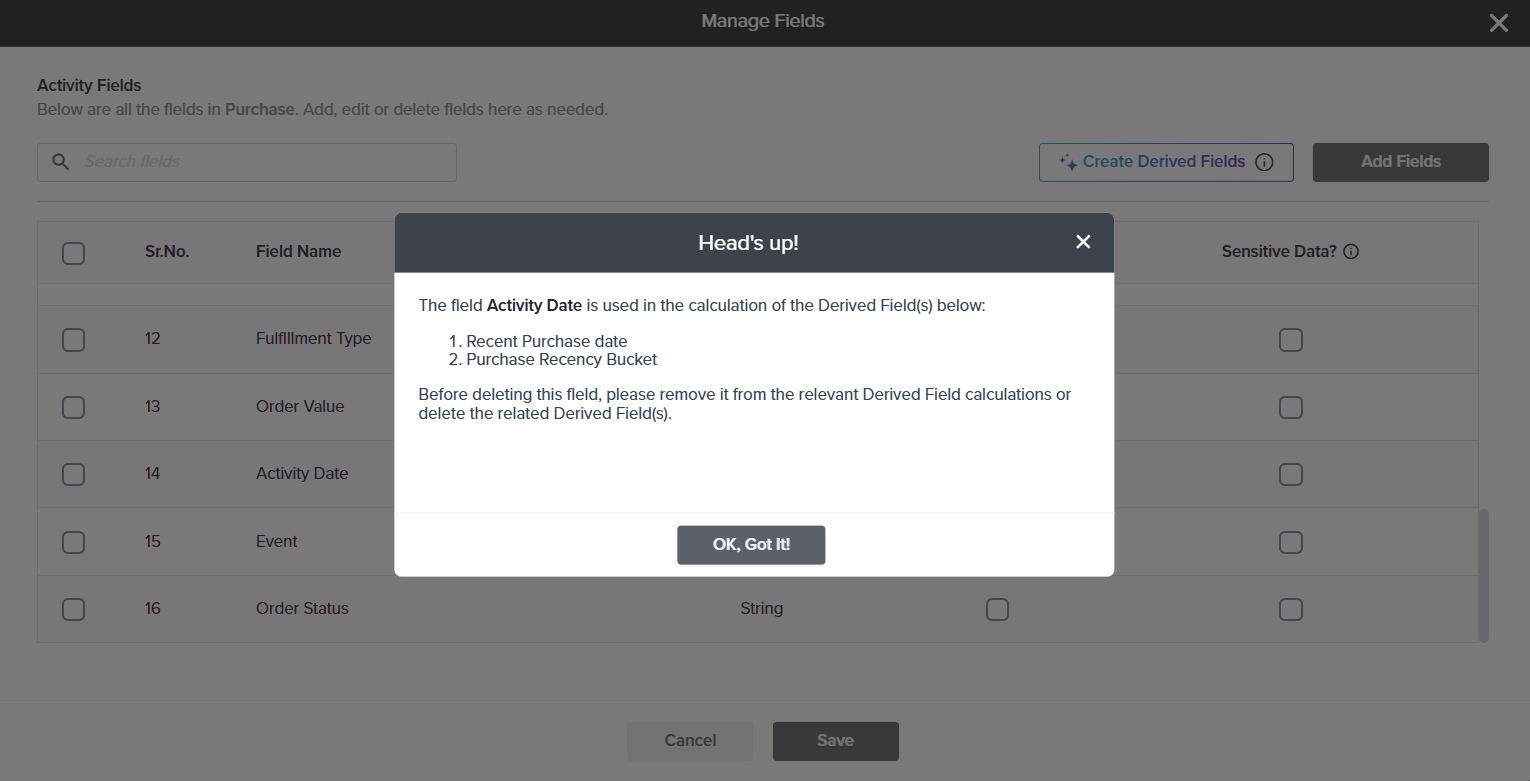
                                    For example:Both Recent Purchase date and Purchase Recency Bucket read the Activity Date field. Attempting to delete Activity Date lists both fields and prevents the deletion until they are amended or removed.

                                    Where you can use Derived Fields

                                    Once the values are calculated, a Derived Field behaves like any other Directory field and is available wherever your fields are already used:

                                    • Filters — narrow your list to a calculated group, such as every Lapsed customer.
                                    • Dashboards — chart how many customers sit in each recency bucket, or total spend across the base.
                                    • Reports — analyze the values without recalculating them manually.
                                    • Exports — include the calculated values in your exports.
                                    • Design — pipe a value into a survey question, or show and hide questions based on it.
                                    • Distribution — personalize and target your outreach through mail merge, pre-population, and automation rules.
                                    For example:If a User wants to re-engage customers who have drifted away, an automation rule distributes the reactivation survey only to contacts whose Purchase Recency Bucket is Lapsed, and each email opens with the name taken from Reactivation Email Name. No list is compiled by hand, and no field is updated manually.

                                      While a Derived Field is being calculated, Edit Formula and Refresh Now are disabled; hovering over either explains why.

                                    See also

                                    Love it when you
                                    know more?

                                    Subscribe for tips and insights to drive better decisions!

                                    completed tick icon
                                    Thank you!
                                    Your request has been successfully submitted.
                                    ×