
Import Automation
The Import Automation Dashboard lists every import automation rule in a project, so you can see at a glance which rules are running, how many records they have processed, and how each run went. From here you can also change, pause, or delete a rule.
With the Import Automation Dashboard, you can:
- View all import automation rules for the project in one list.
- Preview, edit, pause, resume, or delete a rule.
- Review each rule’s summary and run history, including why a run failed.
- Create a new automation rule.
Navigate to
- Where to Find the Import Automation Dashboard
- Scheduled Import Rules
- Managing a Rule
- Rule Details and Run History
Where to Find the Import Automation Dashboard
- Open your project and click the Data tab.
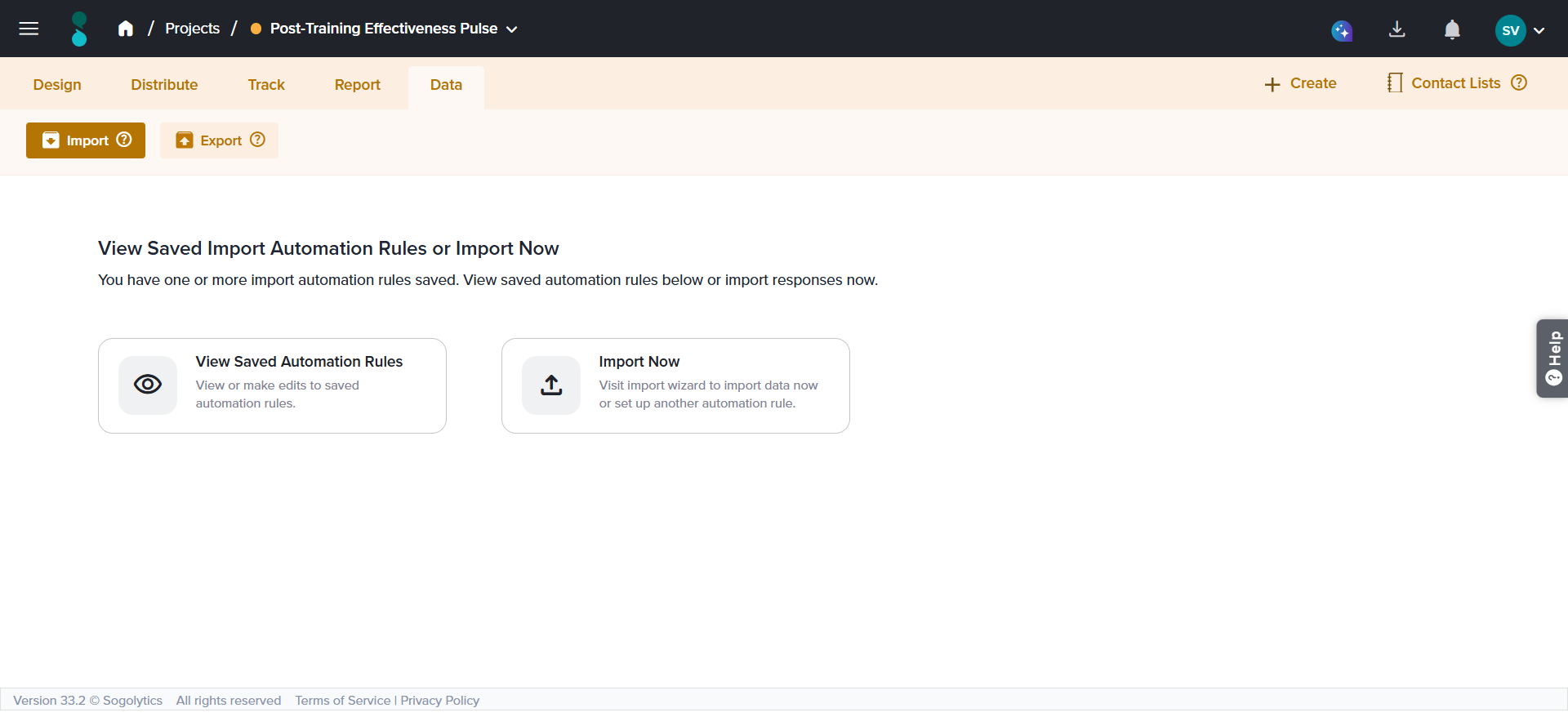
- Click Import. When the project has at least one automation rule, the View Saved Import Automation Rules or Import Now page opens.
- Click View Saved Automation Rules. The Scheduled Import Rules list opens.
To start a new import instead, click Back to Import main page, then Import Now.
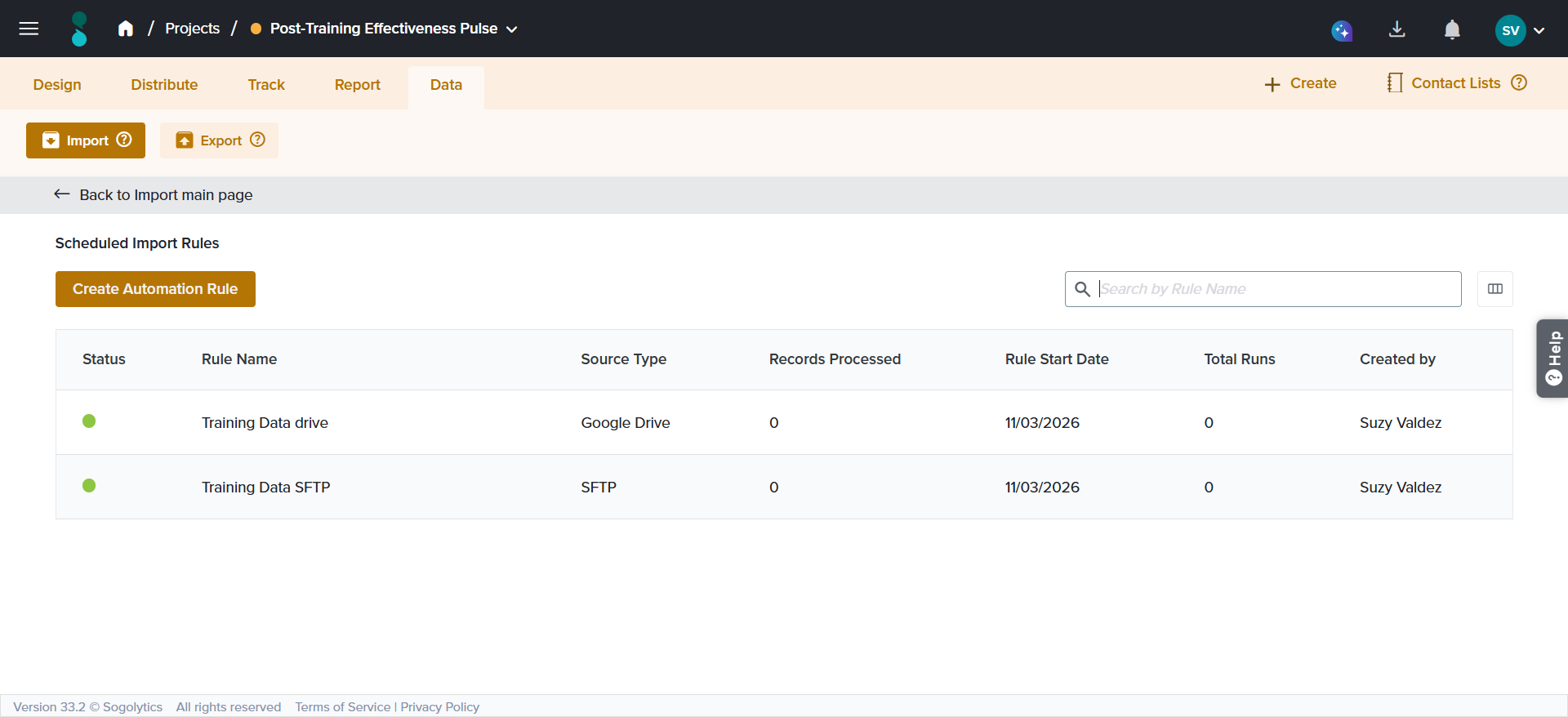
Scheduled Import Rules
The list shows one row for each rule. Use Search by Rule Name to find a rule and Manage Columns to show, hide, or reorder columns. Click Create Automation Rule to open the import wizard and create a new rule.
| Column | Description |
| Status | Whether the rule is Enabled or Disabled. Hover over the indicator to see the status. |
| Rule Name | The name given when the rule was saved. Click it to open the rule details. |
| Source Type | SFTP, Google Drive, OneDrive, or Project Responses. |
| Records Processed | The number of records the rule has processed. |
| Rule Start Date | The date the rule starts running. |
| Total Runs | The number of times the rule has run. |
| Created by | The user who created the rule. |
Managing a Rule
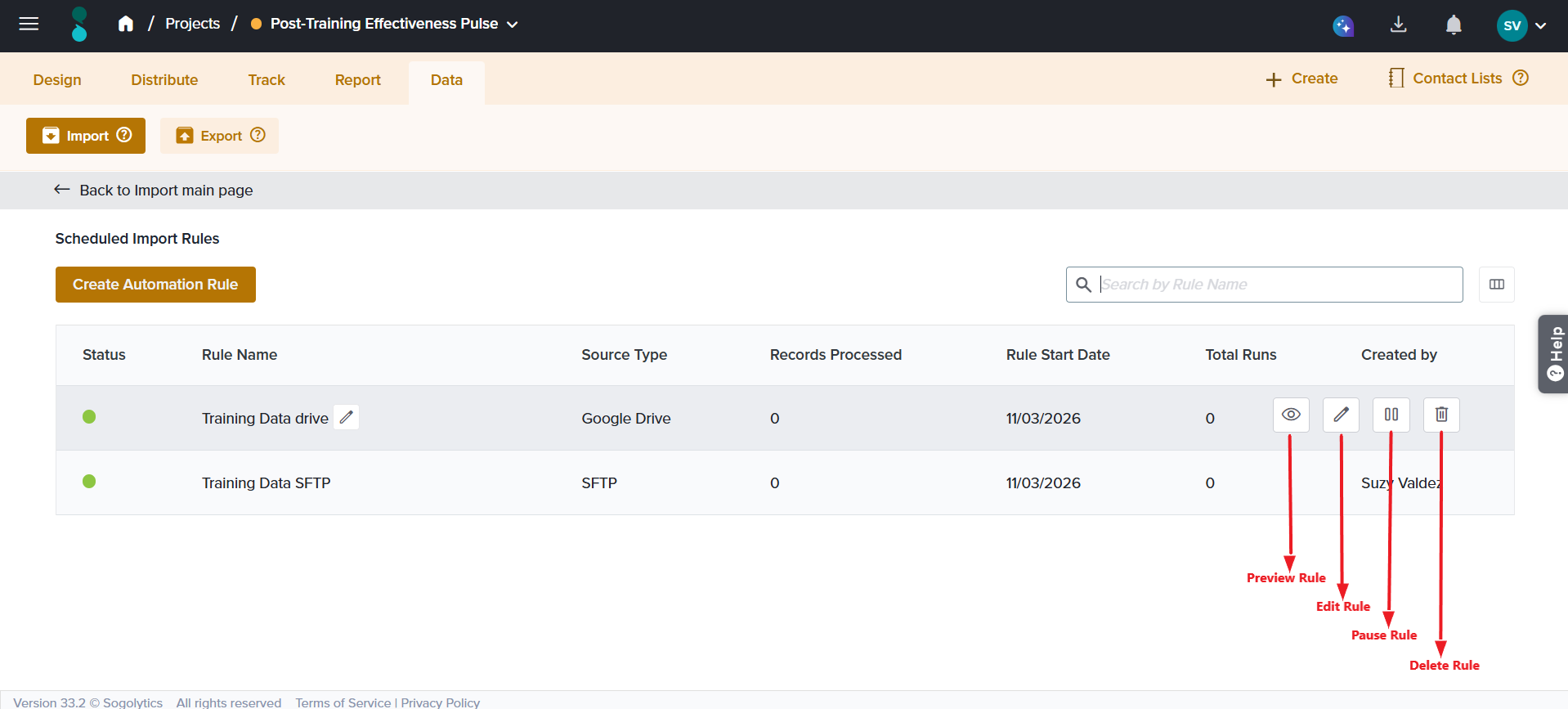
Hover over a rule in the list to display its actions.
| Action | What it does |
| Preview Rule | Shows a read-only view of the rule’s settings. |
| Edit | Opens the import wizard so you can update the rule. A message reminds you that any change affects all future imports. |
| Pause | Stops the rule from importing until you resume it. You are asked to confirm. |
| Resume | Restarts a paused rule. |
| Delete | Permanently deletes the rule. You are asked to confirm. |
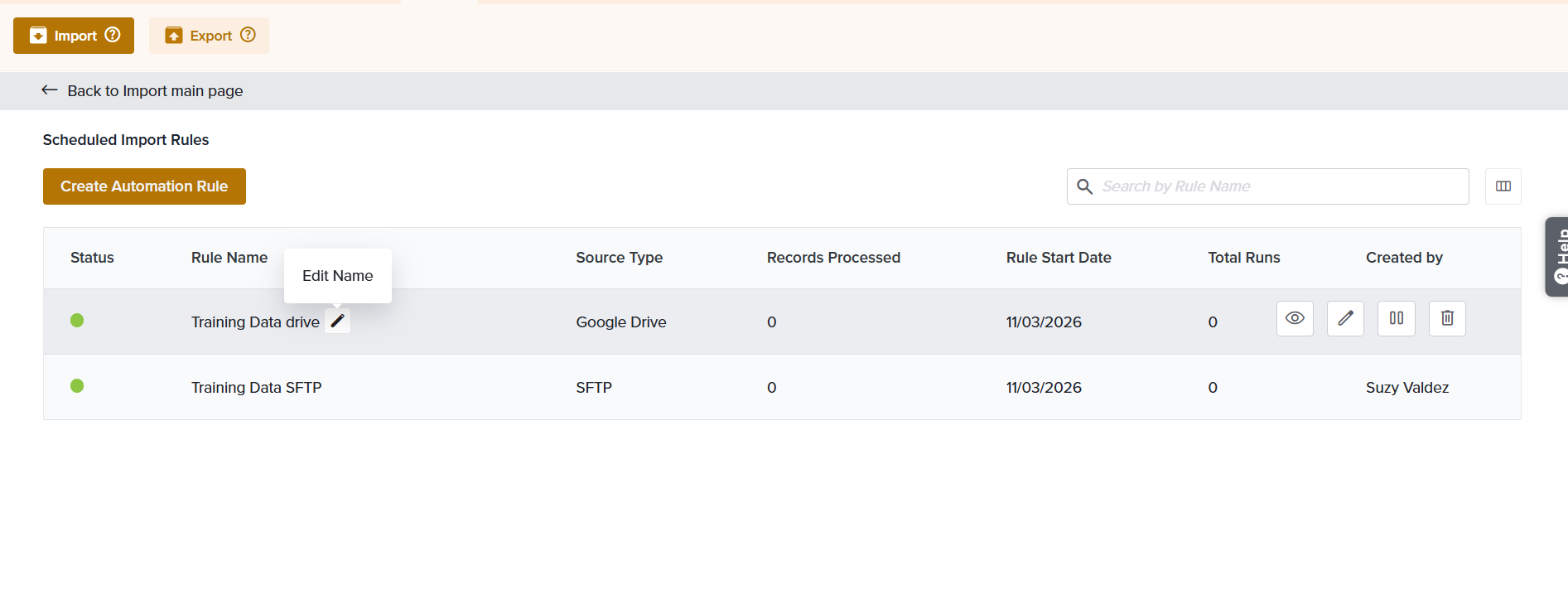
To rename a rule, use the Edit Name option next to the rule name.
A paused or deleted rule does not import responses, even if a run was already scheduled. Responses a rule has already imported remain in the project when the rule is paused or deleted.
Rule Details and Run History
Click a rule name to open its details page. The header shows the rule name with its source in brackets, and the Edit Automation Rule, Pause or Resume, Preview, and Delete options.
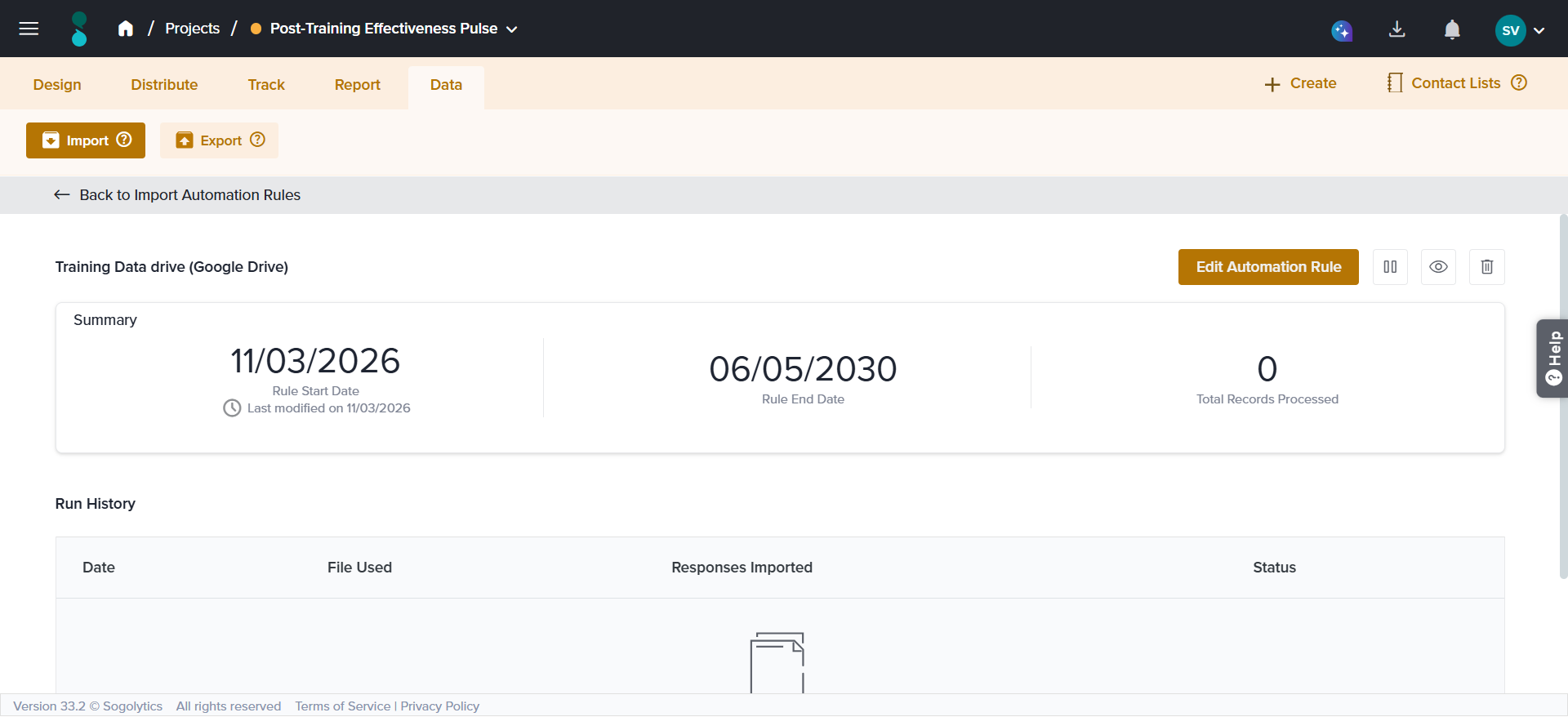
- Summary shows the Rule Start Date, Rule End Date, Total Records Processed, and when the rule was last modified.
- Run History lists each run with its Date, File Used, Responses Imported, and Status.
- A run’s status is Success, In Progress, or Failed. Hover over a failed run to see why it failed.
- For Project Responses rules, File Used shows the source project’s name, or No new responses when a run found nothing new.
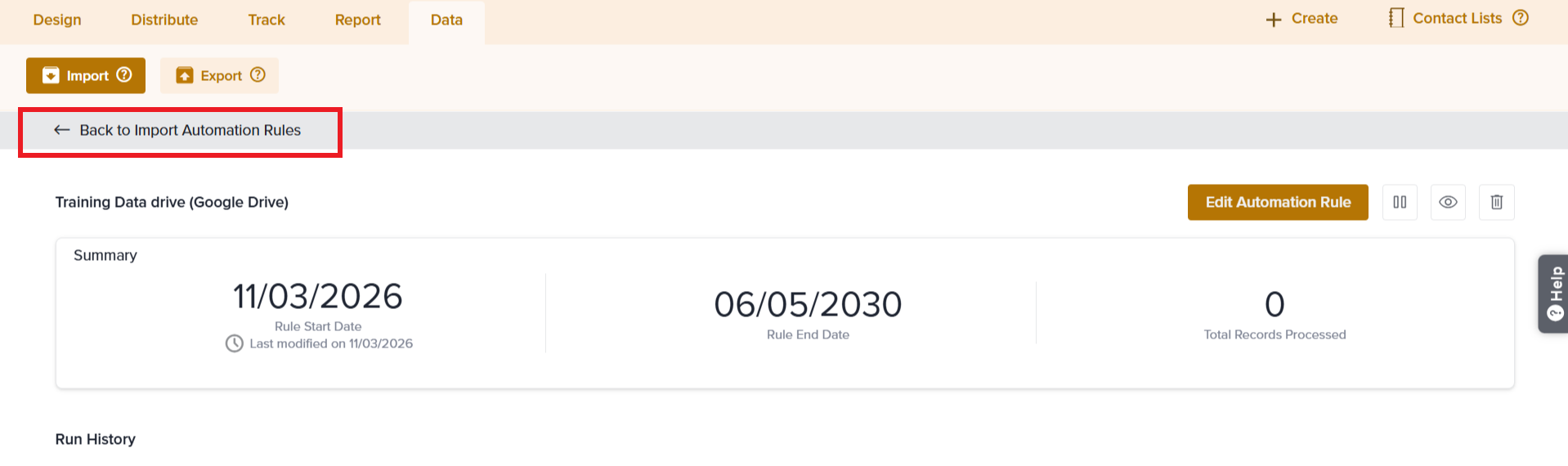
Click Back to Import Automation Rules to return to the list.
Subscribe for tips and insights to drive better decisions!