


Add Multiple Widgets
This feature lets you quickly populate your Dashboard with multiple widgets at once. You can add widgets for all your project questions and metadata in a single step, with the widget type automatically selected based on their nature.
To add multiple widgets, follow these steps:
- Create a new Dashboard or open an existing one.
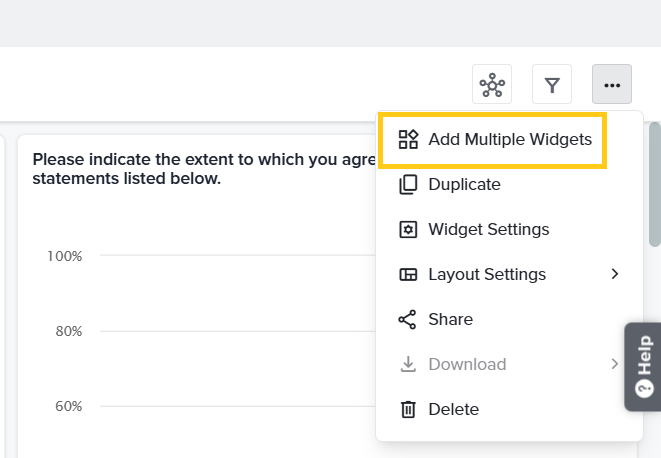
- Once the Dashboard is created/opened, click the three-dot menu in the top right and select Add Multiple Widgets.
- Select the column layout for your widgets. Choose 1 Column to stack widgets vertically, or 2 Columns to place them side by side. The number of rows will be adjusted based on the number of widgets added.
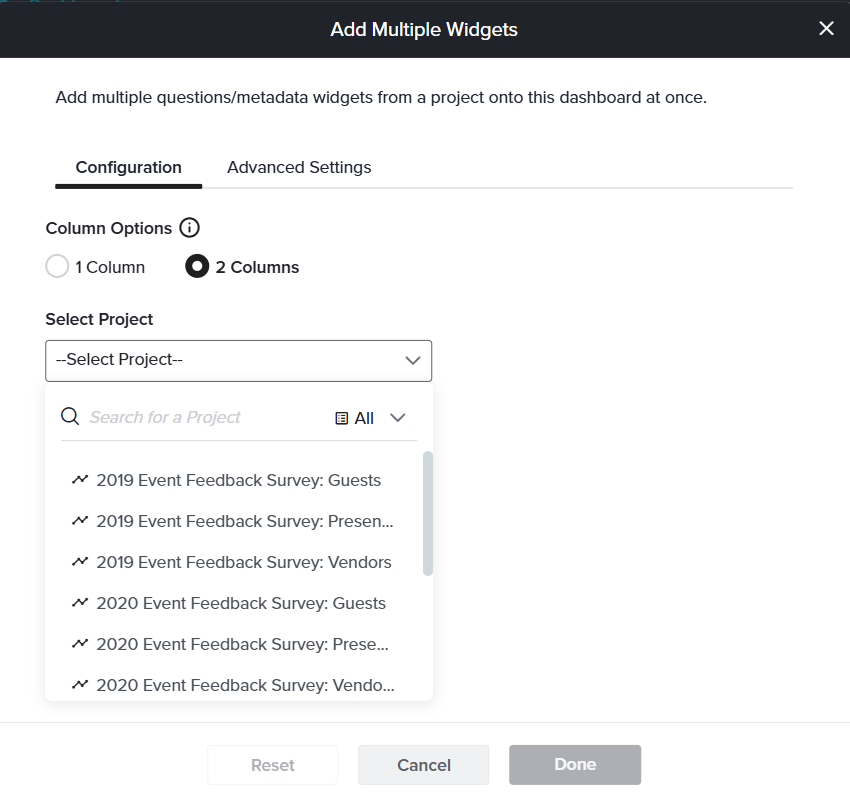
- Choose the relevant project as your data source.
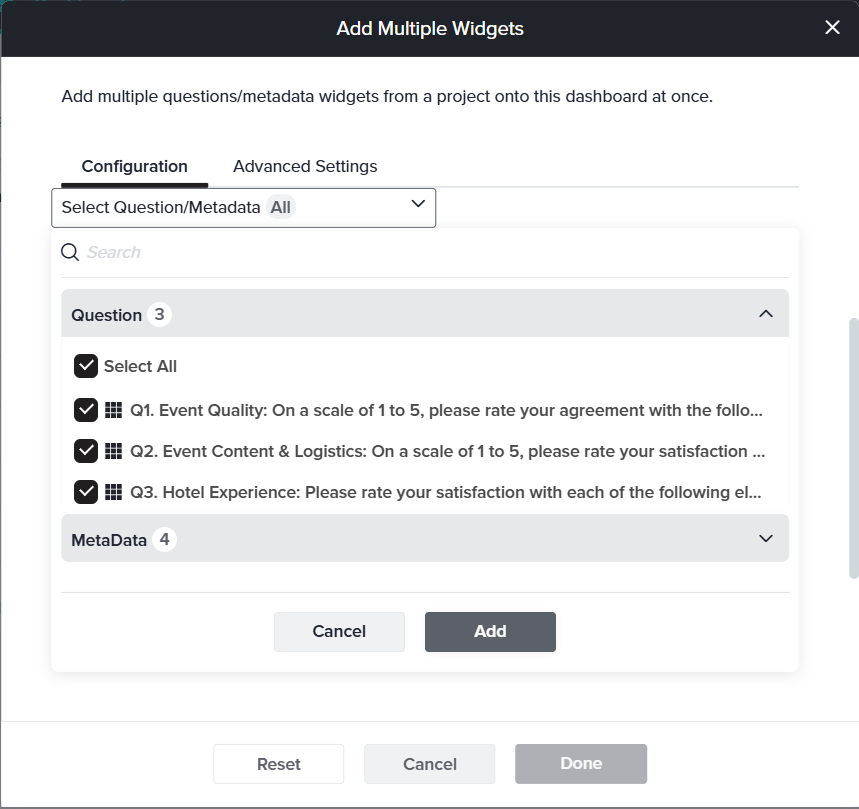
- Based on the selected project, you will have the option to choose questions and metadata from the Question/Metadata dropdown. Drill Down, Ranking, Signature, Numeric Allocation, and Attachment question types cannot be selected through this option
- Select the format in which the widgets should display data: Graph, Table or both. All the selected questions and metadata will be shown according to the chosen format.
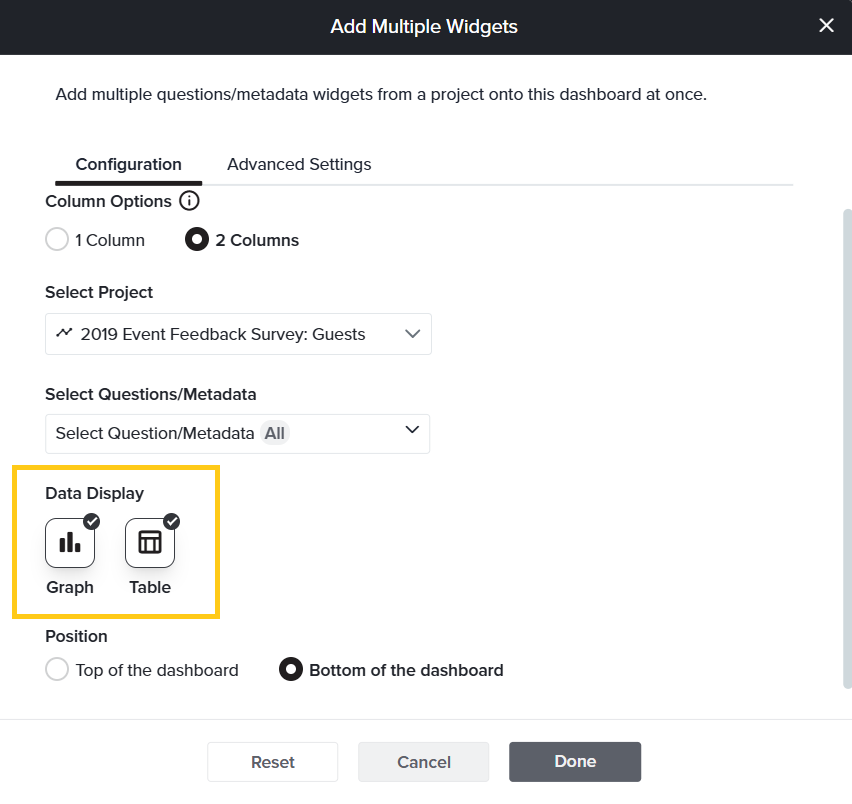
- If your Dashboard already contains widgets, use the Position option to choose where the new widgets should appear—either above the existing ones or below them.
- Next, go to Advanced Settings to define additional specifications for your widgets. Within Overall, you can customize based on the following options.
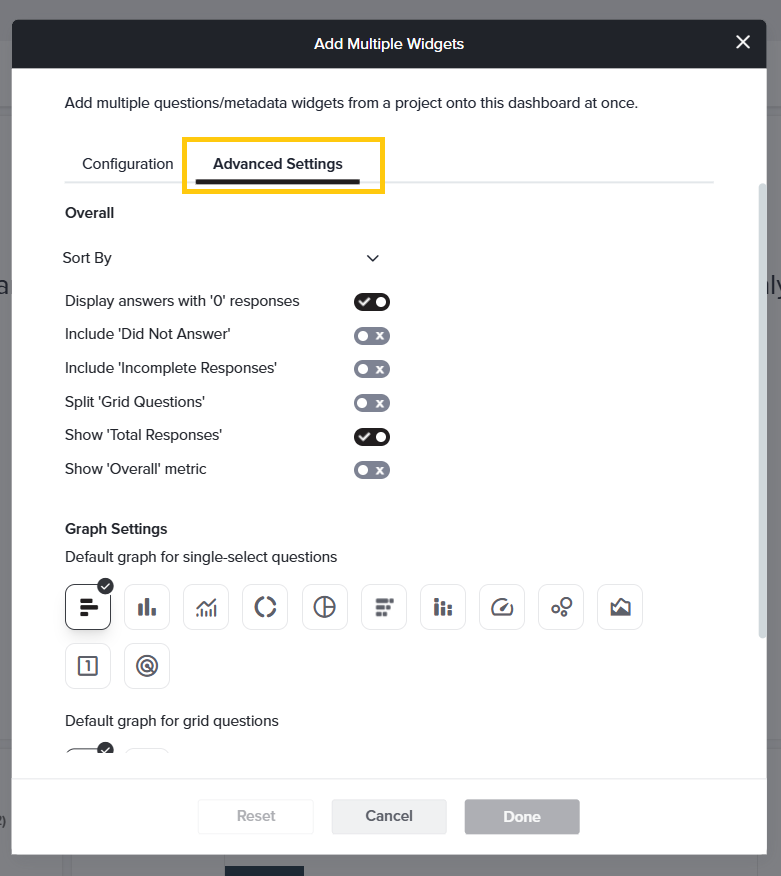
- Sort By: Sort your answer options based on the following criteria:
- In order of appearance of the question
- In alphabetical order (A to Z)
- In reverse alphabetical order (Z to A)
- From highest to lowest value
- From lowest to highest value
- Display answers with 0 responses
- Include ‘Did Not Answer’
- Include ‘Incomplete Responses’
- Split ‘Grid Questions’
- Show ‘Total Responses’
- Show ‘Overall Metric’
- Sort By: Sort your answer options based on the following criteria:
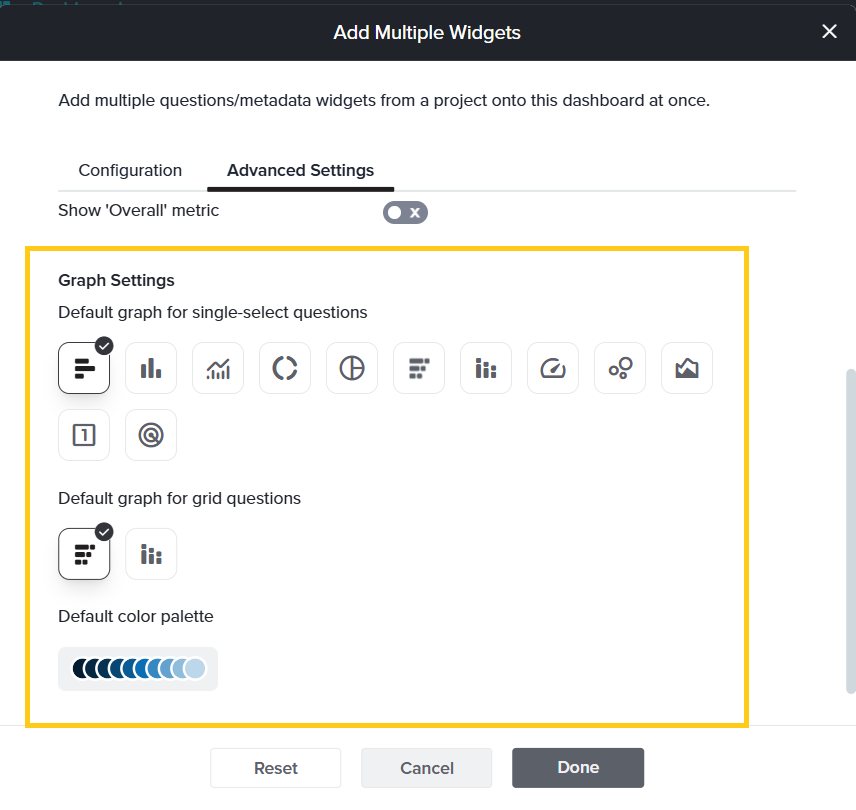
- Also under Advanced Settings, Graph Settings let you specify the graph types for single-select and grid questions. You can also select default graph color palettes here.
- Once you have customized all the settings, click Done. All selected questions will be added as widgets to the Custom Dashboard.
Love it when you
know more?
Subscribe for tips and insights to drive better decisions!

Thank you!