



Create and Configure Derived Fields
A Derived Field is a Directory field whose value is calculated automatically from the value held in your other fields, rather than entering it manually; define the formula once and watch the magic happen!
It operates in the same way as a spreadsheet formula: when the values it references change, the result is recalculated automatically. There is no need to export your contacts, calculate the values in a separate tool, and import them back in.
For example, if your Customer Directory records each Purchase and its Product Cost, a Derived Field can automatically total how much a customer has spent into a Total Expense field. You can also go a step further and use that total to automatically sort each customer into an Expense Category — for example, Platinum, Gold, Silver, or Bronze. Both fields keep themselves up to date whenever a purchase is added or a cost changes.
With Derived Fields you can:
- Calculate new values from data already held in your Directory — for example, a customer’s days since their last purchase, total spend, or age — with no manual calculation.
- Have AI review your Directory and propose ready-made fields — each with its formula already defined.
- Describe the field you want to create in plain English as a prompt, and have AI generate its formula; no knowledge of formula syntax is required.
- Compose your own formula in a dedicated editor, selecting from a searchable list of your fields and ready-made functions.
- Preview the values a field would produce against a sample of real records before saving, to confirm that the results are correct.
- Use the completed field anywhere your other Directory fields are already used — in filters, dashboards, reports, exports, surveys, and distribution.
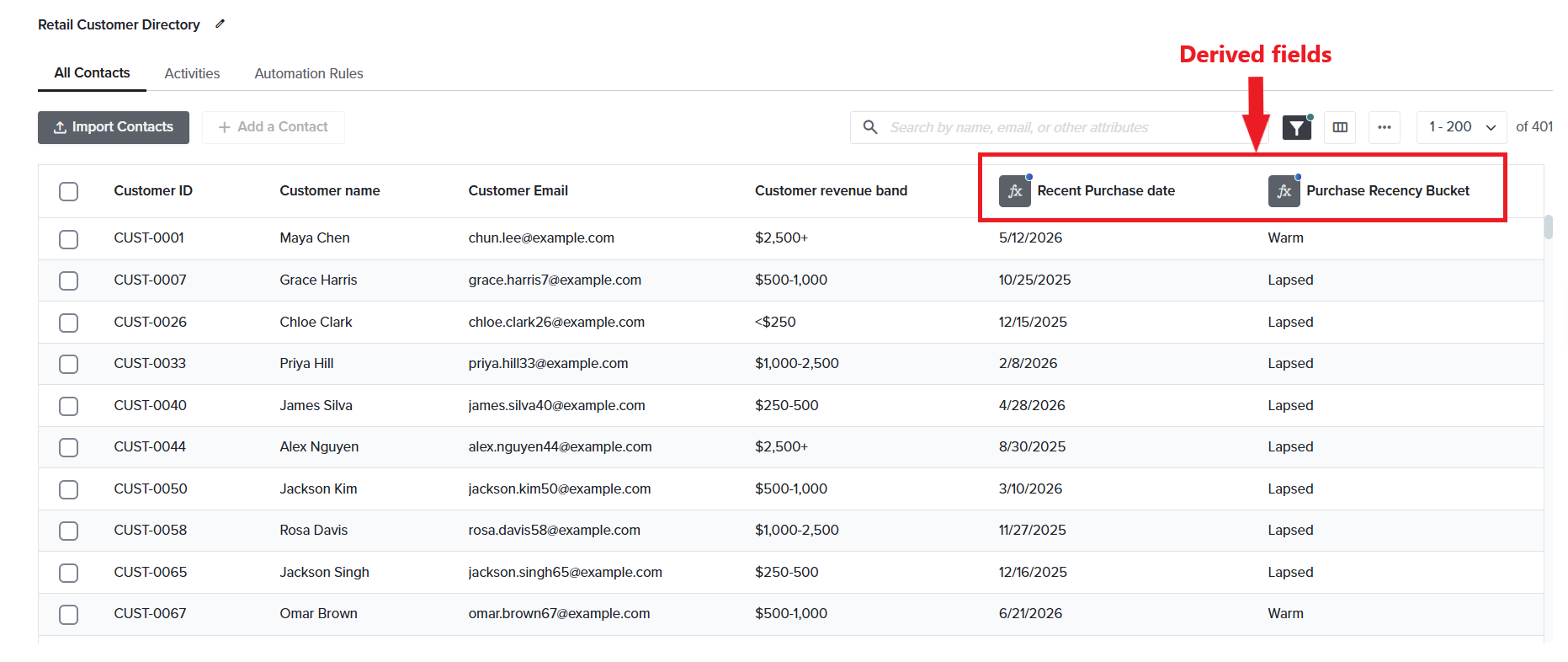
The Customer Directory with derived columns — customer_age, purchase_recency_bucket, and days_since_last_purchase — each marked with the fx badge.
In this article
How Derived Fields work
- Choose how to build the field — let AI suggest one, create it manually by describing it in plain English, or write your own formula.
- Preview the result against a sample of real records to confirm it is correct.
- Save. The platform calculates the value and refreshes it on the schedule you select.
Throughout this article we follow one retail company planning retention and reactivation campaigns. To target them, it needs to know how recently each customer last bought something and to group customers accordingly — impractical to calculate by hand across thousands of customers.
The data already exists: the Retail Customer Directory shown above holds one record per customer, and a linked Purchase History activity holds one record per purchase (with fields such as Purchase Date and Amount). From this, the company creates two Derived Fields — generated automatically rather than entered manually:
- Days Since Last Purchase — for each customer, the feature finds the latest Purchase Date in Purchase History and counts the days to today.
- Purchase Recency Bucket — applies a rule to that count: 0–30 days is Recent, 31–90 is Warm, 91+ is Lapsed.
Both appear as new columns against every customer in the directory, marked with the fx badge, and refresh automatically as purchases come in. The table below shows the result for three customers.
| Customer | Purchases | Days Since Last Purchase | Recency Bucket |
|---|---|---|---|
| Customer 1 | 12 | 8 | Recent |
| Customer 2 | 8 | 60 | Warm |
| Customer 3 | 3 | 200 | Lapsed |
Where to find Derived Fields
- Open the Directory you want to work in. In this example, that is the Retail Customer Directory.
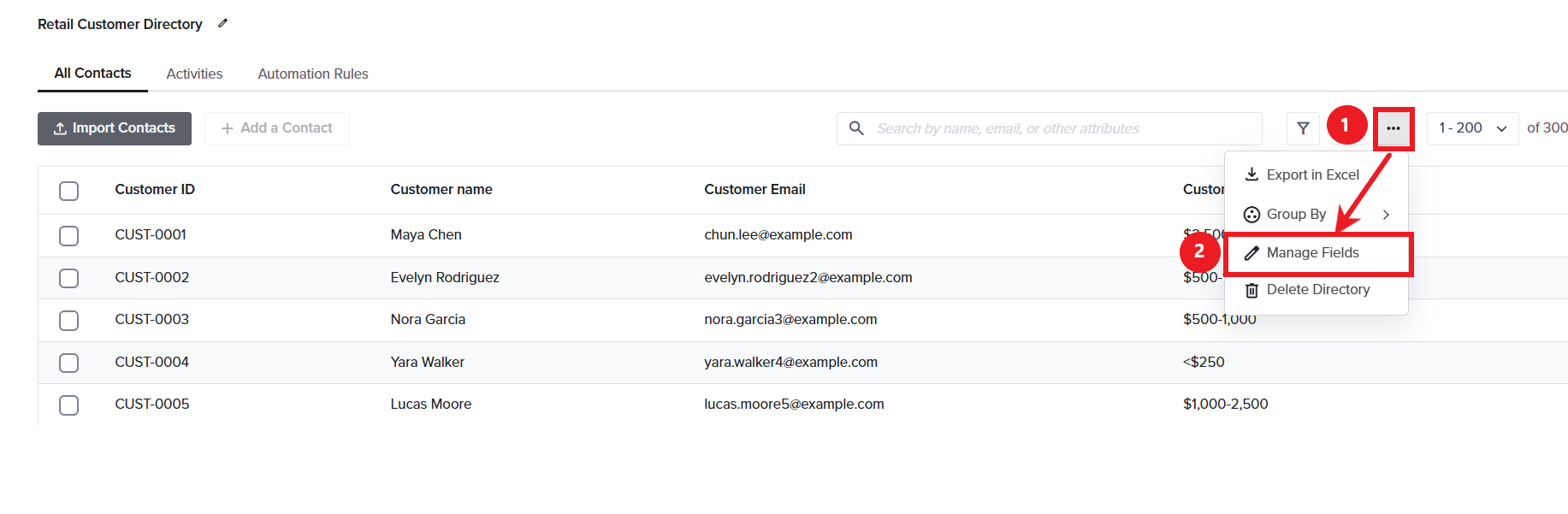
- Click the three-dot menu and select Manage Fields. The modal lists every field in the Directory.
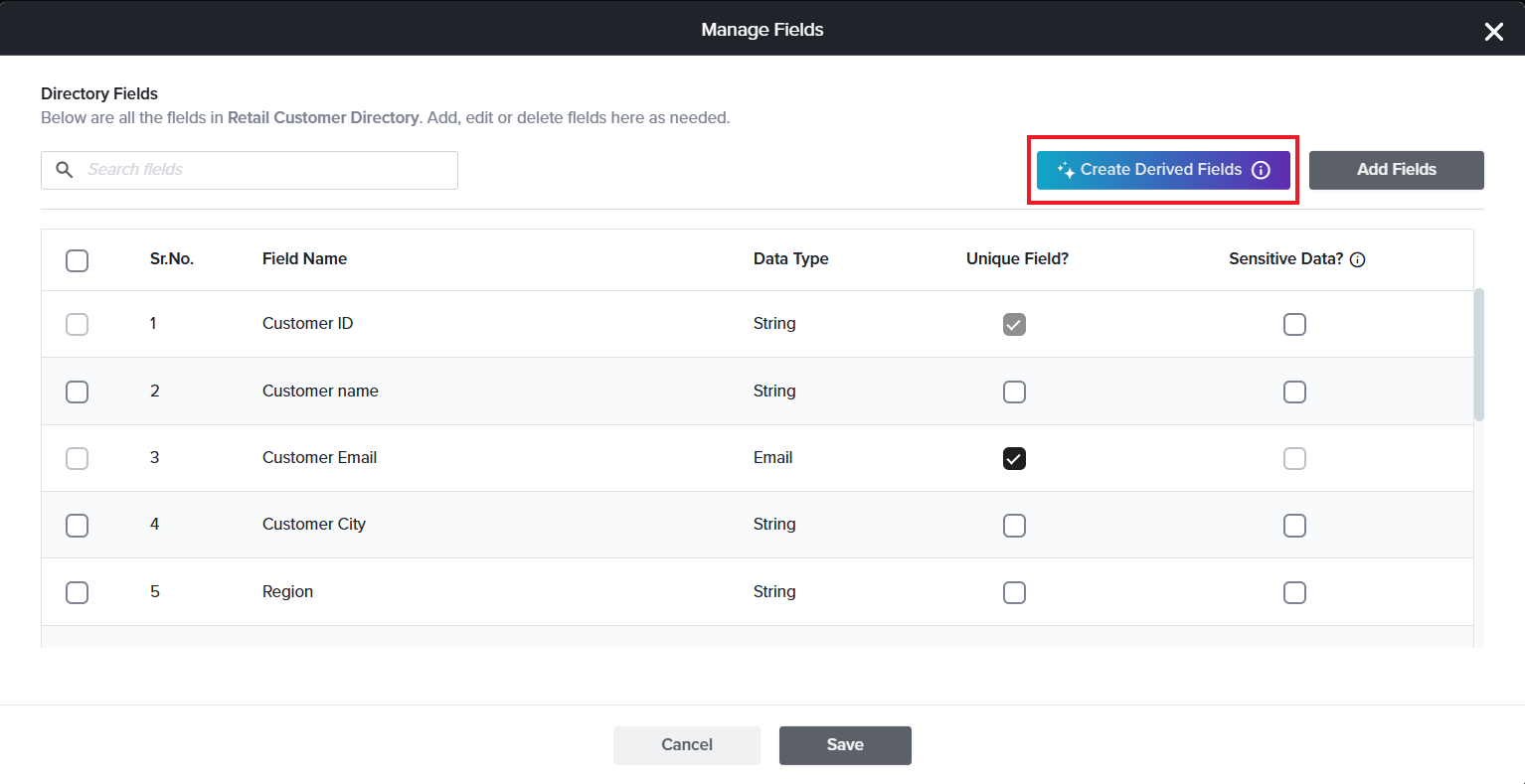
- Click Create Derived Field. This opens the creation screen.
- Choose how you want to build the field: AI Suggestions or Create Manually.
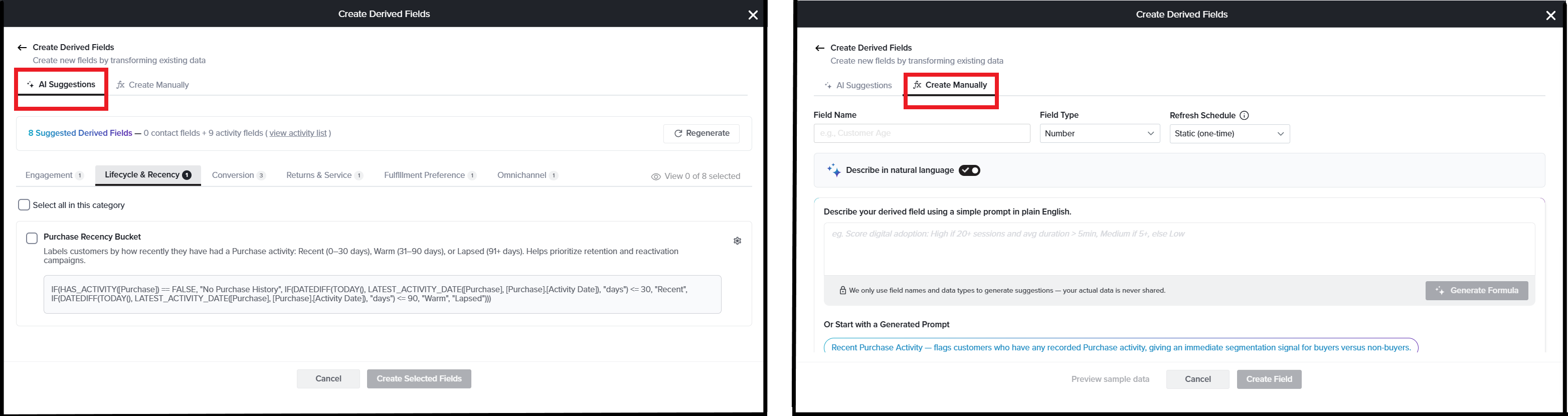
Tip: To return to Manage Fields without creating a field, click Back in the header. Nothing is saved until you create the field.
See also
Subscribe for tips and insights to drive better decisions!