



Create Derived Fields from AI Suggestions
When you create a Derived Field you can let AI do the heavy lifting. This is the fastest route, and it requires no formula. The platform reviews the names and data types of your existing fields and proposes ready-made, meaningful fields you can create and add immediately.
Tip: The AI utilized for this feature never stores your actual data. It is only used for calculation purposes.
- Create fields from AI suggestions
- Define a field manually
- Function Reference
- Managing and Using Derived Fields
In this article
Create fields from AI suggestions
To create fields using AI:
- Go to Manage Fields and click on Derived Fields.
- The platform will run a short analysis of your Directory fields on the backend. After this quick process is completed, the AI Suggestions tab will appear with any suggestions for derived fields.
- All the suggested fields are classified into different categories. The category types are based on the type of fields in your Directory.
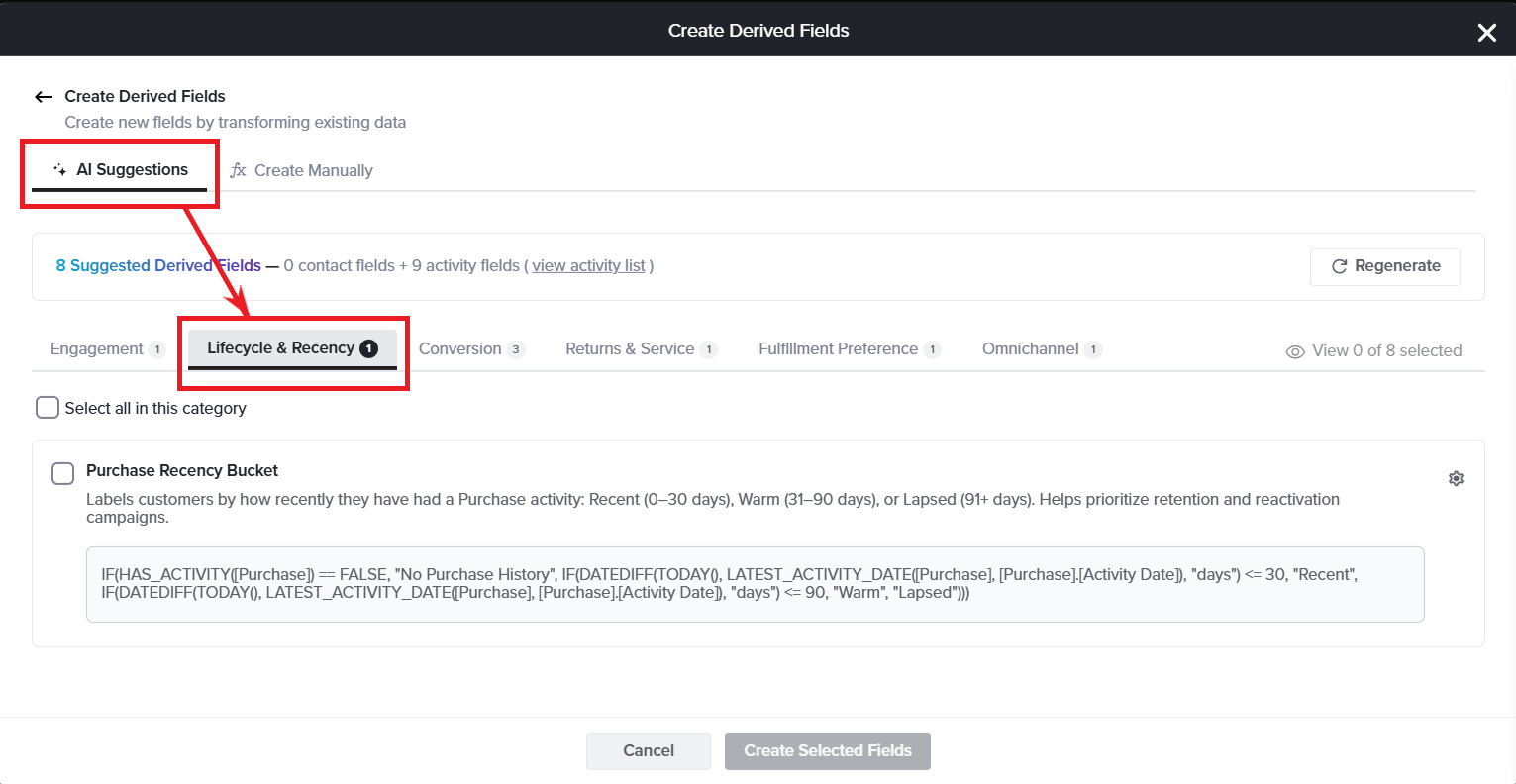
- Review each suggestion. Every suggestion row shows the field name, a short description, and the formula.
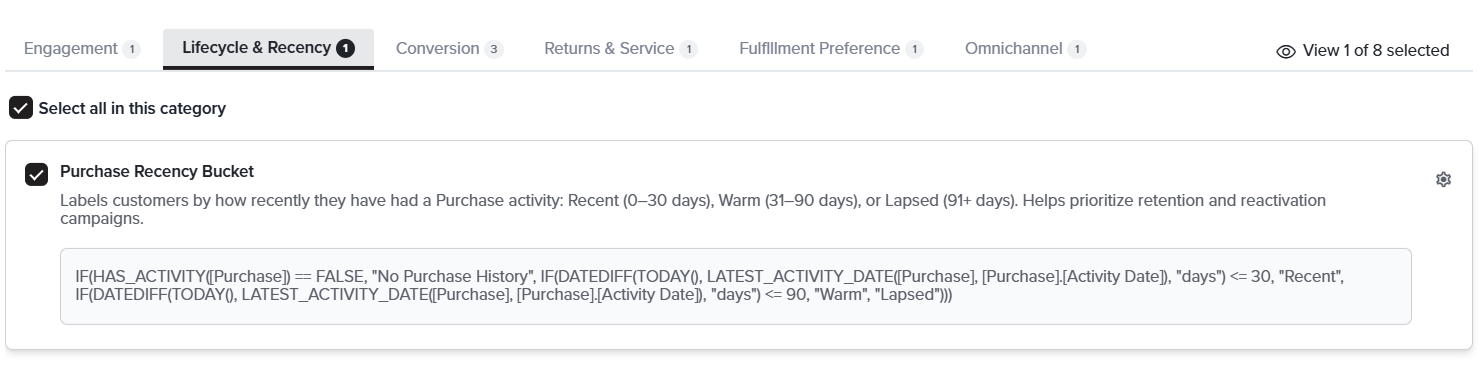
- Select the checkbox for each field you want. To select everything in the current tab, use Select all in this category. The counter in the top-right updates as you go.
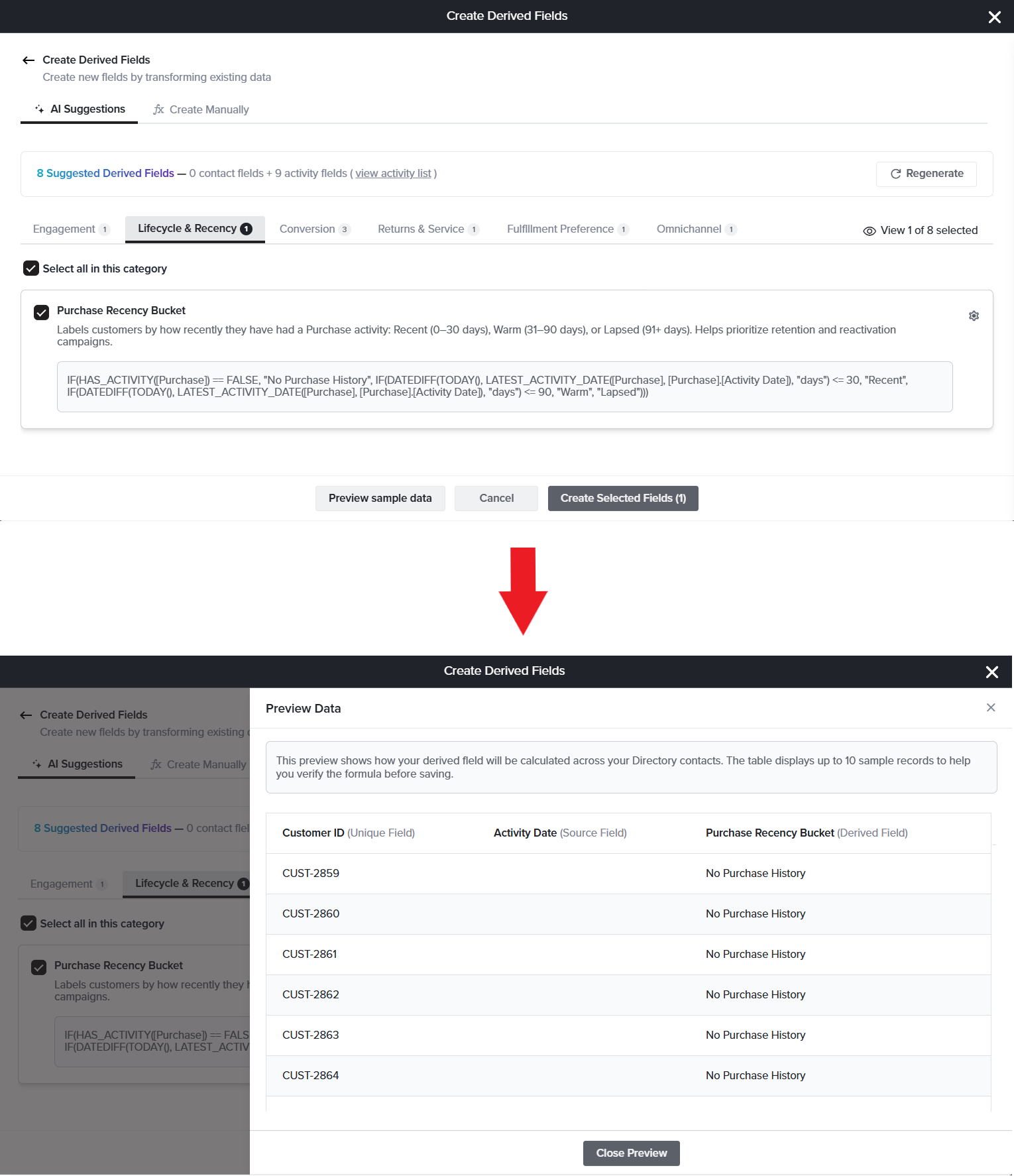
- Click Preview on a suggestion to check its results against real customers before creating it.
- Click Create Selected Fields. The number in brackets confirms how many are being added, and the new columns populate as the values are calculated.
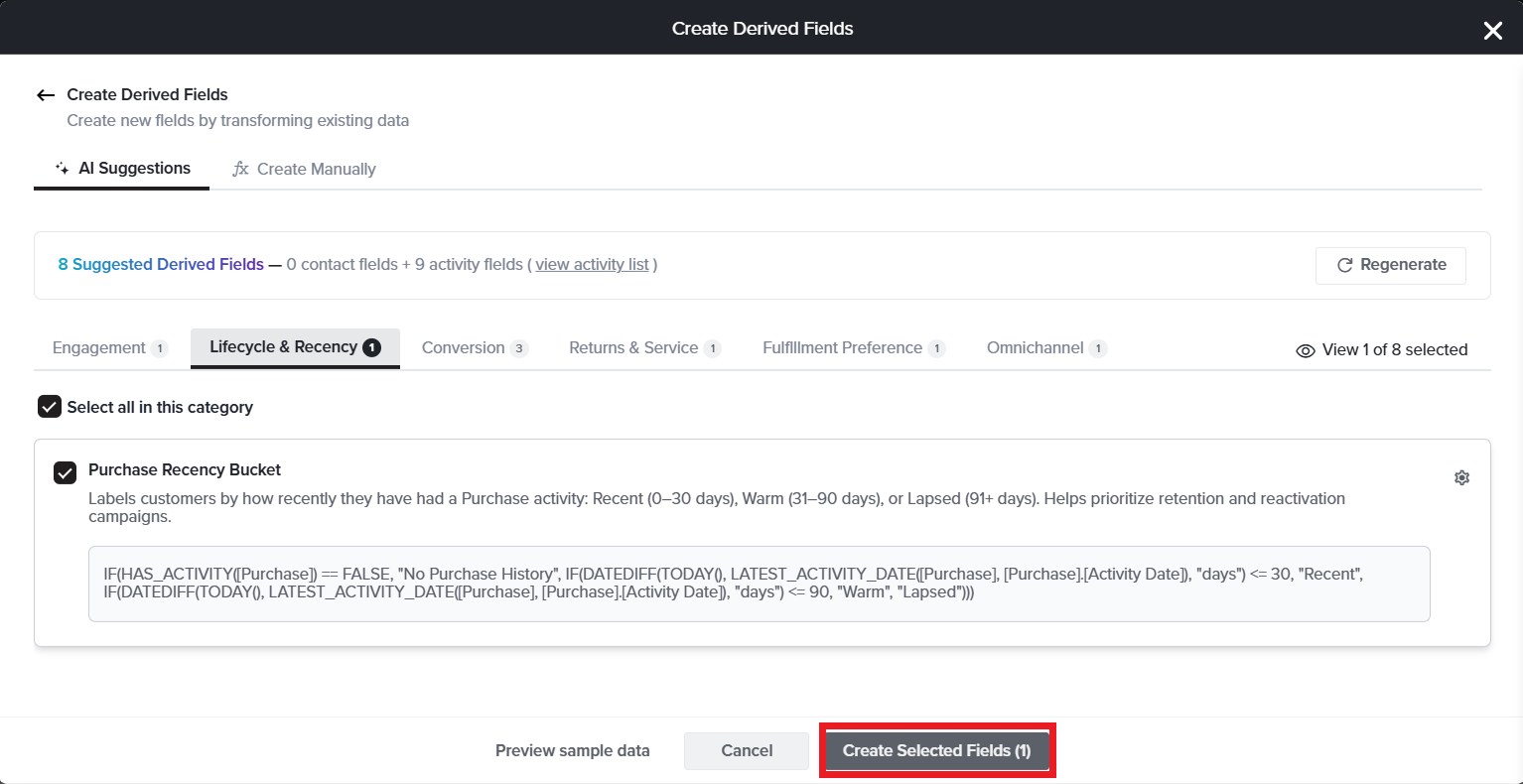
For example:
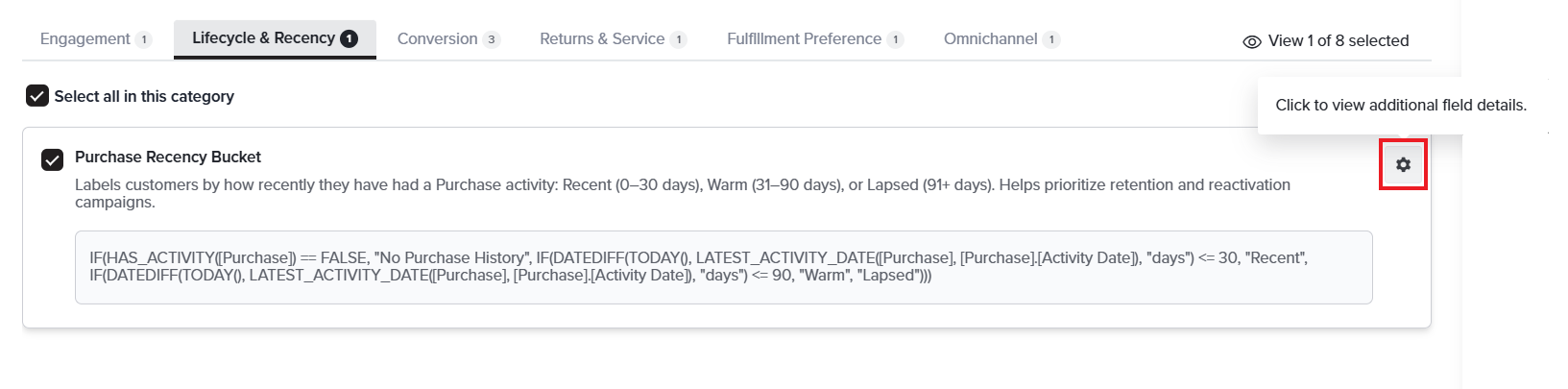
One of the suggestions is Purchase Recency Bucket. AI has already written its formula, which labels each customer by how recently they last made a purchase — Recent (0–30 days), Warm (31–90 days), or Lapsed (91+ days) — making it easy to target retention and reactivation campaigns. Select it and click Create Selected Fields, and the field is added to your Directory — you never write the formula yourself.
One of the suggestions is Purchase Recency Bucket. AI has already written its formula, which labels each customer by how recently they last made a purchase — Recent (0–30 days), Warm (31–90 days), or Lapsed (91+ days) — making it easy to target retention and reactivation campaigns. Select it and click Create Selected Fields, and the field is added to your Directory — you never write the formula yourself.
Good to know
- Only field names and data types are used to generate suggestions; your customers’ data is never shared.
- If you create several fields at once and one fails, the rest are still created, and you are told which one failed.
- A Derived Field cannot be built on top of another Derived Field.
Amend a suggestion before creation
You can rename a suggested field and change how often it updates without leaving the list.
- Click the Customize (gear) icon on the suggestion row. A panel opens beneath it.
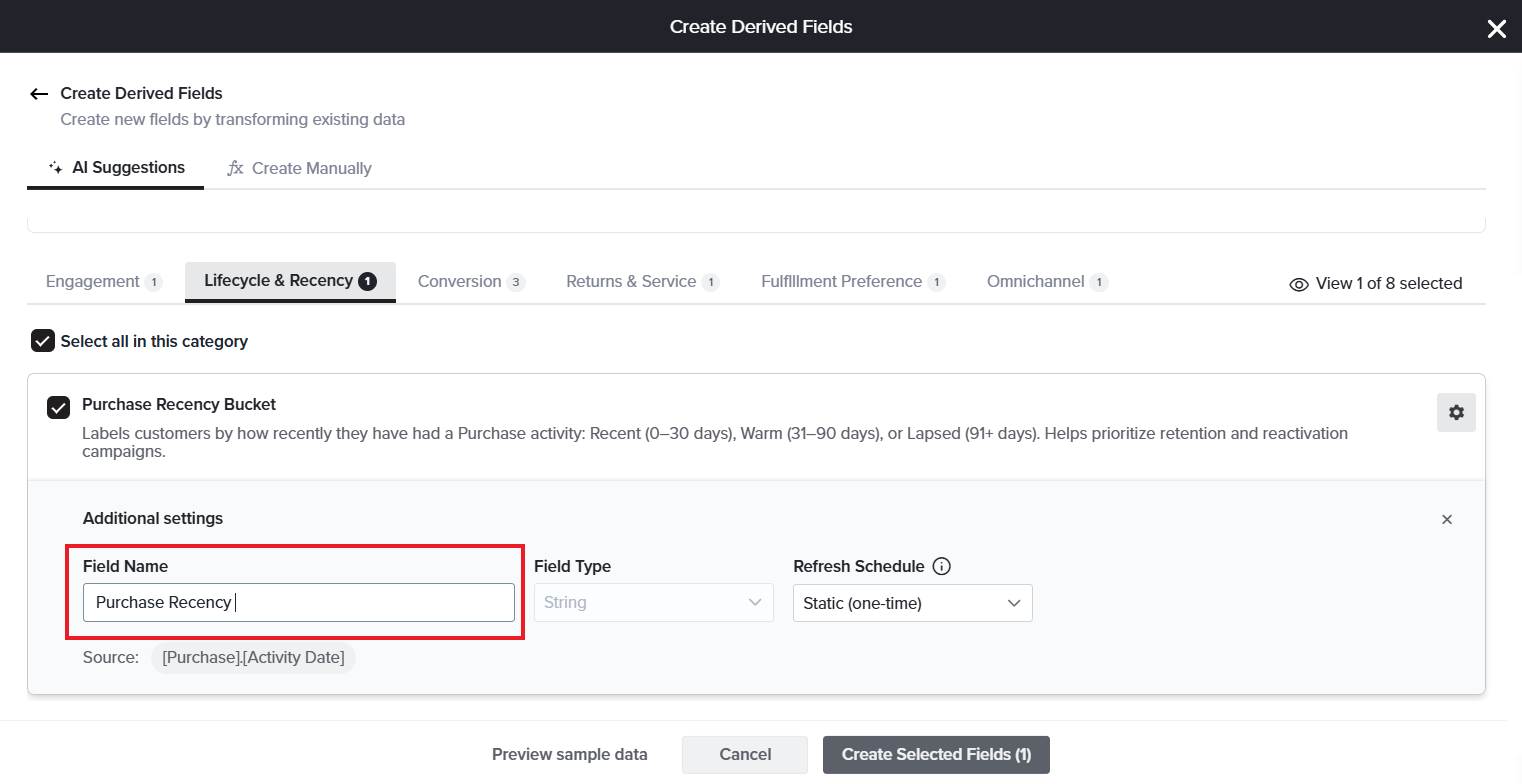
- Edit the Display Label. This becomes the column heading in your Directory.
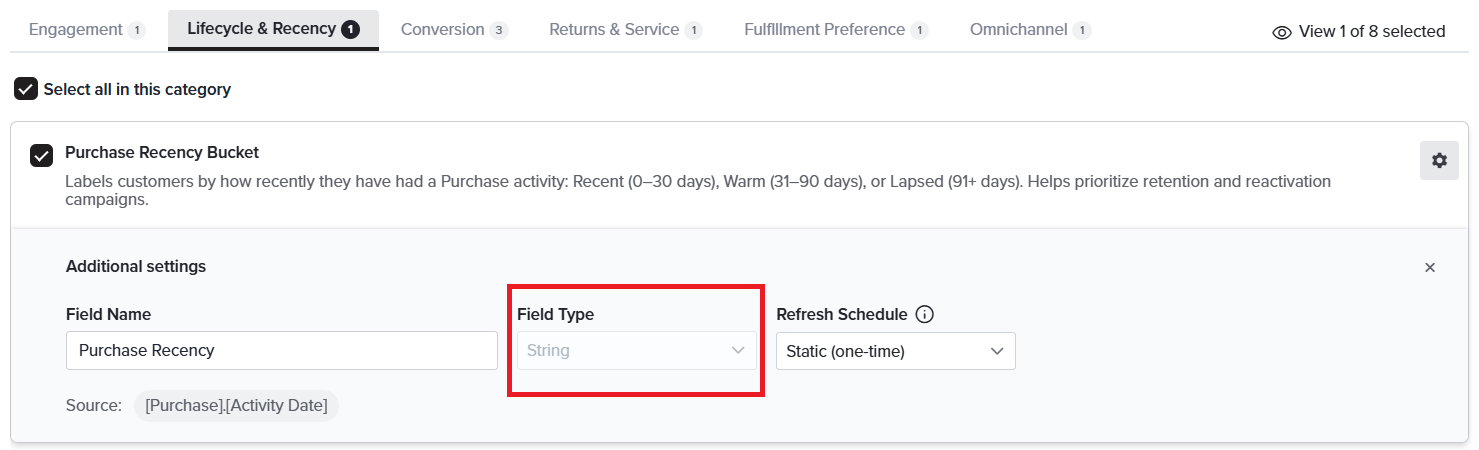
- Check the Field Type. It is derived from the formula and shown for information. Please note that the Field Type cannot be changed for an AI-suggested Derived Field.
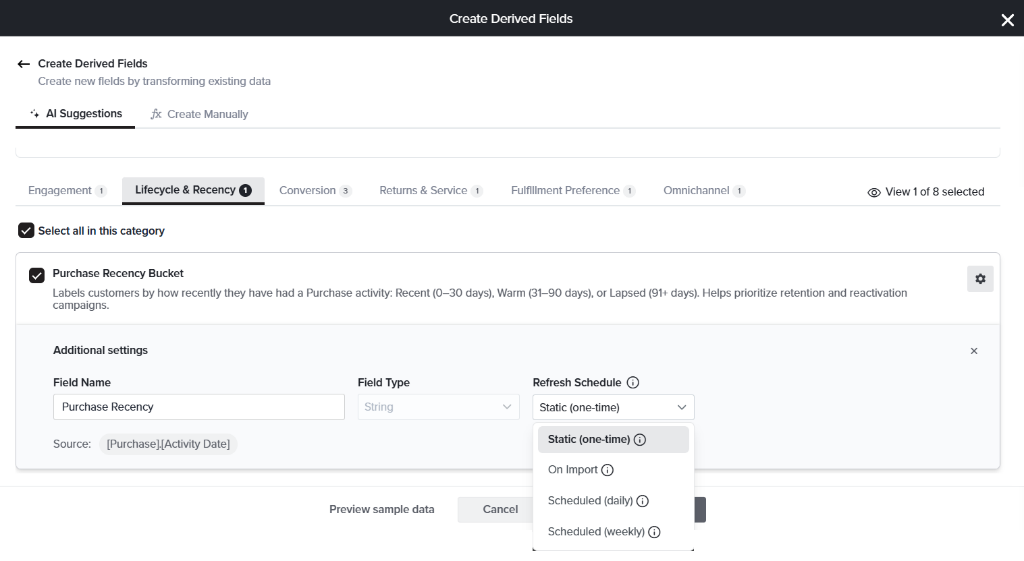
- Select a Refresh Schedule to control how often the field updates once it exists.
- Click the Customize (gear) icon again to close the panel. Your changes are retained until you create the field.
See also
Love it when you
know more?
Subscribe for tips and insights to drive better decisions!

Thank you!