


Dashboard Options
Want more from your Custom Dashboard? Dashboard Options enable you to modify and manage your Dashboards quickly and easily to keep the insights incoming.
- Add Multiple Widgets
- Duplicate
- Widget Settings
- Layout Settings
- Share
- Download
- Delete
- Reorder Dashboard
- Apply Dashboard-Level Segmentation
- Filter
Add Multiple Widgets
This feature allows you to quickly populate your Dashboard with multiple widgets at once. It enables you to add widgets for all your project questions in a single step, with the widget type automatically selected based on the nature of each question. In addition to questions, it also includes relevant metadata within the widgets. To learn more about this feature, click here.
Duplicate
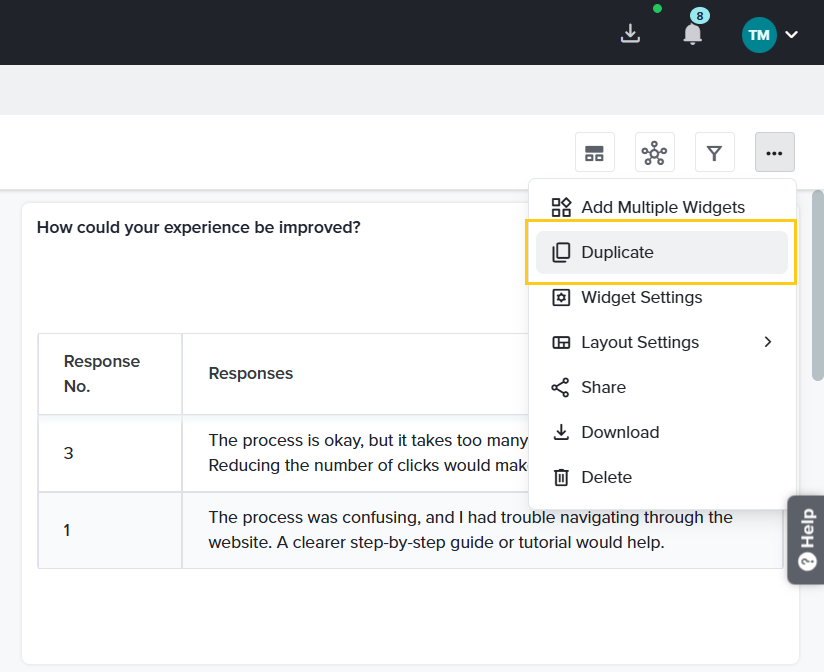
This option allows you to create a copy of an existing Dashboard. Select the three-dot menu (…) and choose Duplicate to generate an identical Dashboard that can be modified independently. This option is useful for preparing variations for different audiences or reporting periods.
Widget Settings
This option will allow you to change the settings for all the widgets in the Dashboard at once. Just follow these steps:
- Click on the three-dot menu located at the top right corner of the Dashboard.
- From the Dashboard options, select Widget Settings.
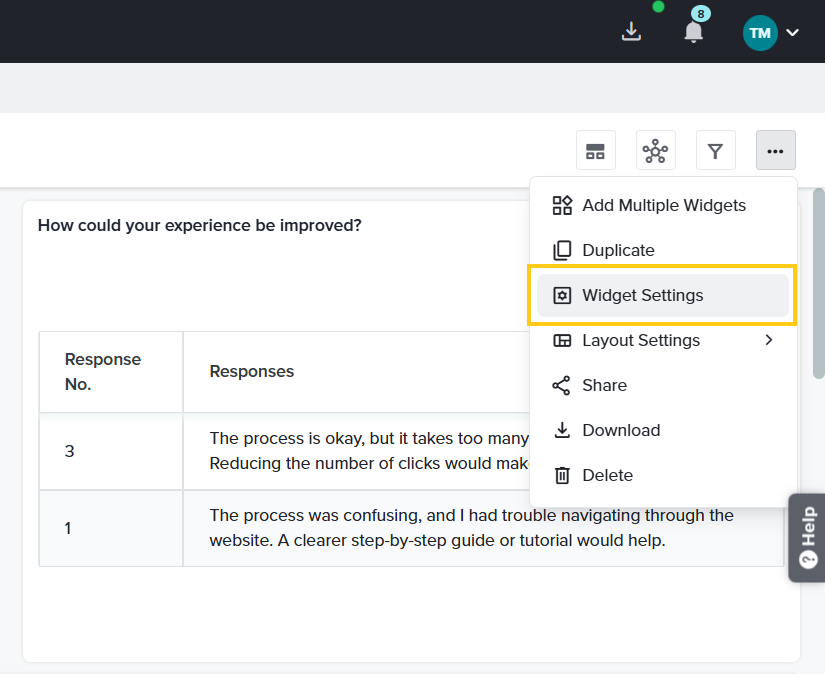
- This will open the Widget Settings dialog box. Here, you can modify the Overall and the Graph Settings.
- In the Overall Settings, you can customize the following aspects of a widget:
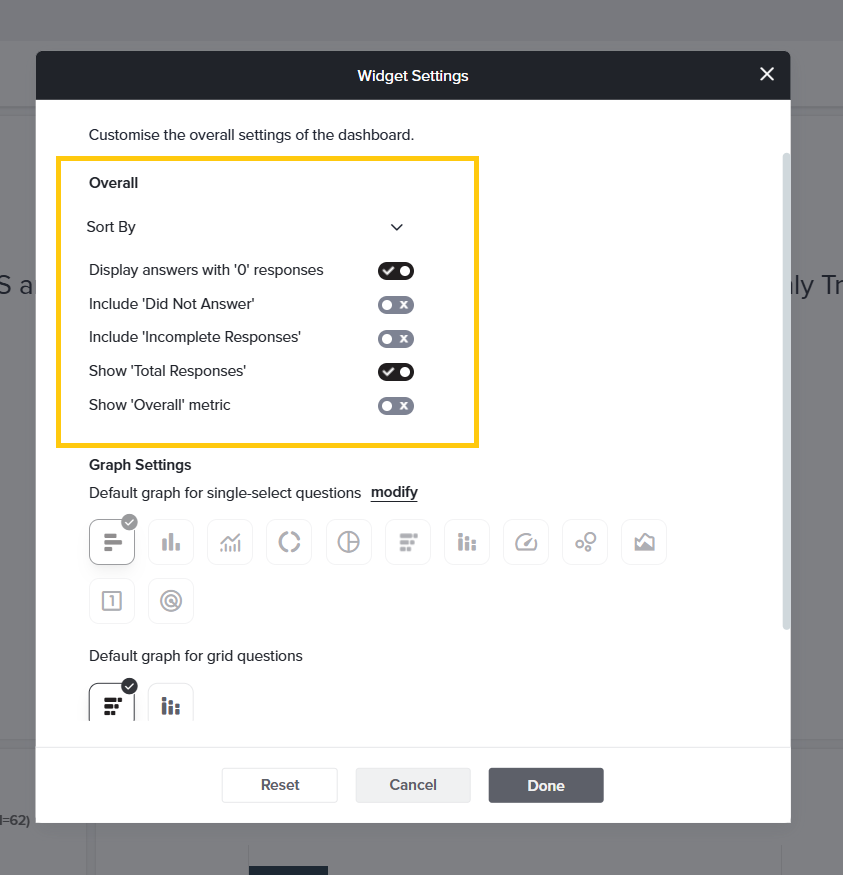
- Sort By
- In order of appearance of the question
- In alphabetical order (A to Z)
- In reverse alphabetical order (Z to A)
- From highest to lowest value
- From lowest to highest value
- Display answers with ‘0’ responses
- Include ‘Did Not Answer’
- Include ‘Incomplete Responses’
- Show ‘Total Responses’
- Show ‘Overall’ metric
- Sort By
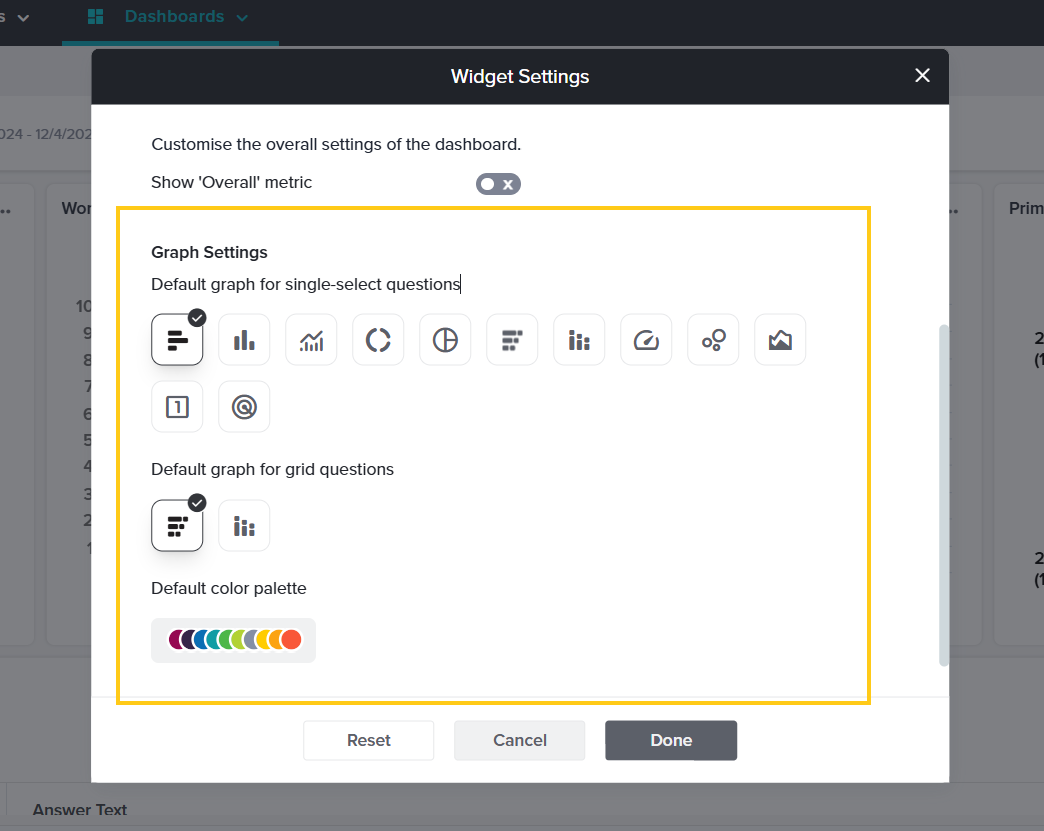
- The Graph Settings option allows you to select the default graph type for all Single Select and Grid questions that will be added in the future. Additionally, this option enables you to choose the Default Color Palette for the graphs to be added.
Layout Settings
The Layout settings allow you to define the structure of your Dashboard. You can set the number of columns, ranging from 1 to 4. Additionally, you can use the following options to adjust the positioning of widgets:
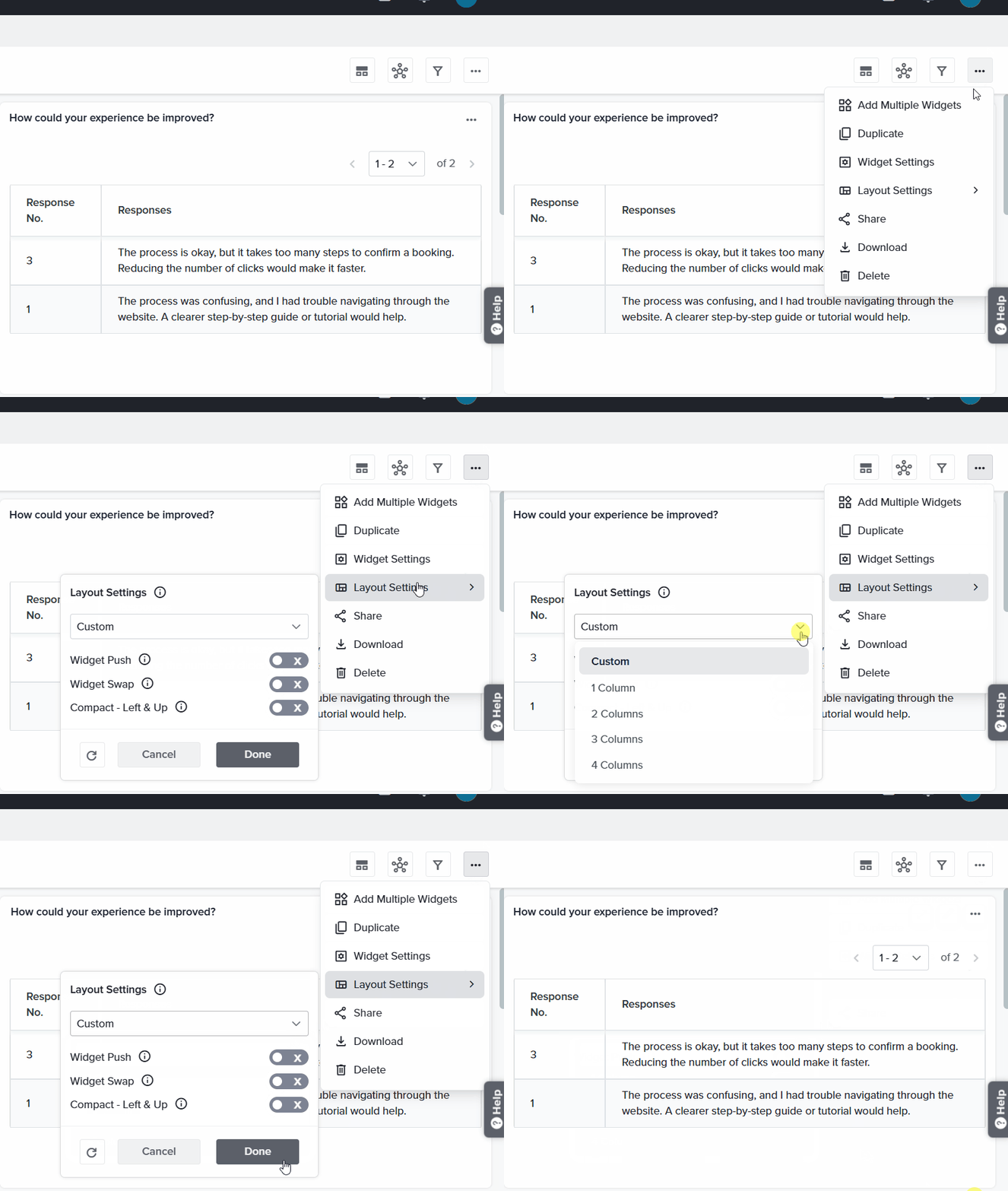
- Widget Push: Automatically adjusts the position of widgets as you move them.
- Widget Swap: Enables swapping the positions of widgets.
- Compact – Left & Up: Displays a compact Dashboard view by aligning widgets to the left and moving them up.
Swap and Push options are not compatible; only one can be enabled at a time.
Share
This option allows you to share your dashboard via a link or email. You can also view the versions of the dashboard you have already shared. To learn more about Share, click here.
Delete
This option allows you to delete the Dashboard. Once you click on Delete, the platform will prompt you to confirm the action. If you click on Yes, Delete! the Dashboard will be permanently deleted. 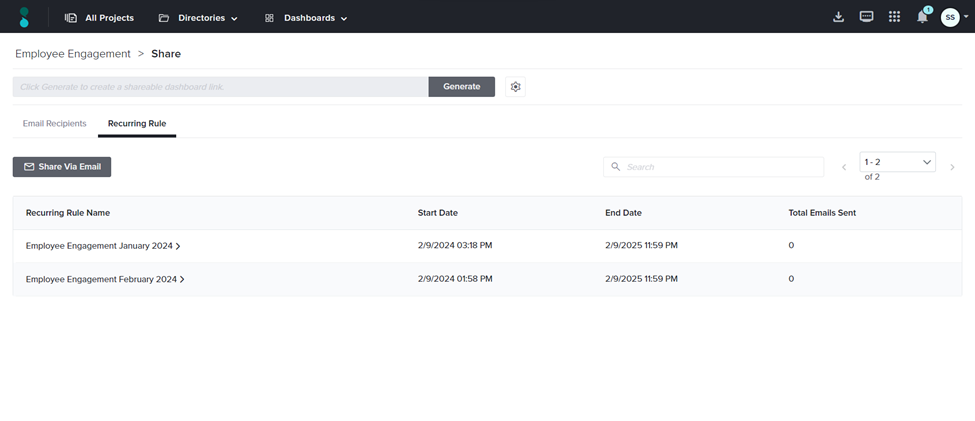
Subscribe for tips and insights to drive better decisions!