



Folder Permissions
Folder Permissions let you give a sub-user access to every project in a folder at once, instead of setting permissions project by project. You choose a folder and the permissions the sub-user needs (Design, Distribution, Report, or Data). Those permissions apply to the projects already in the folder, to projects created in it later, and to projects moved into it.
With Folder Permissions, you can:
- Grant access to all current and later projects in a folder in a single step.
- Extend a parent folder’s permissions to its sub-folders, or set each sub-folder separately.
- Adjust an individual project without affecting the rest of the folder.
- See which projects differ from their folder, and reset them one at a time or all at once.
- Keep each sub-user’s folder list to the folders relevant to their work.
A Sub-user (Admin) already has full access to all projects and folders, so Folder Permissions do not affect admin sub-users. Folder Permissions control which projects a sub-user can open; Data Visibility Rules control which records they see inside those projects.
Navigate to
- Setting Up Folder Permissions
- Sub-folders
- Changing and Removing Permissions
- Moving Projects and Managing Folders
- What the Sub-user Sees
- Example: Managing One Folder from Start to Finish
Setting Up Folder Permissions
In this section
Where to Find Folder Permissions
- Click your Account Initials in the top-right corner and select Account Settings → User Management. You can also click Account Settings at the bottom of the left-hand menu on the Home Page and select User Management.
- Select the sub-user and click Set Permission. The sub-user’s Permissions page opens.
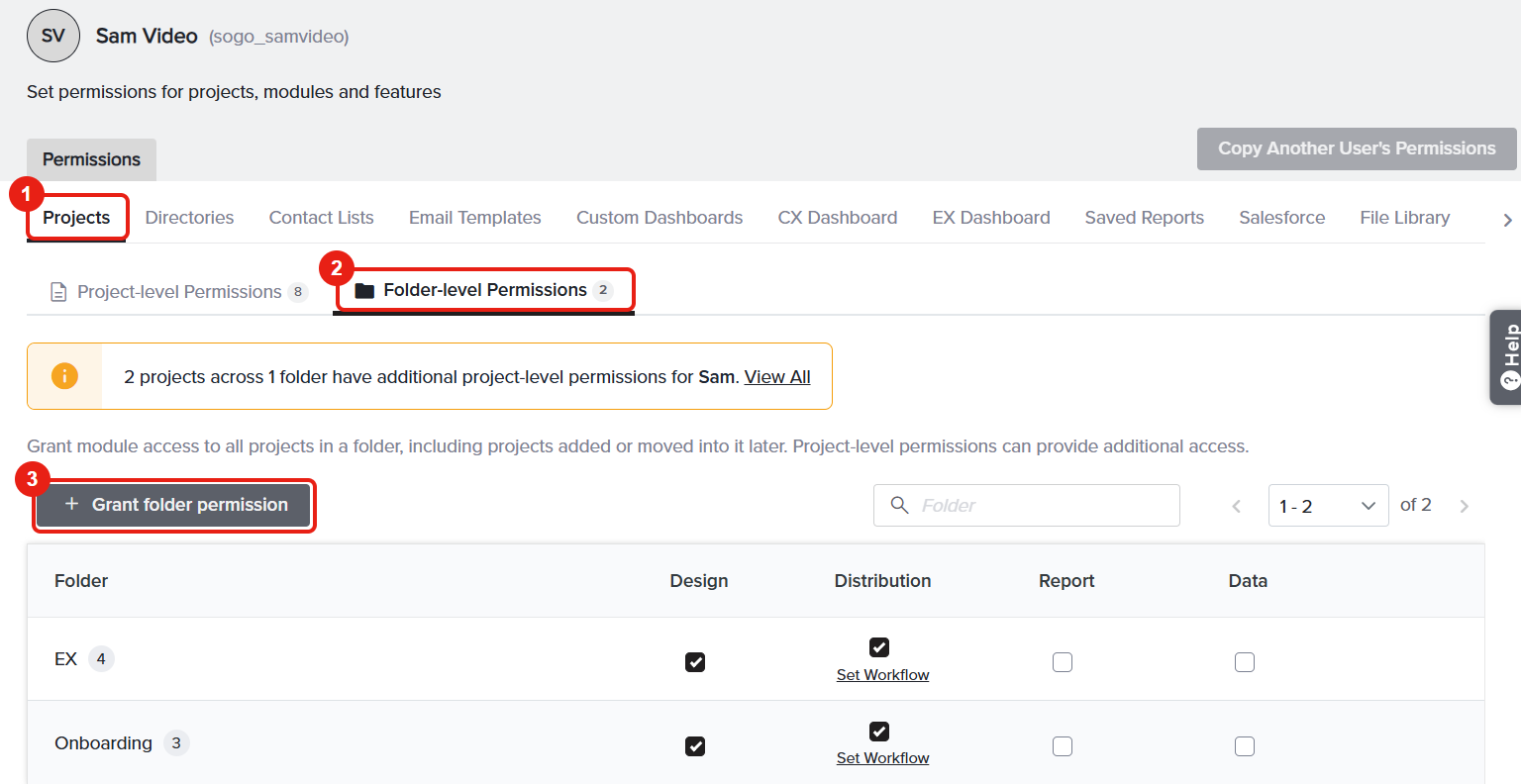
- Select Projects, and then select the Folder-level Permissions tab. The number next to the tab name shows how many folders have a folder permission for this sub-user.
If no folder permission exists yet, the tab displays No folder permissions granted yet. The Project-level Permissions tab next to it shows the same sub-user’s access one project at a time.
How Folder Permissions Work
Granting a folder permission adds access. Each project in the folder keeps any permissions the sub-user already had and gains the folder’s permissions on top.
What happens to a project after that depends on its Permission Type, shown for each project on the Project-level Permissions tab. The type tells you where the sub-user’s access comes from and whether the project follows later changes to its folder.
| Permission type | What it means | A project has this type when | Follows folder changes |
| Inherited • {Folder} | Access comes from the named folder and stays linked to it. | It had no permissions beyond those of the folder when the folder permission was granted, or when it was created in or moved into the folder; or it was reset to the folder. | Yes |
| Custom | Access is set on the project itself and is no longer linked to the folder. | It already had other permissions when the folder permission was granted or when it was moved in; or a permission was added or removed on the project individually. | No, until you reset it |
| Direct | Access is set on the project only. The folder has no folder permission for this sub-user. | Its permissions were set individually; or it was Custom and its folder permission was removed, or it was moved to a folder without one. | Not applicable |
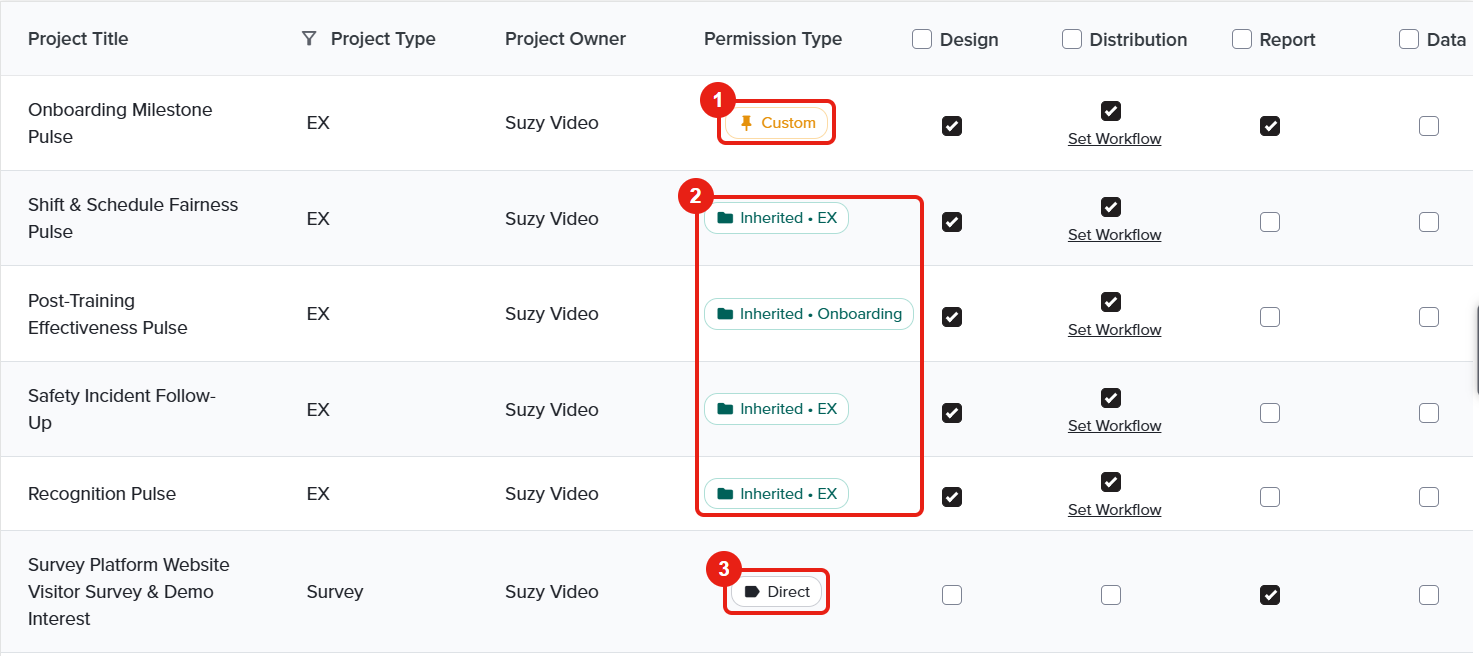
A sub-user can see a project only while at least one permission is enabled on it. This applies to project lists, search, Recent Projects, and the CX and EX Dashboards. A project with no permissions enabled shows a dash in the Permission Type column.
Matching permissions do not make a project Inherited. If you edit a project individually and later change it back to match its folder, it stays Custom until you reset it.
Granting a Folder Permission
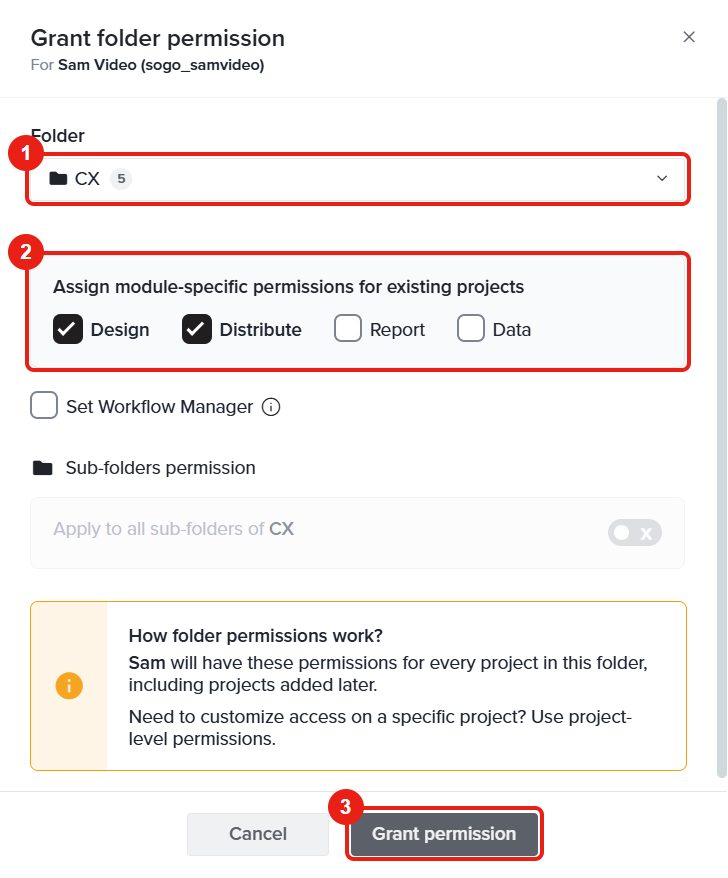
- On the Folder-level Permissions tab, click Grant folder permission. The Grant folder permission drawer opens.
- Under Folder, select a folder or sub-folder. If the folder already has a permission for this sub-user, the drawer switches to Manage additional permissions so that you can edit it.
- Under Assign module-specific permissions for existing projects, select Design, Distribute, Report, or Data. Distribute appears as Distribution in the permissions tables.
- If the Set Workflow Manager option appears, select it to let users request permission from the Workflow Manager before distributing a project.
- If the folder has sub-folders, choose whether to Apply to all sub-folders of {folder}. See Applying Permissions to Sub-folders.
- Click Grant permission. The button becomes available once you select a folder and at least one permission. A message confirms the grant, and the folder appears in the table with its project count.
The folder becomes visible to the sub-user, and the projects already in it change as follows:
| Project in the folder | Result | Permission type |
| No permissions for the sub-user | Receives the folder permissions. | Inherited |
| Same permissions as the folder | Keeps them and is linked to the folder. | Inherited |
| Different permissions | Keeps its own permissions and gains those of the folder. | Custom, or Inherited if the combined permissions equal those of the folder |
Projects created in the folder later, by any user, also receive the folder permissions and are Inherited. You can grant a permission on an empty folder to prepare it in advance: it is saved with 0 projects, and each project added later receives the permissions.
The Future Projects tab under Project-level Permissions remains available after you grant a folder permission. For those settings, see Setting Sub-user Permissions.
Sub-folders
In this section
Applying Permissions to Sub-folders
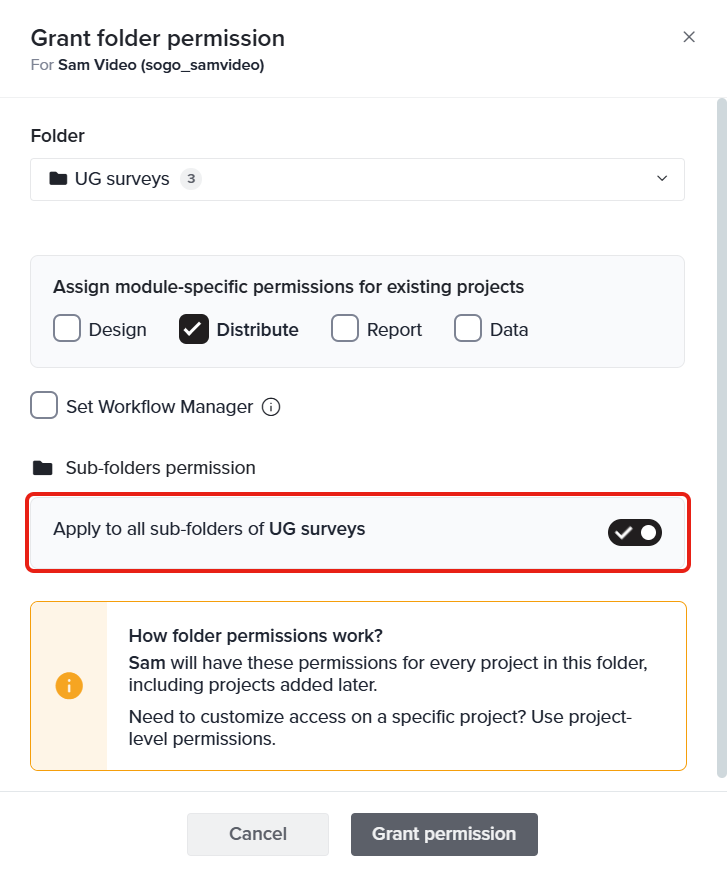
When you grant a permission on a folder that has sub-folders, the Apply to all sub-folders toggle is ON by default. A project always takes its folder permission from the folder that directly contains it, so the toggle decides whether sub-folders copy the parent folder or stand alone.
- ON: Each sub-folder receives the parent folder’s permissions and its own row in the table. Later changes to the parent folder carry through to every sub-folder and its Inherited projects, and sub-folders created later are covered too.
- OFF: Each folder is independent and is listed as a separate row. A sub-folder has no folder permission unless you grant one on it, and changes to the parent folder do not reach it.
| Parent folder | Sub-folder | Projects in the sub-folder receive | Follows the parent folder |
| Granted, toggle ON | Follows the parent folder | The parent folder’s permissions | Yes |
| Granted, toggle partially applied | Changed individually | The sub-folder’s permissions | No |
| Granted, toggle OFF | No permission | No folder permissions | No |
| Granted, toggle OFF | Granted separately | The sub-folder’s permissions | No |
| No permission | Granted | The sub-folder’s permissions | Not applicable |
If the folder has no sub-folders, the toggle is unavailable and displays the message “This folder does not contain any sub-folders, so sub-folder permissions cannot be applied.”
Changing a Single Sub-folder
You can still change one sub-folder after applying the parent folder’s permissions to all of them. That sub-folder keeps the permissions you set, the others continue to follow the parent folder, and the parent folder’s toggle shows as partially applied. Clicking the toggle from this state has the following effect:
- Turning it OFF removes the folder permission from the sub-folders that still match the parent folder. Their Inherited projects lose the folder permissions, and their Custom projects keep only their project-level permissions. Sub-folders you changed individually keep their own permissions.
- Turning it back ON resets every sub-folder to the parent folder’s permissions and overwrites your individual changes.
If you grant a permission directly on a sub-folder that already follows its parent folder, the most recent grant applies: Inherited projects switch to the sub-folder’s permissions and are labelled Inherited • {Sub-folder}, and Custom projects keep their own permissions and gain those of the sub-folder.
Changing and Removing Permissions
In this section
- Editing a Folder Permission
- Removing a Folder Permission
- Changing Permissions on One Project
- Reviewing and Resetting Overrides
Editing a Folder Permission
- On the Folder-level Permissions tab, hover over the folder’s row and click the edit icon. The Manage additional permissions drawer opens.
- Select or clear permissions, and click Save.
Inherited projects gain or lose the permission immediately and stay Inherited. Custom projects do not change. Projects added to the folder later receive the updated permissions. If Apply to all sub-folders is ON, the same applies throughout the sub-folders.
Clearing a permission on a folder does not clear it on Custom projects. To remove it from every project in the folder, also reset the Custom projects.
Removing a Folder Permission
- On the Folder-level Permissions tab, hover over the folder’s row and click the edit icon.
- Clear all permissions, and click Save. A message confirms the removal, and the folder’s row is removed from the table.
You are not asked to confirm before the permission is removed, and the sub-user may lose several projects at once. Check which projects in the folder are Inherited first.
| Affected item | Result |
| Inherited projects | Lose all permissions and are no longer visible to the sub-user. |
| Custom projects | Keep all their permissions, including those the folder granted, and become Direct. |
| Projects added later | Receive no folder permissions. |
| The folder | Is hidden from the sub-user, unless it is empty or directly contains a project they can still access. |
| Sub-folders that follow the folder | Lose their folder permission too, and their Inherited projects lose access. |
| Sub-folders with their own permission | Keep it. If the parent folder is now hidden, they appear at the top level of the folder list. |
Removing the permission from a sub-folder does not return its projects to the parent folder’s permissions, even if the parent folder applies to all sub-folders. The sub-folder’s Inherited projects lose access, and its Custom projects keep their project-level permissions.
Changing Permissions on One Project
On the Project-level Permissions tab, select or clear permissions on the project and click Save. Your change always applies to that project, even when it removes a permission the folder grants, and an Inherited project becomes Custom.
To remove all of the sub-user’s permissions on an Inherited or Custom project, use Reset access. The project is then no longer visible to the sub-user.
Reviewing and Resetting Overrides
When a sub-user has Custom projects, the Folder-level Permissions tab displays a notification such as “1 project across 1 folder have additional project-level permissions for Sam.” Click View All to open the Project-level Overrides window, which lists the Custom projects by folder next to the folder’s own permissions.
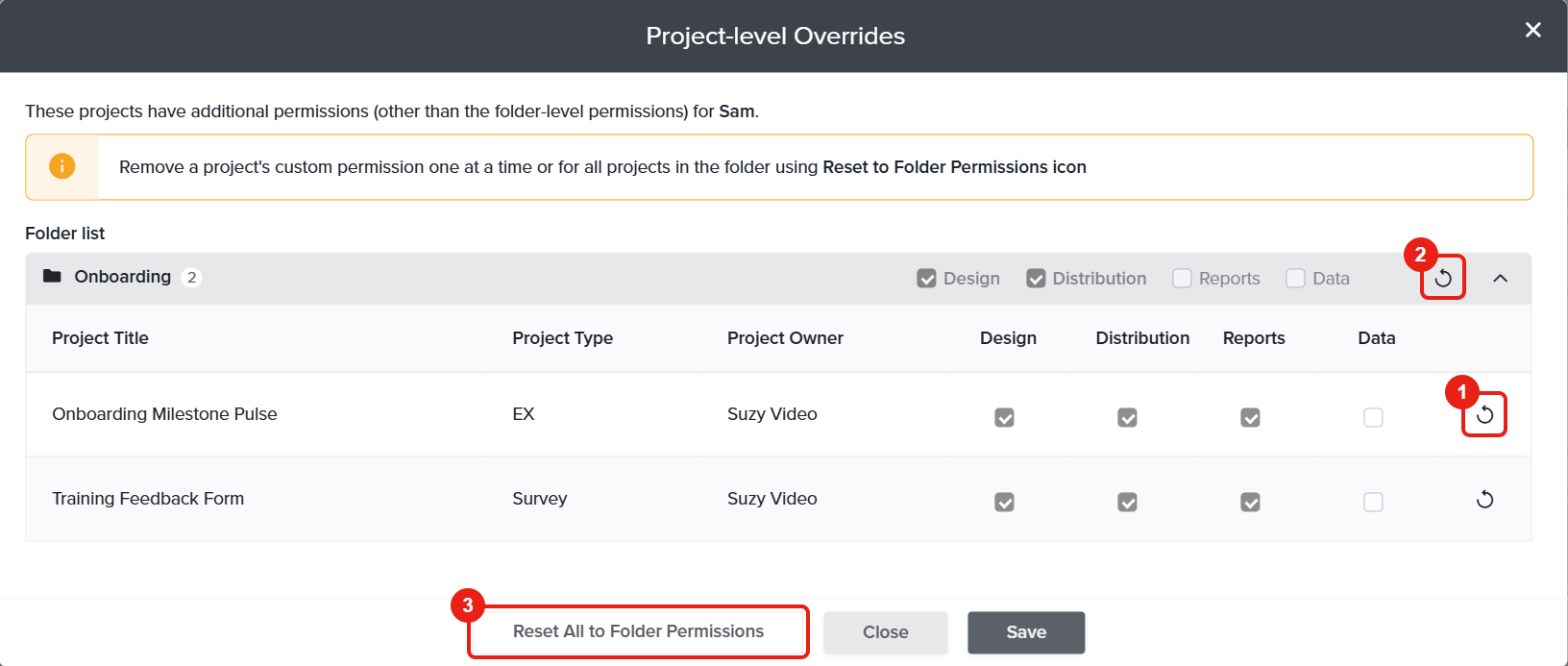
| To reset | Use |
| One project | The Reset to Folder Permissions icon on the project’s row |
| All projects in one folder | The Reset all to Folder Permissions icon on the folder’s row |
| All Custom projects, including those in sub-folders | The Reset All to Folder Permissions button. A confirmation message is displayed first. |
A reset project has exactly its folder’s permissions and becomes Inherited, so it follows later folder changes. Any permission the folder does not grant is removed, and the project leaves the list and the notification count.
Reset All to Folder Permissions cannot be undone. Custom permissions would need to be set again on each project.
Moving Projects and Managing Folders
In this section
Moving, Copying, and Restoring Projects
Only administrators can move projects. When a project moves, the sub-user’s access is recalculated for the destination folder:
| Project being moved | To a folder with a folder permission | To a folder without one |
| No permissions | Receives the destination folder’s permissions (Inherited). | No access. |
| Inherited | Loses the source folder’s permissions and receives those of the destination folder (Inherited). | Loses access. The destination folder stays hidden unless it is empty or directly contains a project the sub-user can access. |
| Custom | Keeps its permissions and gains those of the destination folder (Custom, or Inherited if the combined permissions equal those of the folder). | Keeps its permissions (Direct). The destination folder becomes visible to the sub-user. |
| Direct | Keeps its permissions and gains those of the destination folder (Custom, or Inherited if the combined permissions equal those of the folder). | Not affected by Folder Permissions. |
- Sub-folders: The same rules apply to access that came from a parent folder. Moving a project between two sub-folders that follow the same parent folder changes nothing.
- Copies: A project copied within the account (Copy → In Same Account) is treated as a new project in its folder and receives the folder permissions.
- Restored projects: A project restored from the Recycle Bin is treated as a project moved into its folder.
System Folders and Folder Changes
You can grant Folder Permissions on any custom folder or sub-folder and on the Main and Shared system folders. Archive, Recycle Bin, and Mobile App are not supported.
- Main receives every project created without a folder, so a permission on Main applies to all of those projects automatically.
- Shared receives projects copied from other accounts, so a permission on Shared applies as soon as they arrive.
- Renaming a folder changes nothing for the sub-user. The new name appears in the table, the folder list, and the Inherited labels.
- Deleting a folder also deletes its folder permissions. Only empty folders can be deleted, and a folder created later starts with no permissions. If a folder is deleted while its Grant folder permission drawer is open, the permission is not saved.
What the Sub-user Sees
A sub-user’s folder list shows a folder only when at least one of the following is true:
- The folder has a folder permission for the sub-user, even if it contains no projects.
- The folder is empty, or every project in it is in the Recycle Bin. Empty folders are visible to all sub-users.
- The folder directly contains a project the sub-user can access. Projects inside a sub-folder do not make the parent folder visible.
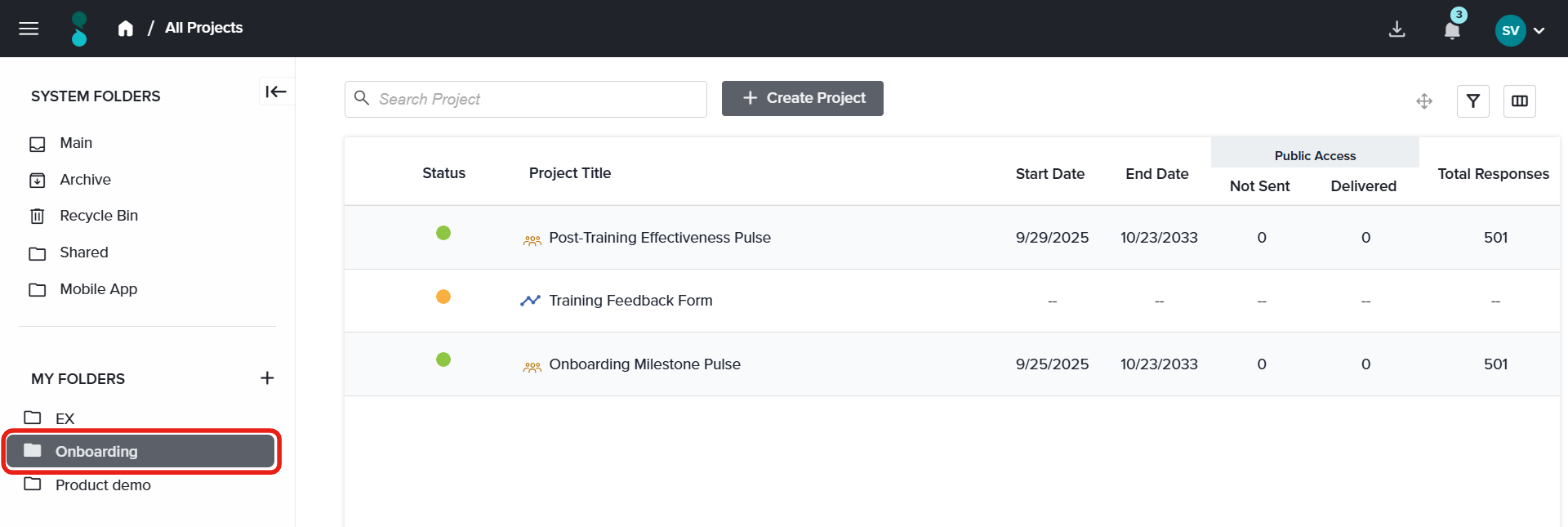
If a sub-folder is visible but its parent folder is not, the sub-folder appears at the top level of the folder list under its own name. Sub-users can create top-level folders, but they cannot create sub-folders or move projects between folders.
Example: Managing One Folder from Start to Finish
Sam has the Report permission on 30-Day Onboarding and no other access in the Onboarding folder, which also contains 60-Day, 90-Day, and 1-Year Onboarding.
| Step | You | Sam’s access afterwards |
| 1 | Grant Design and Distribution on Onboarding. | 30-Day: Design, Distribution, Report (Custom). The other three: Design, Distribution (Inherited). |
| 2 | Add Data to the folder permission. | The three Inherited projects gain Data. 30-Day does not change. |
| 3 | Create 6-Month Onboarding in the folder. | 6-Month: Design, Distribution, Data (Inherited). |
| 4 | Clear Distribution on 60-Day. | 60-Day: Design, Data (Custom). The notification now counts two projects. |
| 5 | Reset 30-Day to its folder permissions. | 30-Day: Design, Distribution, Data (Inherited). Report is removed. |
| 6 | Move 90-Day to a folder with no folder permission for Sam. | Sam no longer has access to 90-Day. |
| 7 | Remove the folder permission on Onboarding. | 60-Day: Design, Data (Direct). Sam loses the Inherited projects, but Onboarding stays visible because Sam can still open 60-Day. |
See also
Introduction to User Management
Adding Sub-Users
Setting Sub-user Permissions
CX & EX Dashboard Permissions
Data Visibility Permissions
Workflow Management
Subscribe for tips and insights to drive better decisions!