
Import Responses Using Project Responses
Importing from project responses brings the responses of another Sogolytics project into your current project, so you can report on and analyze them together. There is no file to prepare: you choose the source project, match its questions to the questions in your project, and decide whether to import its responses just once or keep importing new ones automatically.
With project responses, you can:
- Combine responses from a previous or related project with your current data.
- Keep two projects in sync by importing new responses on a schedule.
- Import all the responses received to date in a single import.
- Import responses from a project in a different Sogolytics account by using its API key.
- Link imported responses with existing Directory contacts or Activity records.
Navigate to
- Import Options
- Select the Source Project
- Set the Data Attributes
- Link Responses with a Directory
- Map Columns
- Set the Schedule and End Date
- Set Mismatch Rules and Email Alerts
- Save the Automation Rule
- Import Just This One Time
- Import from a Project in a Different Account
Before you begin
- Importing from project responses requires the Import Automation feature. If it is not in your plan, an upgrade icon or a Request a Demo option is displayed.
- It is available for new responses only. When Update Existing Responses is selected, From Project Responses is not available.
- This project must contain the questions you want to import responses for. Questions are matched by their text, so questions worded the same in both projects are mapped automatically.
Import Options
After you select the source project, choose how its responses are imported:
| Option | What it does | Wizard screens |
| Create a perpetual connection (default) | Creates an automation rule. Its first run imports all the responses received to date; each later run imports only the responses received since the previous run. | Import Option Selection → Map Columns → Automation Settings |
| Import just this one time | Imports all the responses received to date, once. No automation rule is created. Available only when the source project is published or expired and has at least one response. | Import Option Selection → Map Columns |
Choose Create a perpetual connection when the source project is still collecting responses and you want this project to stay up to date. Choose Import just this one time when the source project has finished collecting responses.
Select the Source Project
- Open the project you want to import responses into.
- Click the Data tab.
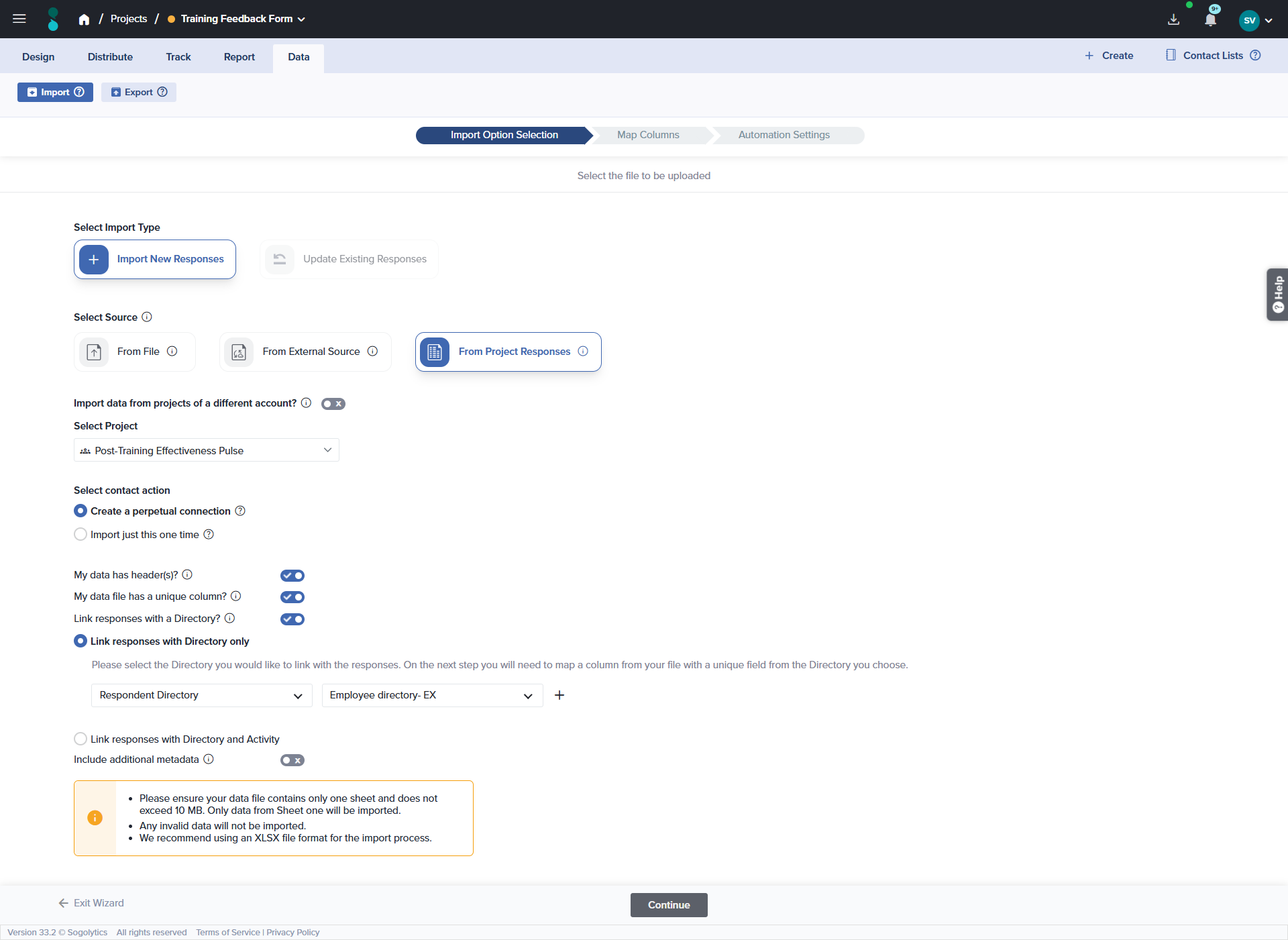
- Click Import. The import wizard opens on the Import Option Selection screen.
- Under Select Import Type, select Import New Responses.
- Under Select Source, select From Project Responses.
- Under Select Project, click –Select Project– and select the project whose responses you want to import. Type in Search for a Project to find it by name, or use the project type drop-down next to the search box to show All, Survey, CX, EX, or Assessment projects.
- If the selected project allows Save and Continue Later, the option Do you want to import partially completed responses? appears. Turn it on to also import partially completed responses; they are imported with the status Incomplete. It is off by default.
Then choose the import option. For a perpetual connection, keep Create a perpetual connection selected and continue with the sections below. For a single import, see Import Just This One Time.
To bring last year’s guest feedback into this year’s project, search for Guest Satisfaction 2025 and select it.
A course evaluation lets students save and finish later. Turning on Do you want to import partially completed responses? also imports evaluations that were started but not submitted, with the status Incomplete.
Set the Data Attributes
- Keep My data has header(s)? turned on. The source project’s responses are read with a heading for each column.
- Keep My data file has a unique column? turned on to use each response’s email address as its unique identifier. If you turn it off, Sogolytics generates a unique identifier for each response.
- Turn on Include additional metadata to import participation details from the source project, and select each type you want.
| Metadata option | What is imported | Availability |
| Participation status | Whether each response is complete or partial. | Only when Save and Continue Later is enabled for this project. |
| Participant IP address | The IP address of each participant. | Not available for Anonymous or Semi-Anonymous projects. |
| Participation language | The language of each response. Languages not enabled in this project are set to its primary language. | Only for multilingual projects. |
| Participation start date and time / Participation end date and time | When each participant started and finished the source survey, in your account’s time zone. Choose a format from the Format drop-down. | Not available for Anonymous or Semi-Anonymous projects. |
If you turn on Include additional metadata, select at least one option. If you select a date and time option, you must also choose a Format.
Link Responses with a Directory
Turn on Link responses with a Directory? to associate each response with an existing contact or Activity record, so you can analyze responses alongside Directory information. Then select a linking option:
| Linking option | What it does | What you select |
| Link responses with Directory only | Links responses with one or more Directories. | Choose the Directory type from the first drop-down, then the Directory from the second. To link both Directory types, click the + icon and add another row. Each Directory type can be linked only once. |
| Link responses with Directory and Activity | Links responses with records in an Activity, such as purchases or service visits. | Choose the Directory, then the Activity. The Respondent Directory and the Feedback Recipient Directory are linked automatically, if applicable. |
The two Directory types are:
- Respondent Directory — the people who responded to the survey.
- Feedback Recipient Directory — the people or entities the feedback is about, such as employees, vendors, or service providers.
On the Map Columns screen, you then map a column from your file to a unique field in the Directory or Activity you selected.
Map Columns
- Click Continue. The Map Columns screen opens.
- If you linked responses with a Directory, map each row in the Map Directory/Activity Columns section: select the unique Directory or Activity field, then the source column with the matching values.
- In the Map Columns section, map the source columns to this project’s metadata and questions. The source columns are Email Address, Participation Status, IP Address, Language, Start Time, and End Time, followed by one column for each question in the source project.
- Optionally, use the Map/Static drop-down to set a fixed value for a field.
| Row | What to select |
| Email Address/Unique ID | The source column with each response’s email address or unique ID — usually Email Address (up to 75 characters). If My data file has a unique column? is off, this row shows System Generated. |
| Metadata fields | The source column for each metadata option you selected. They are matched automatically to source columns with the same name. |
| Questions | Sogolytics matches each question to a source question with the same text. Review each match and select the correct source column where needed. Grid and multi-part questions have one row per sub-question. |
| None | Leave a question set to None if you do not want to import data for it. |
| Map/Static option | What it does |
| Map Field (default) | Reads the value from the selected source column. |
| Static Field | Uses the same value for every imported response. Enter it in Enter Static Value. Static dates use MM/DD/YYYY HH:mm, and a static participation status must be Complete or Incomplete. |
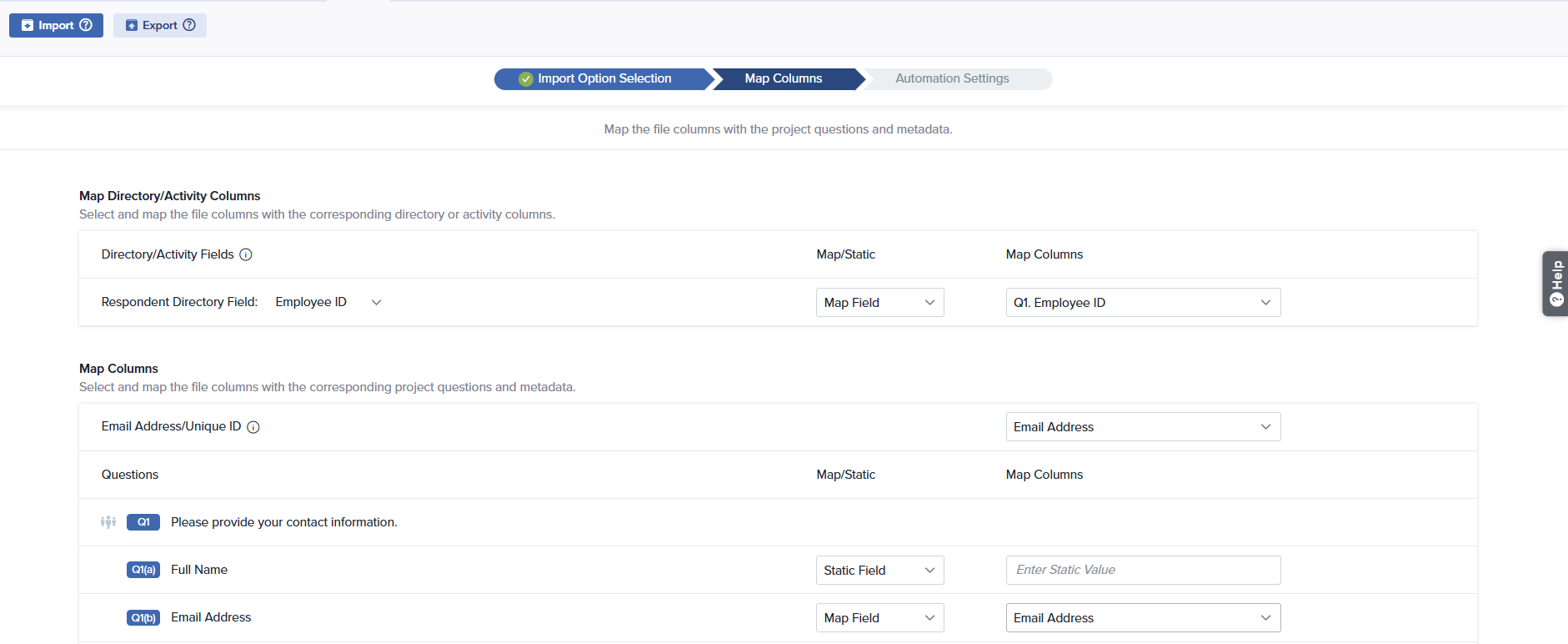
The question Q2 How satisfied were you with your stay? is matched automatically to the source question How satisfied were you with your stay?. If the source project asked Rate your overall stay, you would select it manually.
Select Email for Respondent Directory Field and the source column Email Address. A response from jordan.lee@example.com is linked to the contact with that email address.
Set the Schedule and End Date
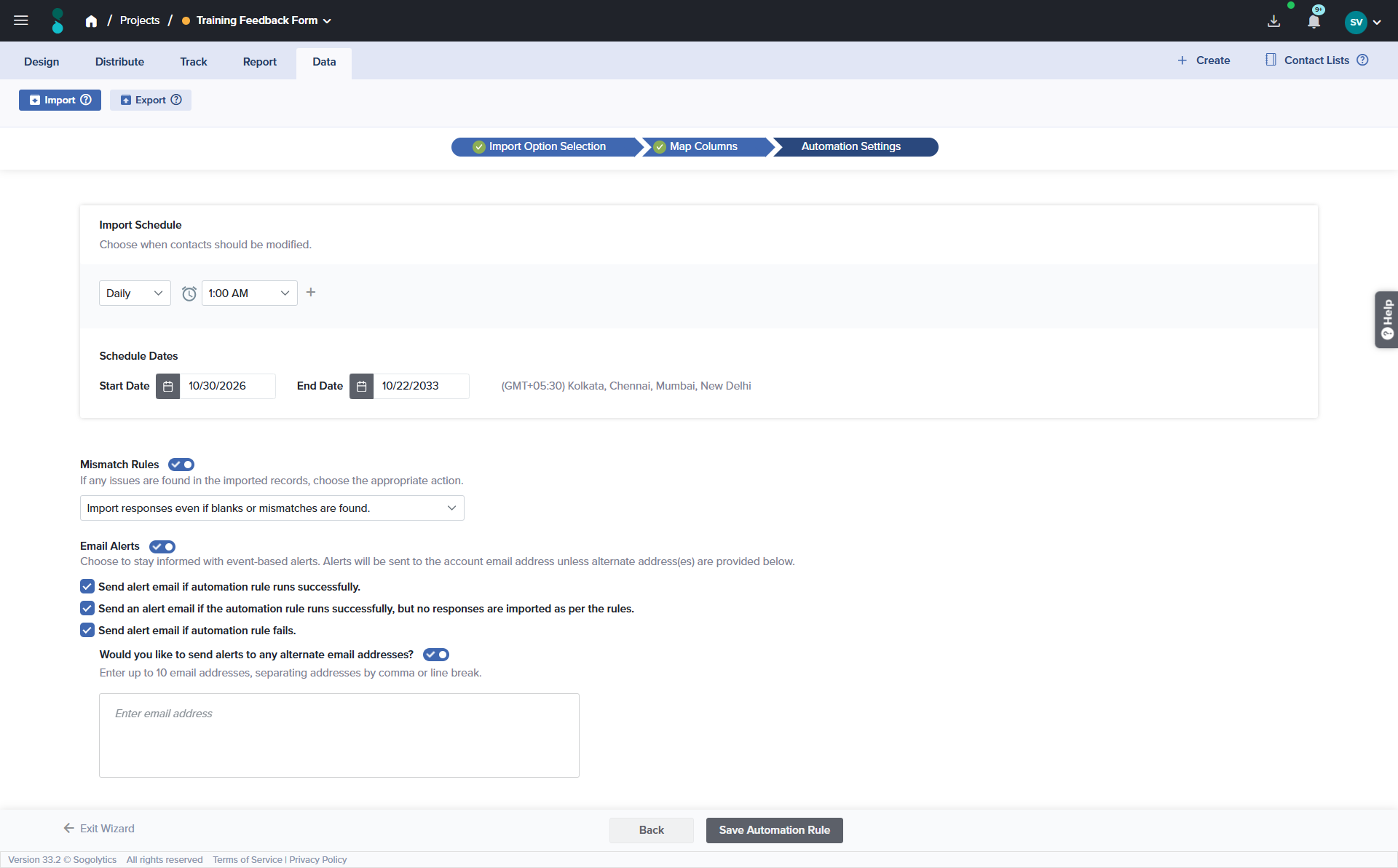
Click Continue to open the Automation Settings screen. Under Import Schedule, choose how often the rule runs. Daily is selected by default. Run times are available in 30-minute intervals; click + to add another run time.
| Schedule | When the rule runs |
| Daily | Every day at the selected time. |
| Weekly | On the selected day of the week at the selected time. |
| Monthly | On the selected day of the month (01–31) at the selected time. |
| Custom | Every 1 to 7 days, weeks, or months, on the selected day and time. |
| Instantly | Checks the source project every 15 minutes and imports new responses as soon as they are found. |
Select the Start Date (cannot be in the past) and End Date (cannot be later than your account’s expiry date, and set to it by default). To stop the rule when the source project expires, select Set project expiry date as end date; if the source project has no expiry date, Current project has no expiry date. is displayed. The rule runs in your account’s time zone.
Set Mismatch Rules and Email Alerts
Keep Mismatch Rules turned on, and choose how responses with blanks or mismatches are handled. A blank is a mapped field with no value; a mismatch is a value that does not match this project’s answer options or format.
| Rule | What is imported | Example (run of 100 responses) |
| Import responses even if blanks or mismatches are found. | All responses. Blank or mismatched answers are imported as unanswered. | A Yes/No answer of Maybe is left unanswered; all 100 responses are imported. |
| If any mismatches are found, do not import mismatch records. | All responses except those with a mismatch. | The response with Maybe is skipped; 99 are imported. |
| If any blanks are found, do not import blank records. | All responses except those with a blank. | A response missing a mapped answer is skipped; the rest are imported. |
| If any blanks are found, do not import any responses. | Nothing from the run if any response has a blank. | One blank response means none of the 100 are imported. |
| If any mismatches are found, do not import any responses. | Nothing from the run if any response has a mismatch. | One Maybe means none of the 100 are imported. |
| Import responses only for records without any mismatches or blanks. | Only fully valid responses. | 75 valid responses are imported; 25 with a blank or mismatch are skipped. |
Optionally, turn on Email Alerts and select at least one alert. Alerts go to the account email address unless you add up to 10 alternate addresses.
| Alert | Sent when |
| Send alert email if automation rule runs successfully. | The rule runs and responses are imported. |
| Send an alert email if the automation rule runs successfully, but no responses are imported as per the rules. | The rule runs but imports nothing — for example, the source project received no new responses, or the mismatch rule skipped every response. |
| Send alert email if automation rule fails. | The rule cannot run — for example, the response limit was reached, or the source project or this project was deleted. |
Save the Automation Rule
- Click Save Automation Rule. The Save Automation Rule window opens.
- In Automation Rule Name, enter a name of up to 50 characters that is unique within the project.
- Click Save. A message confirms that the automation rule was created. The rule appears on the Import Automation Dashboard with the source type Project Responses.
The rule runs for the first time at its next scheduled run and imports all the completed responses received to date. Each later run imports only the responses received since the previous run, so the rule never imports the same response twice, even after you edit it.
Import Just This One Time
Use a one-time import when the source project has finished collecting responses. Select the source project as described in Select the Source Project, then:
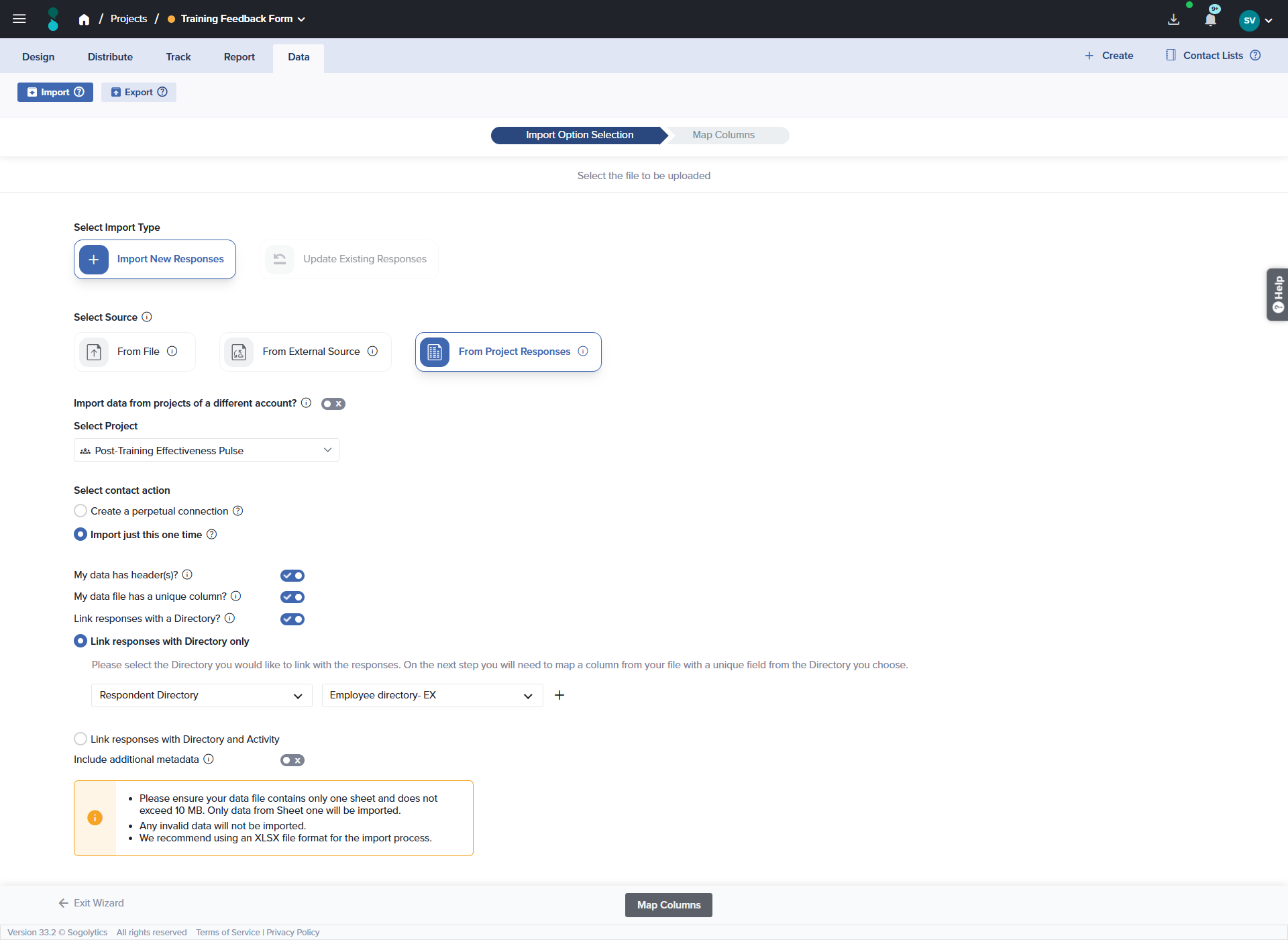
- Select Import just this one time. If the source project has no responses, the message No responses have been received for this project yet, so running the rule once will not import any data. is displayed.
- Set the data attributes and, optionally, link responses with a Directory, as described above.
- Click Map Columns and map the source columns to this project’s metadata and questions.
- Click Import Data. If blanks or mismatches are found, a summary shows how many. Click Download Mismatch and Blank data file to get the details in the Download Manager, click Continue to import anyway, or click Back to change the mapping.
- Review the confirmation message, which shows the approximate number of records to be imported. Then click Import more responses or Return to Home.
The import runs in the background. When it is complete, you receive an email titled Data Import Completed, and the responses appear in the project’s Track and Report tabs.
- A one-time import does not create an automation rule, so it does not appear on the Import Automation Dashboard, and responses the source project receives later are not imported.
- Running a one-time import again for the same source project imports all of its responses again as new responses. Sogolytics does not check for duplicates.
- The Map/Static option is not available for one-time imports.
- If the import would exceed your monthly or yearly response limit, an alert lets you continue and import only the responses available within the limit.
Import from a Project in a Different Account
You can import responses from a project in another Sogolytics account, such as a regional or partner account, by using that account’s API key. The account owner generates the key under Account Settings → Generate API Key.
- Open the project you want to import responses into.
- Click the Data tab.
- Click Import. The import wizard opens on the Import Option Selection screen.
- Under Select Import Type, select Import New Responses, and under Select Source, select From Project Responses.
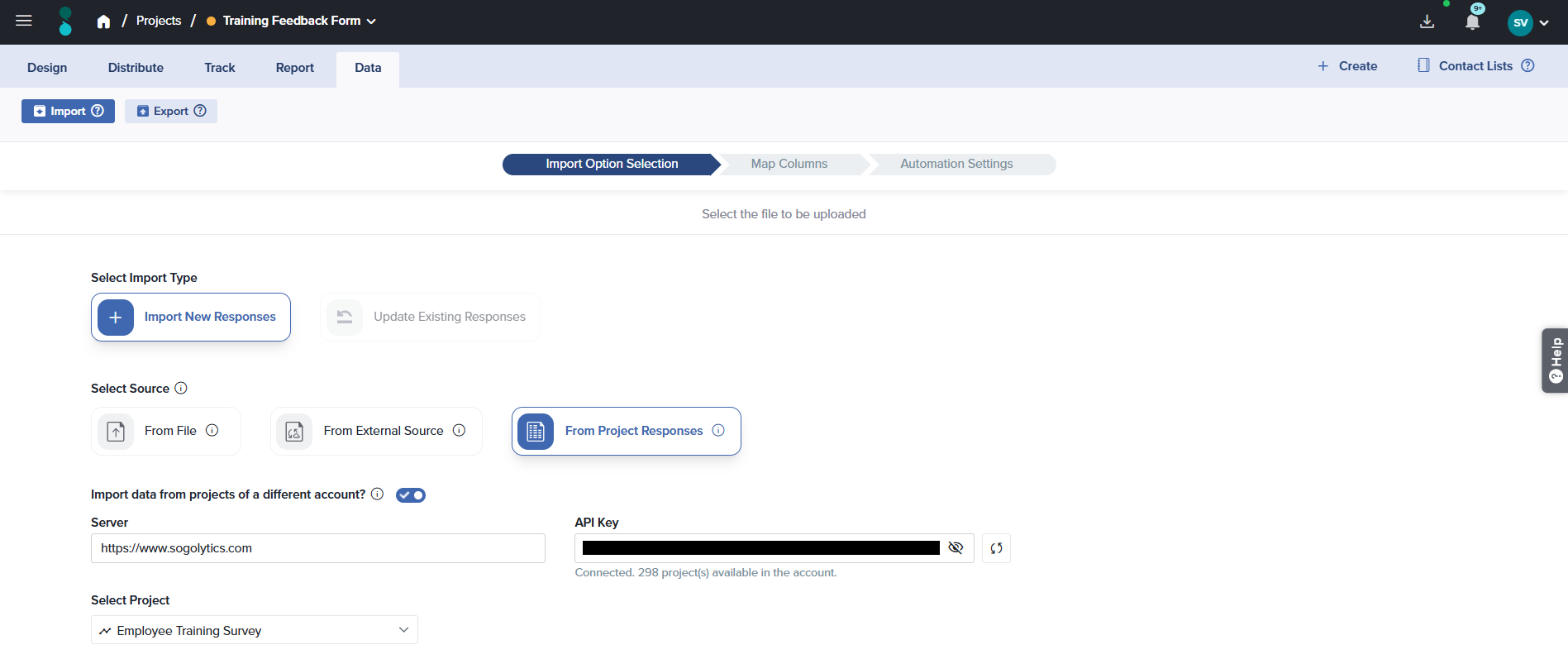
- Turn on Import data from projects of a different account?. The Server and API Key boxes appear.
- In Server, check the address of the server the other account is on. It is filled in with the server you are signed in to, such as https://www.sogolytics.com.
- In API Key, enter the other account’s API key. Click the eye icon to show or hide it.
- Click the verify icon next to the box, or press Enter. The result is shown as described in the table below.
- Under Select Project, select the project whose responses you want to import, then continue from the import options as described above.
| Message | Meaning |
| Connection successful! Your server and API key have been verified. Select a project from the Project dropdown to continue. | The details are correct. The number of projects available in the account is also shown. |
| Authentication failed. The server or API key is invalid. Please verify and try again. | The API key is incorrect. |
| Unable to reach the server. Please try again. | The server cannot be reached. |
- Importing from a different account is available only when it is enabled for your account. If the option is not displayed, contact your account manager.
- All projects of the other account are listed except Anonymous projects. Make sure you select the correct project.
- The API key is stored securely with the rule and used each time it runs. If the key is regenerated in the other account, the rule can no longer read the source project.
- If the project does not belong to the account of the API key, The selected project does not belong to the account the API key was provided for. is displayed when you save.
Good to Know
- Only projects in your account are listed, except this project, Polls, Anonymous projects, and projects in the Recycle Bin. Sub-users see only the projects they have permission to access. The source project does not need to be the same project type.
- Only completed responses are imported, plus partially completed responses when that option is on. Test responses and responses excluded or deleted in the source project are not imported.
- Answers are matched to this project’s answer options by their text. Different answer options in the source project are handled as mismatches.
- Map at least one question. A rule cannot be saved without a mapped question.
- Responses are linked only to records that already exist in the selected Directory or Activity. Importing does not create or update Directory contacts. Directory linking is not available for Anonymous projects and requires a Directory subscription.
- After a rule is created, its source project, import option, and source account cannot be changed. To import from a different project, create a new rule.
- Initial Sync is not available for project responses rules.
- If the source project is deleted, the rule fails and an alert explains why. Edit the rule and select a different source project to resume importing.
- If this project reaches its response limit, the rule stops importing until the limit is increased.
- If the rule name is already used in the project, Automation rule name already exists is displayed.
See also
Subscribe for tips and insights to drive better decisions!