


Raw Responses Widget
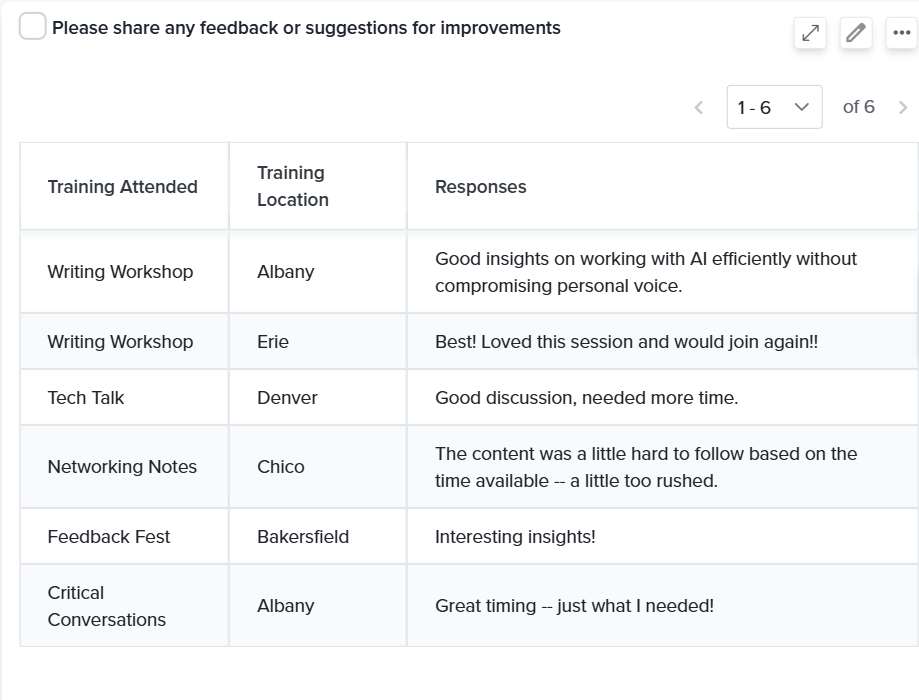
The Raw Response Widget displays complete participant records directly on your Custom Dashboard. It supports all question types (excluding Attachment and Signature), providing a comprehensive view of individual responses alongside configurable identifiers that link each response to its context — such as the respondent, the activity, or the feedback recipient.
 Adding a Raw Response Widget
To add a Raw Response Widget to your Custom Dashboard:
- From the widget menu on the left, select Raw Response and drag it onto the canvas.
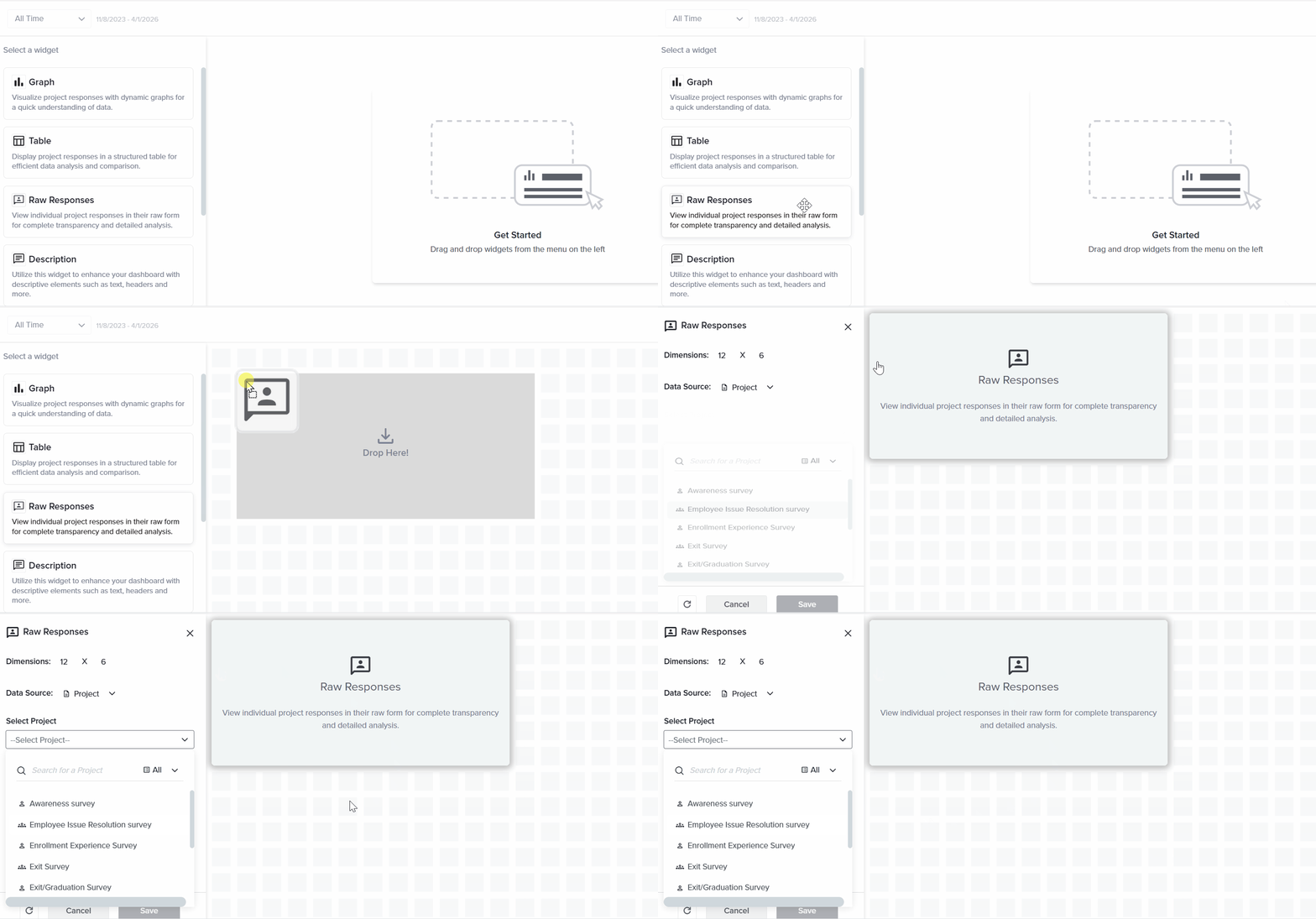
- Select the project from the Select Project dropdown.
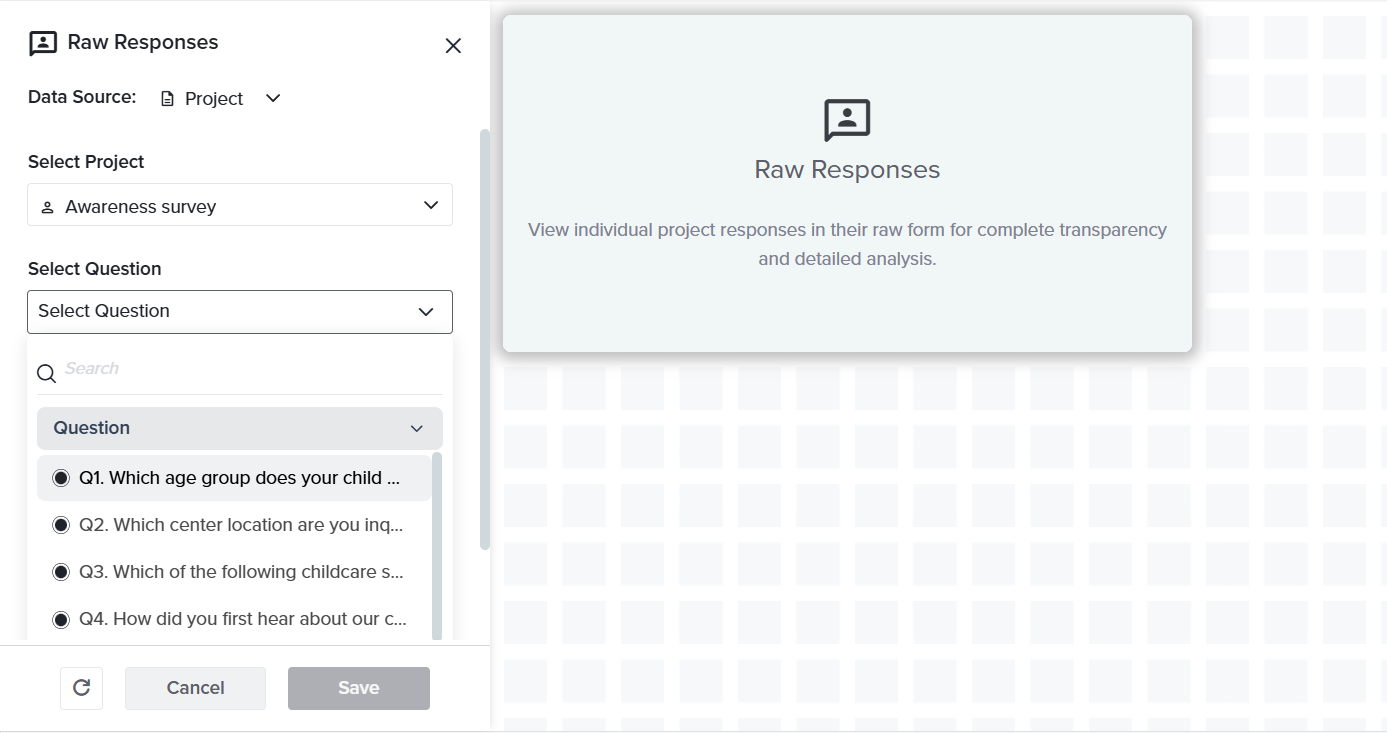
- Choose the question or questions to display. All supported question types from the selected project are available for selection.
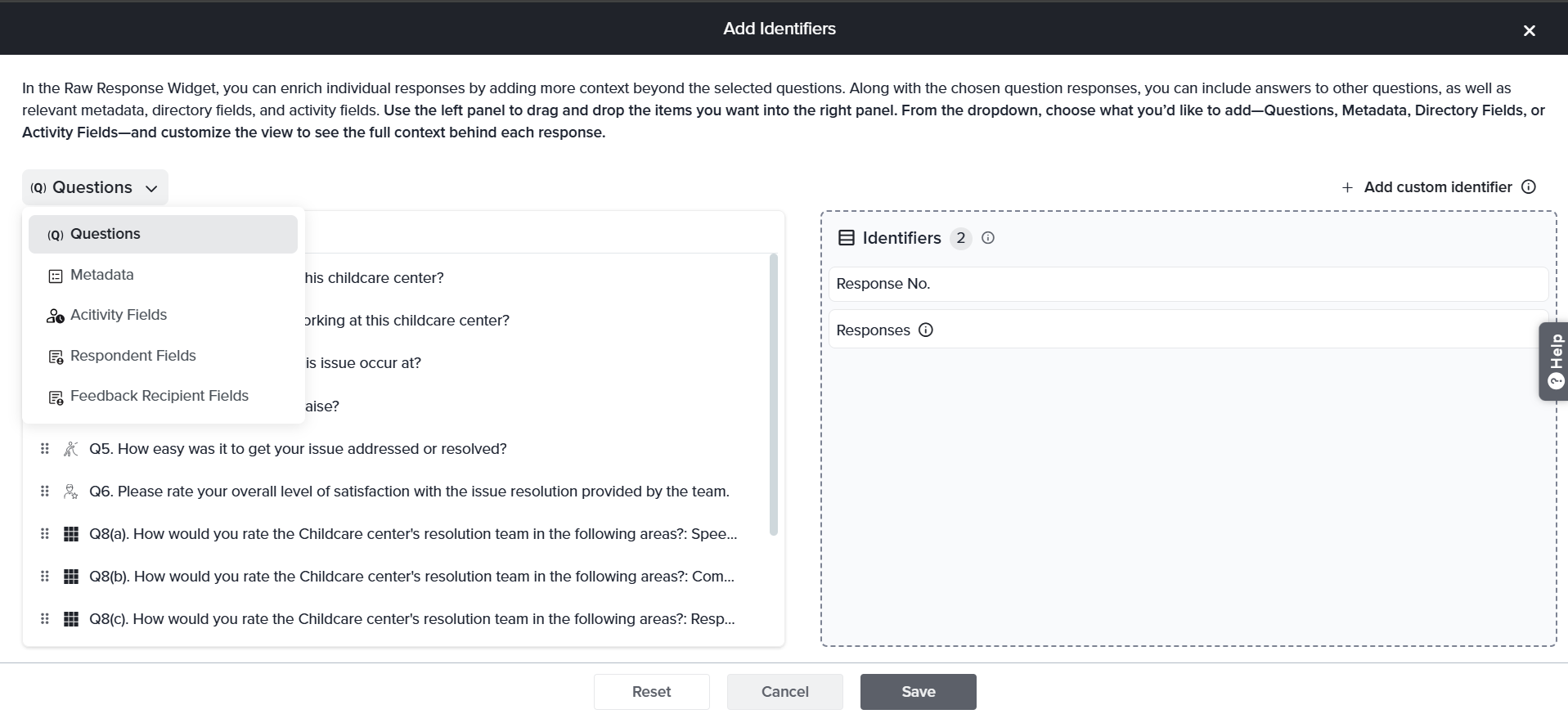
- Add identifiers to provide context for each response. Select from the available identifier types described in the Identifiers section below.
- Configure Advanced Settings as needed.
- Click Save.
Note: Raw Response Widget sizes range from a minimum of 6×4 to a maximum of 24×24. Resize the widget by dragging the lower-right corner.
Supported Question Types
The Raw Response Widget supports all question types except Attachment and Signature. This includes:
- Text and open-ended: Text Box (all formats), Multiple Text Box, Essay.
- Single-select: Radio Button, Radio Button with Other Option, Drop Down with Other, Horizontal Radio, Image Choice.
- Multi-select: Check Box (including Other and None of the above), List Box (including Others), Multiple Drop Down.
- Rating and scale: Rating Scale, Rating Radio Button, Rating Drop Down, Symbol Rating Scale, Smiley Rating, Likes/Dislikes.
- Grid questions: Radio Grid, Check Box Grid, Rating Radio Grid, Rating Drop Down Grid, Rating Scale Grid, Matrix Grid (all types).
- Metric questions: NPS, CES, CSAT, KDA.
- Other: Demographics, Drill Down, Numeric Allocation, Ranking.
Identifiers
Identifiers are additional columns displayed alongside each response that provide context about who submitted the response, the activity it relates to, and other relevant attributes.
- To add identifiers, click Add Identifier in the widget settings panel, choose the identifier type, and select the specific fields to include. Identifiers appear as columns in the widget and can be reordered by dragging them into the desired position.
- For Rating questions, you can change the identifier display by clicking the gear icon:
- Text — displays the rating label (for example, “Strongly Agree”).
- Weight — displays the numeric weight assigned to the rating.
- Both — displays both the label and the weight.
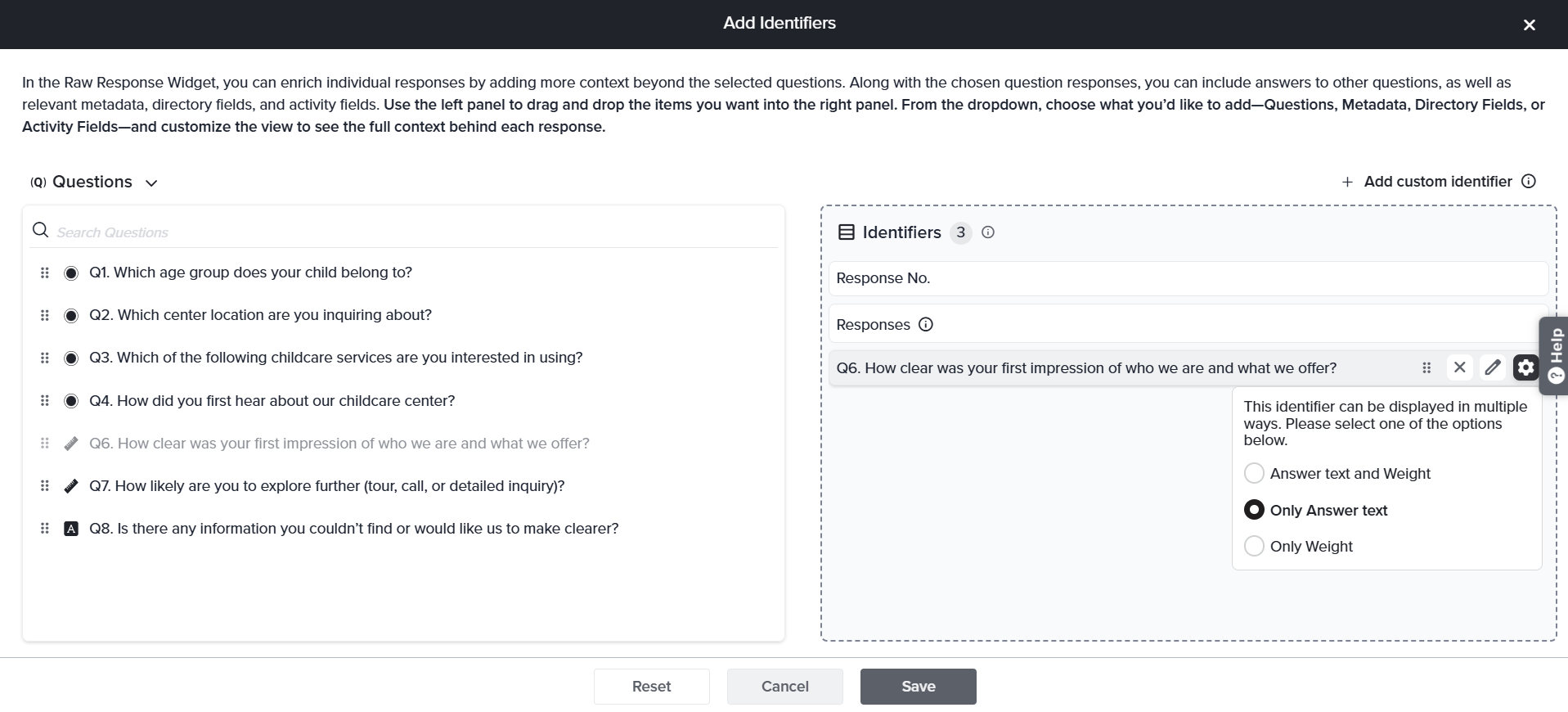
The following identifier types are available:
- Question/Answer: Displays the respondent’s answer to another question in the same project as a contextual column alongside the primary response.
- Metadata: Select project metadata fields, such as response ID, submission date, completion time, or channel, to display alongside each response.
- Activity Fields: Link each response to the specific activity in the Directory for which feedback was provided. Activity Field identifiers bridge the gap between the raw response and the feedback context — for example, connecting a support ticket response to the specific ticket number or case ID.
- Feedback Recipient: Link responses to the specific individual or entity being evaluated. This is useful when feedback is collected about a particular person, team, or location from a different directory — for example, identifying which agent a customer rated in a support satisfaction survey.
- Respondent Fields: Link responses back to the individual who provided the feedback using respondent-level attributes from a particular activity. This enables direct identification of who submitted each response.
Note: Up to 100 identifier columns can be added to a single Raw Response Widget. Reorder columns by dragging them within the identifier list.
A training coordinator collects post-session feedback from employees. Using a Raw Response Widget with Feedback Recipient set to the trainer’s name and Activity Field set to the session title, the coordinator can see each open-ended comment alongside exactly which trainer and session it refers to — without cross-referencing separate reports.
Custom Identifiers
In addition to the standard identifier types, you can create custom identifier columns with configurable calculations applied to numeric and rating questions.
To add a custom identifier:
- Click Add Custom Identifier in the top-right corner of the Identifier window.

- Select the source question. The question must be a numeric or rating question type.
- Choose the calculation method:
- Sum — total of all values.
- Count — number of responses.
- Mean — average value.
- Mode — most frequently occurring value.
- Median — middle value when responses are sorted.
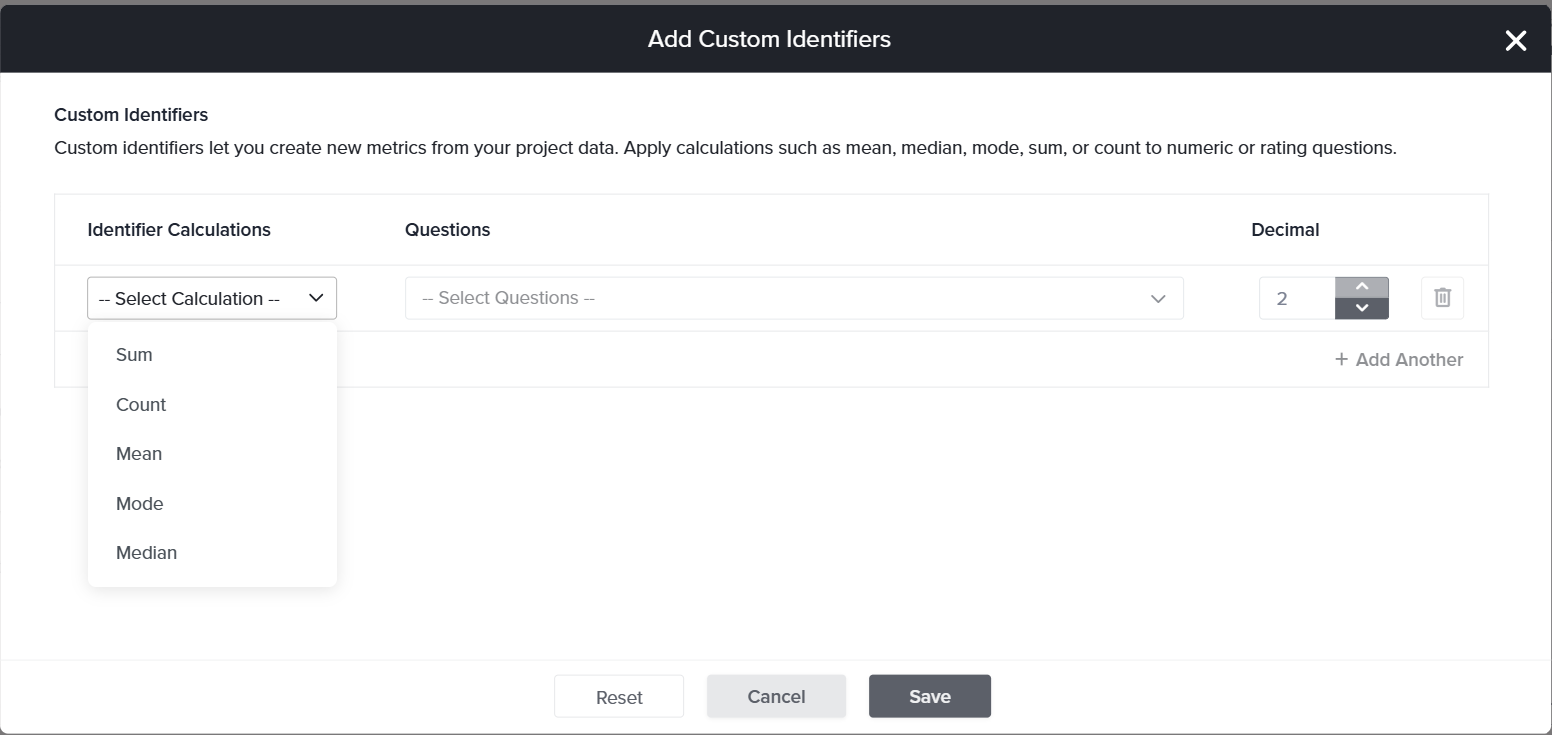
- Click Save to add the custom identifier as a column in the widget.
Advanced Settings
The following options are available under Advanced Settings:
- Include ‘Did Not Answer’: When enabled, responses where the question was skipped are included in the widget.
- Include ‘Incomplete Responses’: When enabled, partial submissions are included in the widget. By default, only complete responses are displayed.
- Filter: Apply filters to display only responses that meet specific conditions.
Note: The Raw Response Widget can be exported to Excel using the Download option in the widget’s three-dot menu.
Subscribe for tips and insights to drive better decisions!