More room to create, easier access to familiar tools, and new ways to make survey design your own.
Building a great survey takes thought. Finding the tools you need to build it shouldn’t.
That’s the idea behind the new Sogolytics Design experience: a refreshed, more streamlined workspace that makes it easier to create, customize, and manage your projects.
In our recent Learn More: Meet the New Design Experience webinar, Melissa Krut, SVP of Success, and Bria Samuels, Client Success Specialist, gave users a first look at the transformed interface.
The best news? While Design may look different, the functionality you rely on is still there. And some everyday tasks are getting easier.
A Fresh Workspace with More Room to Create
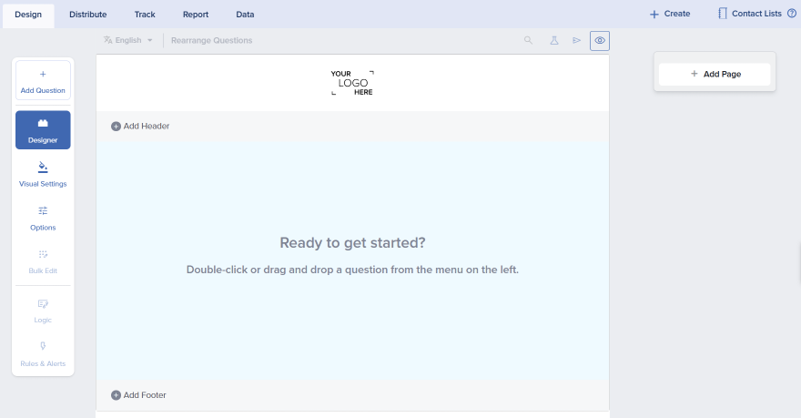
The first thing you’ll notice is the new layout.
Instead of spreading tools across the workspace, the updated interface brings key functions into more organized menus, giving your project canvas more room.
You’ll find familiar options for adding questions, customizing your survey, managing Logic, and accessing other project controls. Some tools have moved, but the workflows will feel familiar once you’ve had a chance to explore.
The refreshed canvas also makes page boundaries more visible, helping you understand the structure of your survey as you build.
Add Questions with a Click – or Drag and Drop
Adding questions is one of the most common tasks in Design, and the new experience gives you more flexibility.
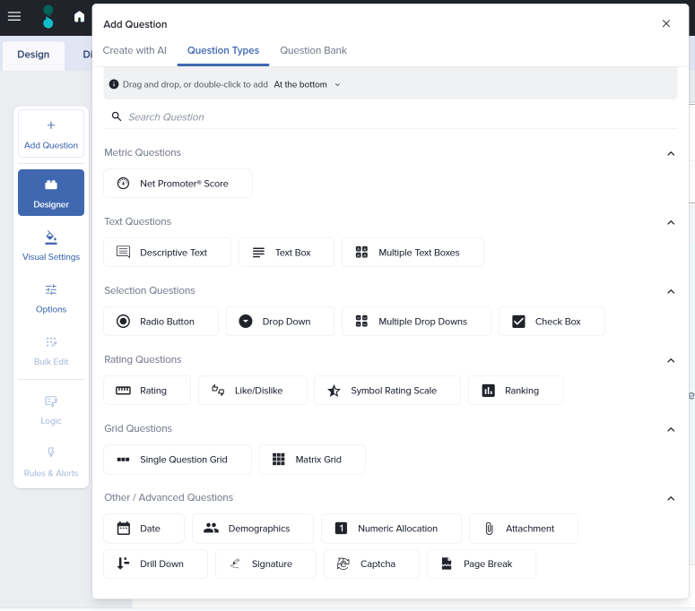
You can still drag and drop question types into your survey, but now you can also double-click to add a question. You can choose whether it belongs at the top or bottom of a page, or after a particular question.
Question types are grouped into categories such as Metric, Text, Selection, Rating, Grid, and Other & Advanced, making it easier to browse your options.
You’ll also notice that some question types have been consolidated. For example, instead of searching for a separate Image Choice question, you can select a Radio Button question and choose how its answer options should appear. Rather than each individual Grid question being listed, you can now choose and customize either a single-question Grid or a Matrix Grid question.
It’s a simpler way to find what you need without sacrificing flexibility.
Customize Questions Without Losing Your Place
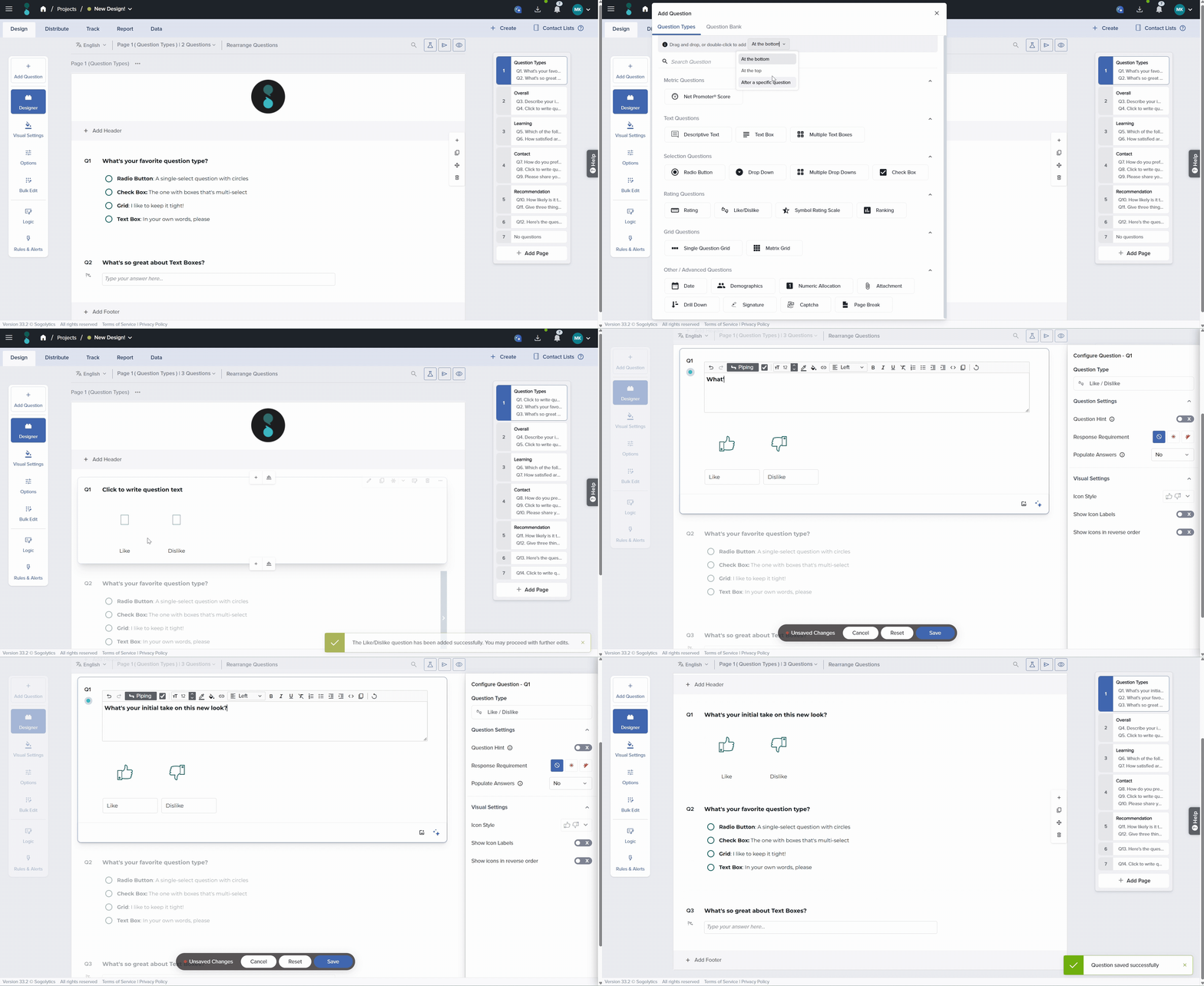
Once you’ve added a question, its configuration options appear in a panel on the right.
From there, you can adjust answer choices, change the question type, add hints, set mandatory responses, and explore additional settings based on the question you’ve selected.
Need to add or remove an answer option? You can do that directly. Prefer working with a full list of answers? Bulk editing is still available.
There are also improvements to how you work with images and formatting. You can use images as answer choices, add media to a question, or associate media with individual answers.
And here’s a particularly welcome improvement: You can format answer-option text directly. If you’ve ever used HTML to bold part of an answer choice, you’ll appreciate having a more straightforward way to accomplish the same thing.
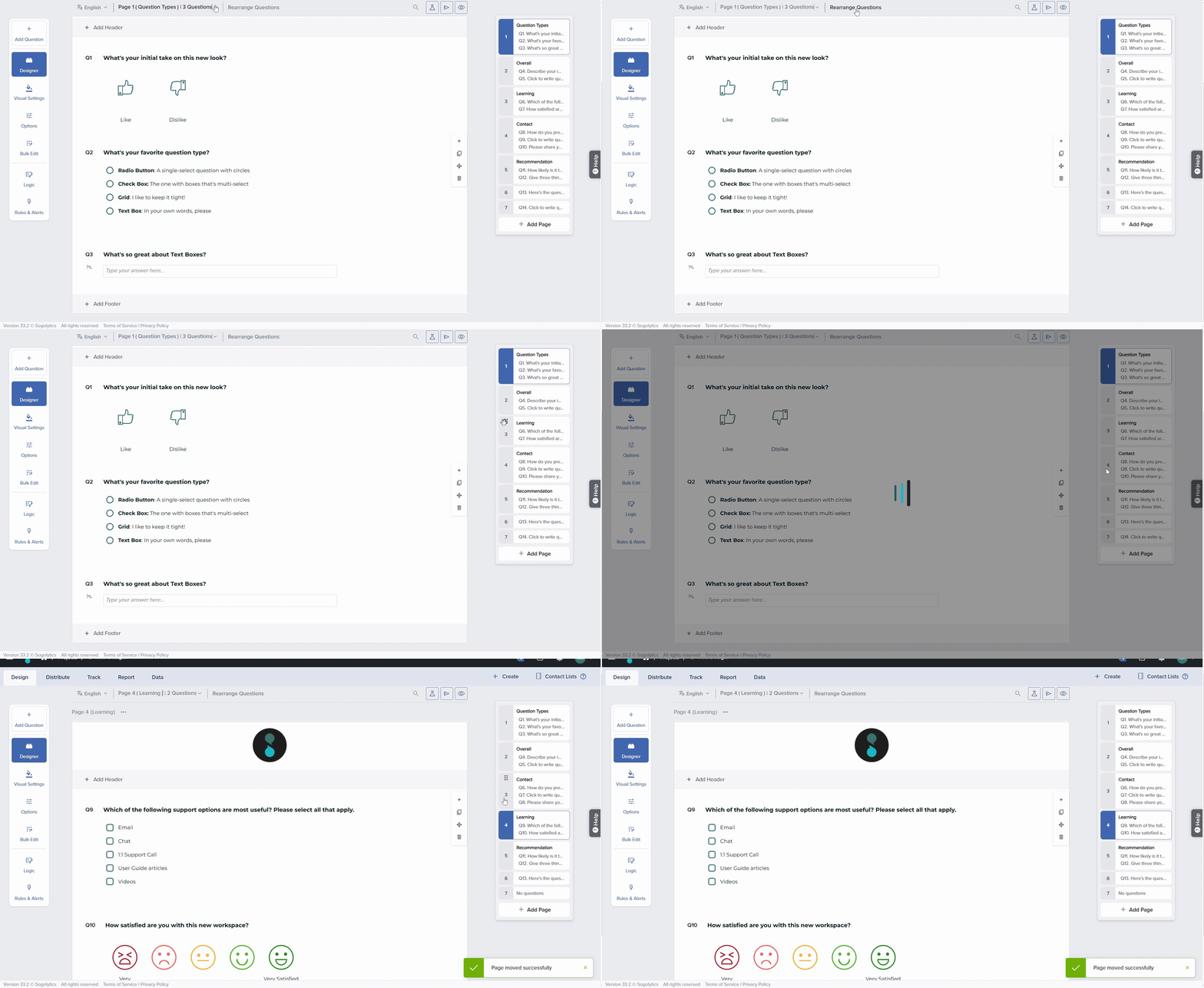
See Your Project at a Glance
As surveys grow, keeping track of pages and questions becomes increasingly important.
The new Quick View panel gives you a high-level look at your project’s pages, making it easier to jump between sections and rearrange their order.
You can also continue using familiar tools to move individual questions within your project.
Quick View is one of the areas expected to evolve further, with additional question-level functionality planned for the future.
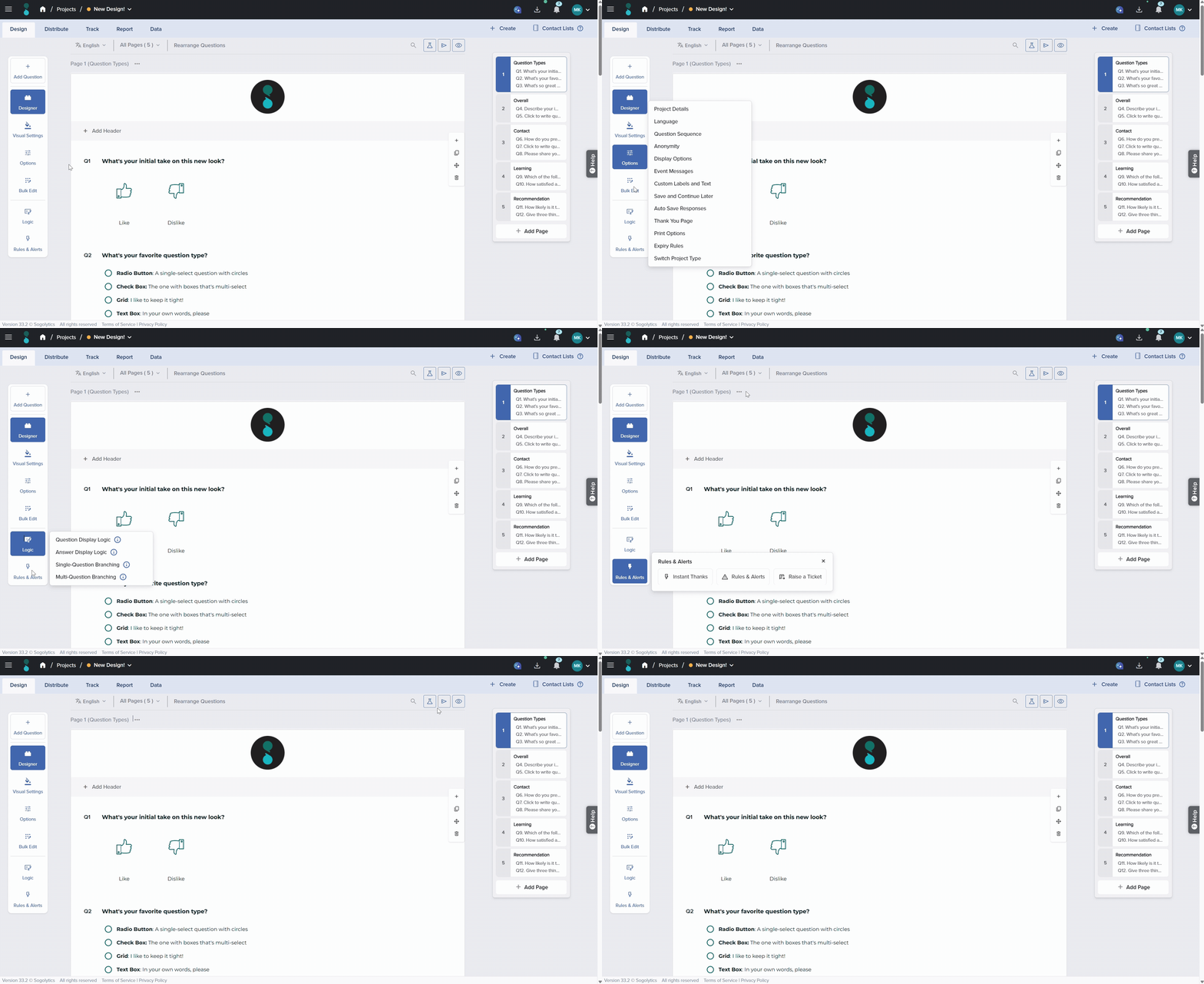
Familiar Functionality, New Locations
If you’re wondering what happened to your favorite tools, don’t worry!
Options, Bulk Edit, Logic, Rules & Alerts, Preview, and other familiar capabilities remain available. Some have new locations or icons, while other parts of the experience are scheduled for their own updates.
The webinar also highlighted several smaller changes, from where you’ll find answer piping to how you add a page or access question actions.
The best way to get comfortable? Explore a sample project, try adding a question, and see where your familiar tools now live.
What Happens to Your Existing Surveys?
One of the most important questions raised during the webinar was also one of the easiest to answer: You don’t need to rebuild your existing projects.
The transformation focuses on the Design experience for project creators. Your existing projects remain available, and this initial interface update does not change how participants experience your surveys.
You can continue working with the projects you’ve already built while getting comfortable with the new layout.
And We’re Just Getting Started…
The updated Design workspace is one part of a broader transformation.
Additional improvements are planned for Visual Settings, Text & Translations, Rules & Alerts, Assign Scores, Create Project, Template Bank, Logic, and more.
These updates will arrive over time. In the webinar, Melissa highlighted the expanding role of Visual Settings, including controls that influence how participants interact with surveys, while Bria shared her interest in upcoming Text & Translations improvements.
There’s plenty more to look forward to!
Get Ready to Explore
As shared during the webinar, the new Design experience began rolling out at the end of October, with availability expanding gradually across accounts and packages.
Your account may not have access immediately, and some interface details may continue to evolve as the roll-out progresses.
In the meantime, you can get a head start by watching our guided walkthrough.
Watch Learn More: Meet the New Design Experience
Want some extra help? Explore our User Guide, connect with your Account Manager, or schedule a session with our Support team.
We can’t wait to see what you create next!