You don’t want to waste anyone’s time – neither respondents’ nor your own. So why ask people to answer irrelevant questions? Instead, use single question branching to show survey respondents only the questions that pertain to them.
Why Irrelevant Questions Hurt Your Survey Data
It isn’t always necessary to ask all respondents every single question. Sometimes, doing so wastes time and muddies your data collection.
For example, let’s say you’re running a survey about fast food restaurants. You ask, “Have you ever eaten at McDonald’s?” If the participant answers in the affirmative, it makes sense to ask, “Which of these McDonald’s items do you order most often?” So far, so good.
But if the respondent has never purchased a meal at McDonald’s, why ask for a favorite item? If you insist on an answer, the respondent will choose one at random, making your data less trustworthy. At best, the survey could include an option to account for the “I never eat here” responses — and then you need to find ways to work around those “Nevers” when you analyze the results.
Plus, every researcher wants to minimize the time respondents spend on a survey. It’s silly to waste someone’s time answering an irrelevant question (particularly when you multiply that time by hundreds of respondents), and it can irk people enough to make them quit.
In other words: Don’t ask dumb questions.
The obvious solution is to control the survey flow, so that respondents are only asked about favorite McDonald’s food items if they eat at McDonald’s.
How Survey Branching and Skip Logic Control the Flow
With a good online survey tool – by which, of course, I mean Sogolytics – you have several ways to control survey branching, sometimes called skip logic.
The simplest way to do this is to show-or-skip an entire survey page based on answers to a single question (“Have you purchased flowers online?” where the YES answer directs respondents to a page full of questions about their buying experience) or based on the answers to multiple questions (the secondary page is shown only if the respondent purchased flowers online and is female). Everyone else jumps over that buying-experience page – invisibly, from the respondent’s point of view; they don’t know that page exists.
That’s an ideal solution when you have a package of related questions you can put on a single survey page. But it’s problematical in other situations, such as a single follow-up, where adding another page may be visual overkill. For example, consider these questions:
- Are you willing to volunteer? If yes, please provide your email ID.
- Did you use the free version before signing up for a paid subscription? If yes, what influenced your decision to sign up for a paid version?
- How much would you expect to pay for the type of widget we just described? If respondent selects any of the three more-expensive choices, ask a question about payment options.
- How did you learn about our service? If the answer chosen is “referral,” show a text box to ask for the referral’s name and email ID.
When to Use Single Question Branching Instead
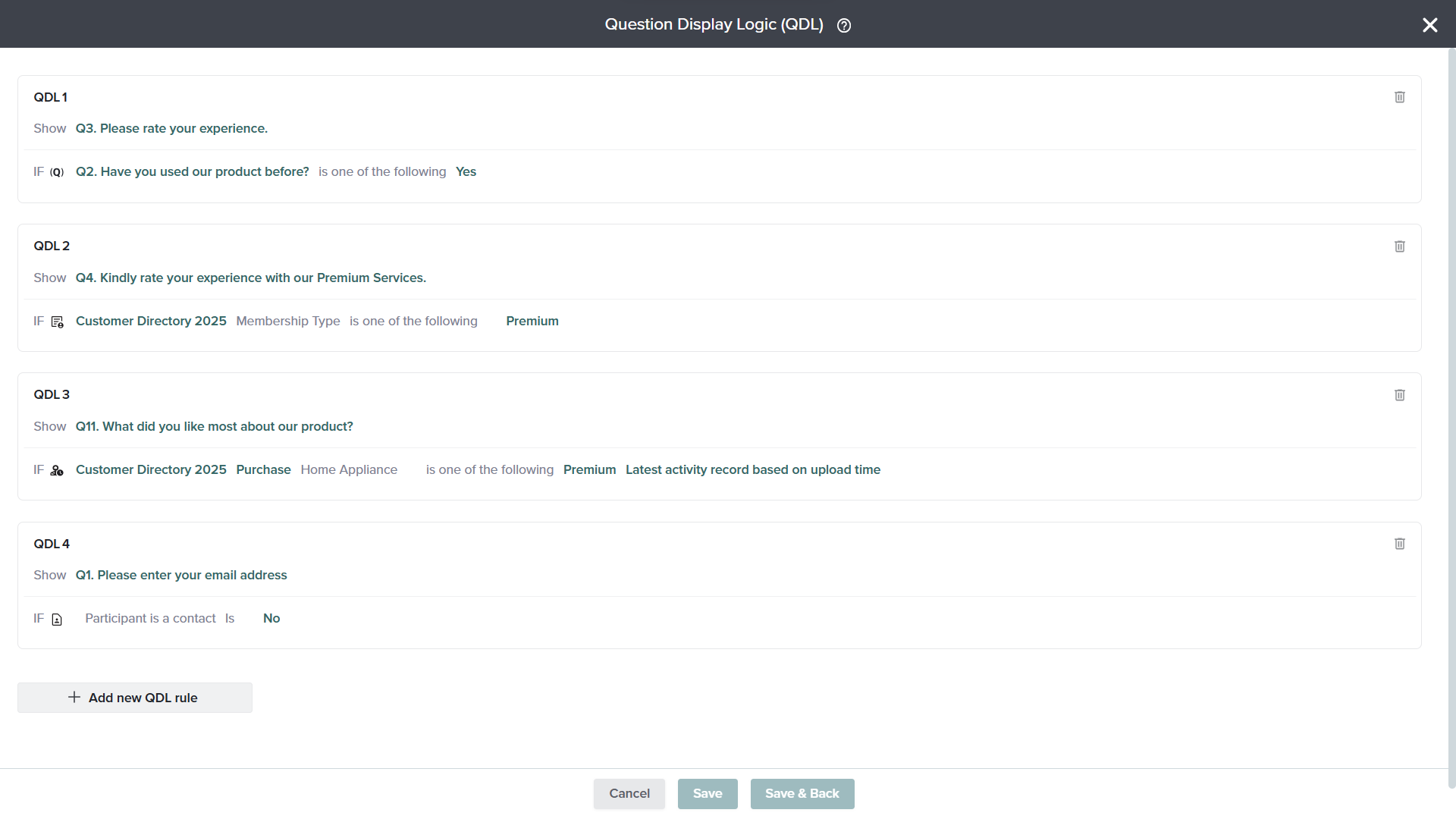
For these situations, consider using single question branching, which shows or hides questions on the same or subsequent pages based on answers to a designated question.
Setting Up Single Question Branching in Sogolytics
Here’s how to set it up.
Design your survey the way you ordinarily would. Include all the questions you intend to display only under certain conditions, placing them in the order you want them to appear.
In the Design tab, navigate to Project Logic in the left-hand menu and select Single-Question Branching.
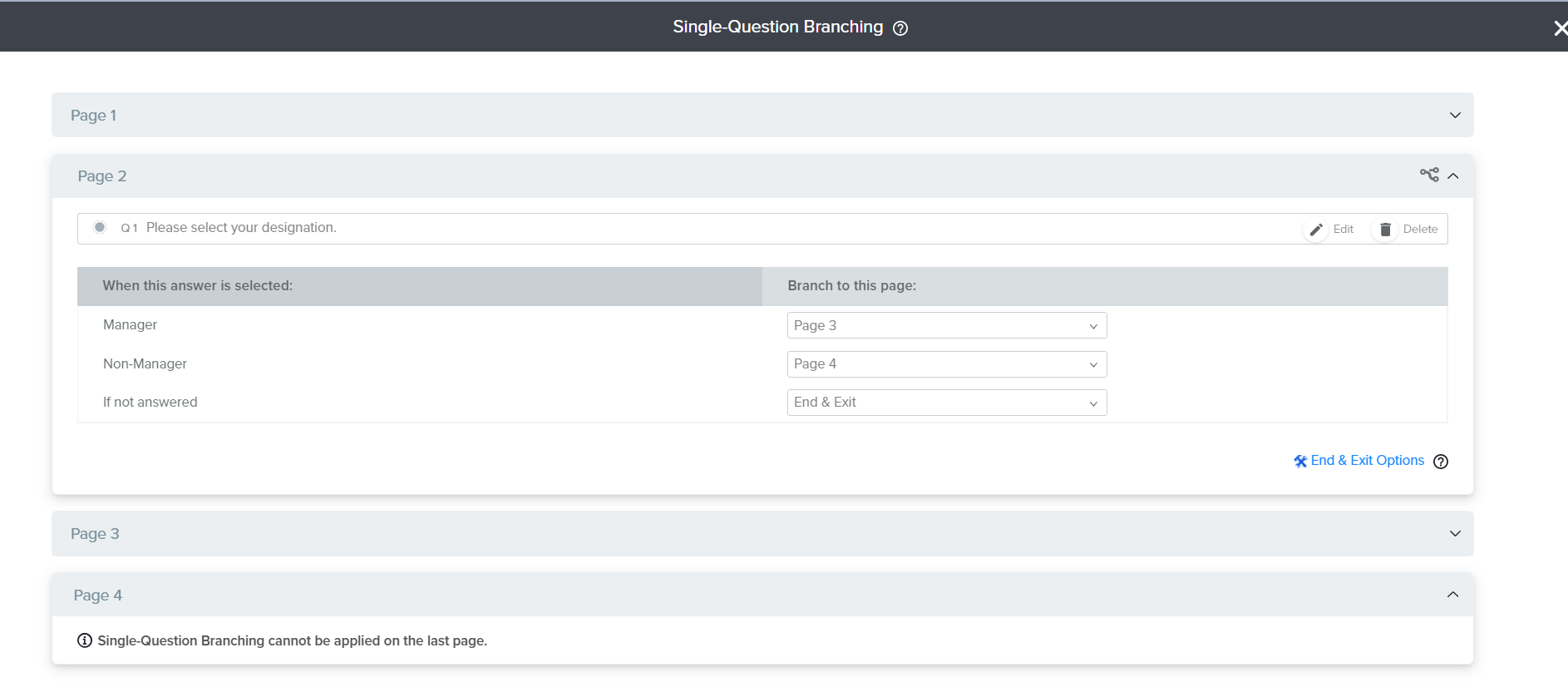
This opens the branching panel, where you’ll define your logic rules. Start by selecting the trigger question, the question whose answer determines what happens next. In this example, that’s the question asking whether the respondent upgraded their subscription.
Next, select the answer option that should activate the rule (for example, “Yes”). Then define the action: direct respondents who answered “Yes” to the follow-up question asking why they upgraded, while respondents who answered “No” skip past it.
You can add multiple rules within the same branching setup to handle different answer paths. Each rule follows the same IF/THEN structure: if a respondent selects a specific answer, they’re directed to a specific destination.
Once your rules are saved, use Preview mode to test the flow. Selecting “Yes” for the trigger question should surface the follow-up; selecting “No” should skip it entirely, invisible to the respondent.
It’s possible to get “fancy” with this feature, such as displaying the follow-up question inside the criteria question, but the basics are powerful enough. Certainly, using Single Question Branching makes the survey shorter and more relevant to the respondent!